johns66888899
Participant
Feb 25, 2018 1:35 AM UTC
Answered

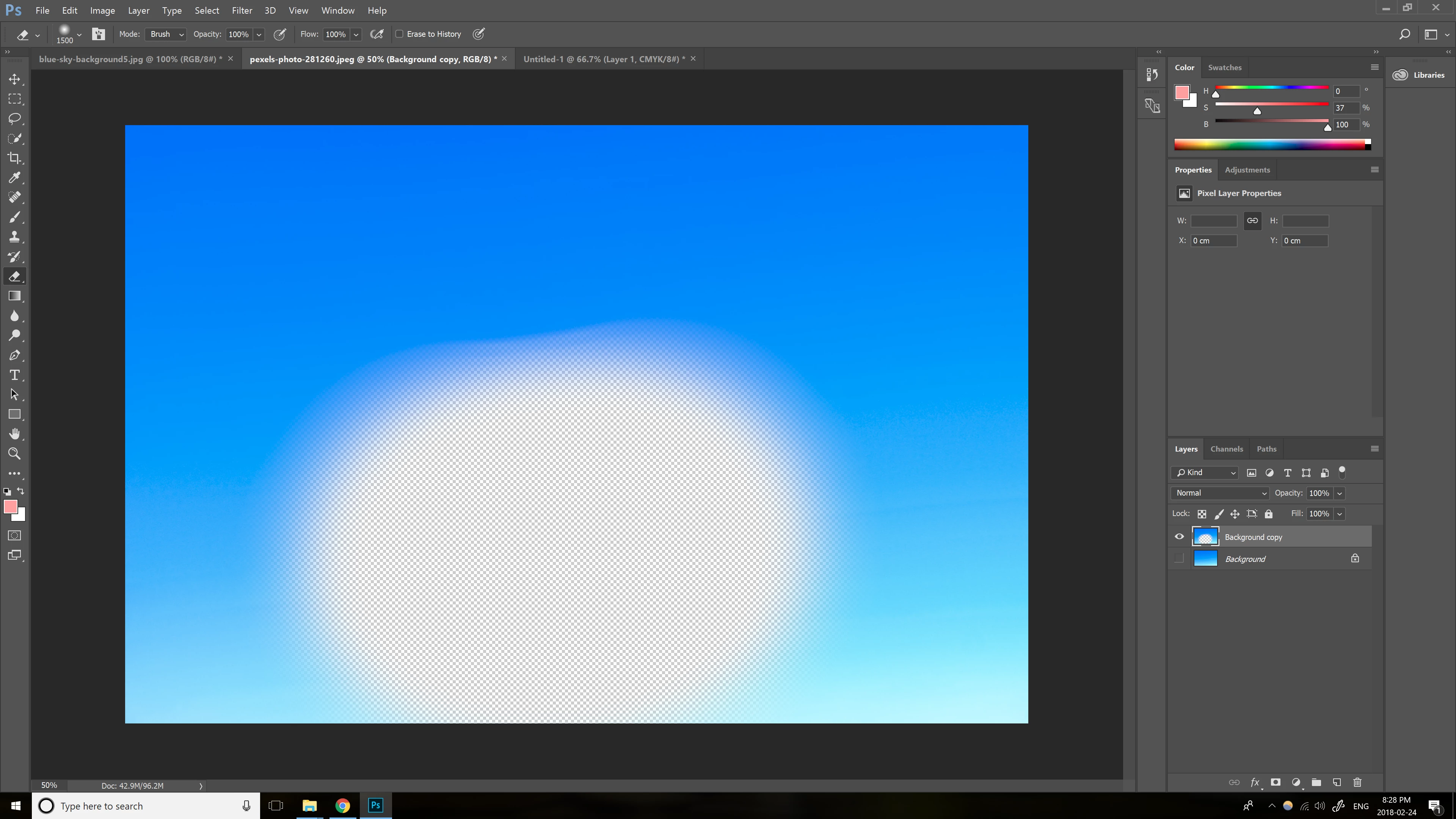
Brush & Eraser with 0% Hardness leaves an edge!!!! Please look at picture!

Hi, I recently started having this problem with my erasers and brushes in Photoshop. Instead of leaving a smooth fade, when the basic brush and eraser is set to 0% hardness, a very vivid edge/line is left around and there is no smooth blend.

Please help me figure out how to fix this.

    This topic is closed to new replies. Start a new post to keep the conversation going.
    davescm
    davescmCorrect answer
    Community Expert
    Feb 25, 2018 9:21 AM UTC

    Hi

    I 100% agree with Rayek's advice on using a 16 bit workflow.

    However, I would not normally check "Blend RGB colours using gamma 1" when working in 8/16 bit color depth and the normal Adobe/sRGB color spaces. This can lead to several other negative effects e.g. Photoshop will only do normal blending mode in the gamma specified and a 8 bit workflow in particular does not have the precision needed to work in gamma 1.0. 

    There are a few other things to check though.

    Is the harsh edge only visible against the transparency checkered background?.  There is a display artefact in Photoshop which shows banding and hard edges against that transparency background. It is not present in the resulting image though.  You can easily check by putting a temporary solid layer at the bottom of the layer stack (say solid grey or white). If the harsh banding disappears then you are seeing that artefact.

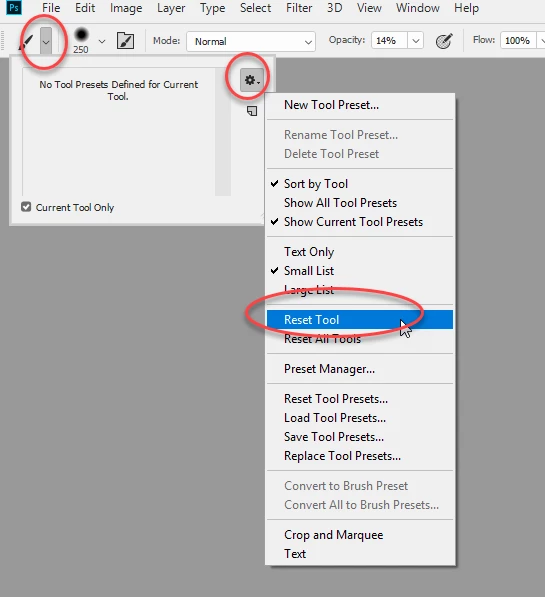
    The second - if your brushes are acting abnormally, just to be sure, try resetting the brush tool 
    Dave

    12 replies

    Participant
    Mar 26, 2021 4:45 PM UTC

    This is what worked for me. Set the softness in the brushes panel located to the left of "mode" in the ribbon at top under menu ribbon.

    Translate
    Participating Frequently
    Jul 21, 2020 11:49 AM UTC

    Hi all,

    I have the same problem with a black background, a soft brush with bright color and hardness set to 0% - nothing else!

    Additional Brush Settings:

    Blending Mode: Normal

    Opacity: 100 %

    Flow: 100 %


    Image Size is 2000 x 3200 @ 300dpi


    Photoshop CC 2020 V 21.2.1


    And this is the result with one Click...

    (Enlarges the picture to see the edges better!)


    There are also ugly edges...


    None of the tips here solve the problem...


    Thx for your answers in advance...


    Frank


    Translate
    Known Participant
    Jul 21, 2020 11:53 AM UTC

    Could anyone of you Guys tell me what version you work on? Is it the just released bug-fix 21.2.1 (there were several issues) or are you using an older version?
    I want to make sure that I don't run in another problem with the update to 21.2.1 after my previous rollback to 21.1.2 (my graphic card wasn't detected anymore)

    Translate
    Participating Frequently
    Jul 21, 2020 11:59 AM UTC

    Hi,


    I use the newest Update from today - Photoshop CC 2020 V 21.2.1...


    But this issue was also in the versions before...


    Greets Frank

    Translate
    Participant
    Apr 30, 2020 12:03 PM UTC

    I am having this exact problem, and it's driving me up the wall.  It's a new install of PS 2020 on a new PC. All the brush settings are correct, and adjusting the bit depth or gamma blending didn't help.

    Translate
    Participating Frequently
    Jul 21, 2020 8:39 AM UTC

    me too!

    Translate
    Participant
    Jul 22, 2020 12:05 AM UTC

    Turns out that my monitor is fault.  The LG Ultrawide monitors have had this issue since they hit the market, and it looks unlikely to ever be fixed.  The saved files don't show the edges/banding, so all I can do is try work around it.

    Translate
    Participant
    Apr 20, 2020 10:17 PM UTC

    Hello Dave!
    Im having the same problem, my brushes are on 0% and they are showing horrible edges, some sort of waves, i tried reseting the brushes as you mentioned before and it didnt work, I tried to import the images on 16bit and work on it as 16bit but the problem is still showing, it shows in brushes when i paint and in clone stamp. also shows if i painted in a color on a 100% opacity full color and then brought down the paint layer opacity down, Ill see weird brush waves all over as well

    ..

    Translate
    johns66888899
    Participant
    Feb 26, 2018 12:59 AM UTC

    Thank you so much for your thorough help! I reset my brushes, but I think you're right about the transparency issue. I don't think I noticed it was the issue because on dark backgrounds, like dark blue and black, the soft brushes left a hard edge.

    Translate
    rayek.elfin
    Legend
    Feb 25, 2018 7:49 AM UTC

    Reading her post, I assume the OP wants the opposite: her soft brushes result in a hard edge, which is not supposed to happen.

    1. Change your Color settings: Edit-->Color Settings, and check Blend RGB Colors Using Gamma 1.00
    2. Change your image bitdepth to 16bpc. Image-->Mode--->16bits per channel.
    3. load up the basic brushes brush set, and use those.

    Avoid painting in 8bit mode in Photoshop - it doesn't work that well. Very noisy blending in the edges.

    Photoshop doesn't allow the user to control the softness curve, and create a custom transfer curve for the edge blending. Resulting in less than ideal edge blending in cases. Krita allows for a custom softness curve.

    PS I stopped drawing and painting in Photoshop years ago. I now use Krita and ClipStudio instead.

    Translate
    davescm
    Community Expert
    davescmCommunity ExpertCorrect answer
    Community Expert
    Feb 25, 2018 9:21 AM UTC

    Hi

    I 100% agree with Rayek's advice on using a 16 bit workflow.

    However, I would not normally check "Blend RGB colours using gamma 1" when working in 8/16 bit color depth and the normal Adobe/sRGB color spaces. This can lead to several other negative effects e.g. Photoshop will only do normal blending mode in the gamma specified and a 8 bit workflow in particular does not have the precision needed to work in gamma 1.0. 

    There are a few other things to check though.

    Is the harsh edge only visible against the transparency checkered background?.  There is a display artefact in Photoshop which shows banding and hard edges against that transparency background. It is not present in the resulting image though.  You can easily check by putting a temporary solid layer at the bottom of the layer stack (say solid grey or white). If the harsh banding disappears then you are seeing that artefact.

    The second - if your brushes are acting abnormally, just to be sure, try resetting the brush tool 

    Dave

    Translate
    JJMack
    Community Expert
    Community Expert
    Feb 25, 2018 5:00 AM UTC

    If you want a hard edge have you tried the Pencil or Block option?

    Translate
    JJMack