
Participant
September 13, 2025
Answered

Camera Raw no me funciona en una notebook Omen 16 con Nvdia

  • September 13, 2025
  • 3 replies
  • 167 views

Tengo una notebook HP Omen con Intel(R) Core(TM) i7-14650HX (2.20 GHz) y GPU Nvidia GeForce 4060, no funciona Camera Raw en Photoshop (actualizado). Me dice que se cierra la GPU por un error inesperado al querer usar Camera Raw. Instale varias veces los Drivers, no es por ahi el problema.
Necesito una solucion, no se a quien dirigirme, estoy pagando por un producto que no puedo usar al 100%, se imajinan, compro una notebook bastante costosa con la ilusion de aprovechar al maximo Photoshop y no logro resultados. 
A quien me puedo dirigir? Se les ocurre una solucion? Puede ser un problema de compatibilidad entre la HP Omen, Nvidia y Camera Raw? Quiene es el culpable y cual es la solucion?

Les agradezco.


Correct answer AxelMatt

@danielp35161745  Ok. I see in your screenshot that you're don't use the latest version of the graphic device driver.

Goto NVidia's website and search for the recent version for your graphic device. Make sure that you're using the Studio Version of the driver. Don't use the Game Ready version.

NVIDIA Studio Driver 581.29 | Windows 11 (English version)

Please do a complete new installation of the driver. To perform a clean install of NVIDIA drivers open the downloaded file and select "Custom (Advanced)" installation. In the next screen, tick the box for "Perform a clean installation" and proceed the further steps of the installation.


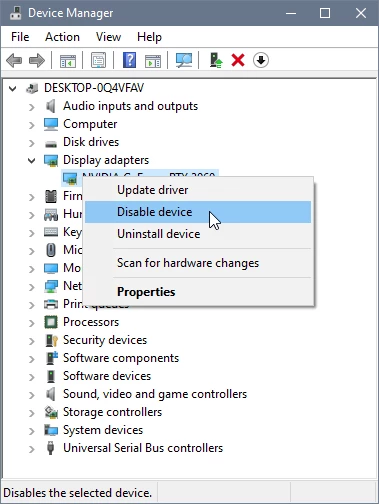
You're using a Notebook. In most of this devices you have buldin a CPU with an internal graphic processor. The internal GPU can sometimes caused several issues. Open the Windows Device Manager, right-click the card's name and choose Disable.  


If this all doesn't help, please provide a copy of your 'System Info'. This can be get from the Photoshop menu item Help > System Info. There's a copy button in the System Info dialog. Press this button and paste the info into your next forum post.


3 replies

AxelMatt
Community Expert
AxelMattCommunity ExpertCorrect answer
Community Expert
September 14, 2025

@danielp35161745  Ok. I see in your screenshot that you're don't use the latest version of the graphic device driver.

Goto NVidia's website and search for the recent version for your graphic device. Make sure that you're using the Studio Version of the driver. Don't use the Game Ready version.

NVIDIA Studio Driver 581.29 | Windows 11 (English version)

Please do a complete new installation of the driver. To perform a clean install of NVIDIA drivers open the downloaded file and select "Custom (Advanced)" installation. In the next screen, tick the box for "Perform a clean installation" and proceed the further steps of the installation.


You're using a Notebook. In most of this devices you have buldin a CPU with an internal graphic processor. The internal GPU can sometimes caused several issues. Open the Windows Device Manager, right-click the card's name and choose Disable.  


If this all doesn't help, please provide a copy of your 'System Info'. This can be get from the Photoshop menu item Help > System Info. There's a copy button in the System Info dialog. Press this button and paste the info into your next forum post.


My System: Intel i7-8700K - 64GB RAM - NVidia Geforce RTX 3060 - Windows 11 Pro 25H2 -- LR-Classic 15 - Photoshop 27 - Nik Collection 8 - PureRAW 6 - Topaz Photo AI
Participant
September 14, 2025
Gracias!!! Funciono, eres un genio!

--
Daniel
Participant
September 13, 2025

Hola, gracias por responder. No es el mismo problema, en mi caso al querer abrir un archivo raw en Phostoshop me aparece esto y no puedo usar ACR. 


En la configuracion de ACR me aparece esto:


Me parece que amerita que algun tecnico de Adobe se interese en el problema, gracias a la comunidad por preocuparse.

AxelMatt
Community Expert
Community Expert
September 13, 2025
My System: Intel i7-8700K - 64GB RAM - NVidia Geforce RTX 3060 - Windows 11 Pro 25H2 -- LR-Classic 15 - Photoshop 27 - Nik Collection 8 - PureRAW 6 - Topaz Photo AI