


Answered
gener7Correct answer
Community Expert
July 23, 2025
I have run into this error before on my Mac. Maybe a few screenshots will help:
Open a Finder window, and from the Go menu, select Go to Folder...
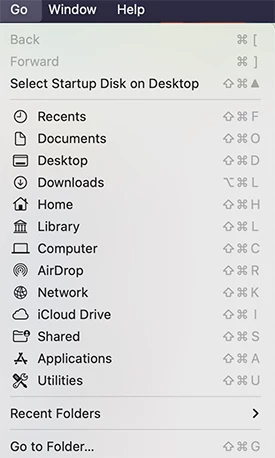
In the dialog that opens, type or select-copy-paste this path in: ~/Library/Application Support/Adobe/CameraRaw/GPU/Adobe Photoshop Camera Raw/ (That curvy dash is called a tilde and is shorthand for your User directory.) Press the Enter key.

This will open the correct directory where you should see the GPU2 or Gpu3 file. Delete it and re-open Adobe Camera Raw. The GPU error dialog will be gone and ACR should be back to normal.

 AdChoices