Participating Frequently
Nov 14, 2026 1:55 AM UTC
Answered

Camera Raw windows are messed up

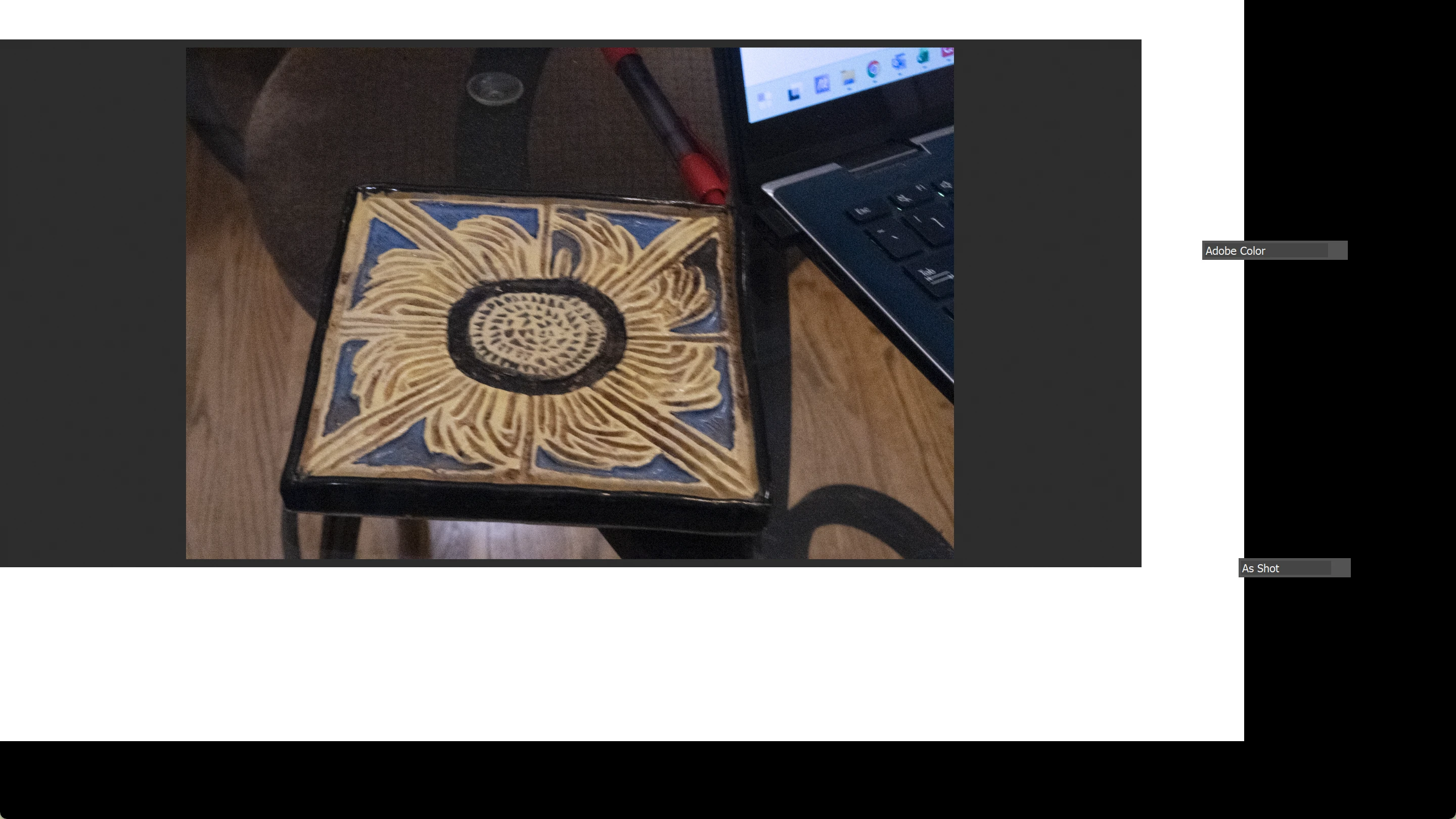
I’m on Windows 11 with Photoshop v. 28.0 and Camera Raw v. 19.0. When I open a RAW image, the Camera Raw window opens and looks like this:

The Camera Raw preferences window is similarly messed up. I’ve used the Adobe Cleanup Tool, reinstalled Camera Raw, and reset the Camera Raw preferences.

Any idea how to fix this problem?

    CORCTON
    CORCTONCorrect answer
    Community Expert
    Nov 14, 2026 3:09 AM UTC

    Hi Mark, sorry you're running into this. The official troubleshooting steps for this kind of Camera Raw display problem are these — please try them in order, and let us know after which step the windows look normal again:


    1. Update Photoshop and Camera Raw to the latest versions.

    2. Update your graphics driver. On Windows, get the latest driver directly from your GPU manufacturer's website (Nvidia, AMD, or Intel).

    3. In Camera Raw, go to Preferences > Performance, choose Custom, and disable "Use GPU for Open and Save".

    4. If the problem persists, disable "Use GPU for image processing".

    5. If it still persists, disable "Use GPU for display".

    6. Disable any third-party graphics accelerators, such as GPU overclocking utilities.


    Source: Adobe Camera Raw graphics processor (GPU) FAQ and troubleshooting: https://helpx.adobe.com/camera-raw/desktop/troubleshoot/acr-gpu-faq.html


    The same page also has a "Reset GPU Support" option under Camera Raw > Preferences > Performance — since you're on Camera Raw 19.0, that's worth trying as well.

    2 replies

    Participating Frequently
    Nov 14, 2026 1:45 PM UTC

    Thanks for the quick response. Updating the drivers with Intel Graphics Software did the trick! Windows was telling me the drivers were up to date, which clearly wasn’t correct.

    Translate
    CORCTON
    Community Expert
    CORCTONCommunity ExpertCorrect answer
    Community Expert
    Nov 14, 2026 3:09 AM UTC

    Hi Mark, sorry you're running into this. The official troubleshooting steps for this kind of Camera Raw display problem are these — please try them in order, and let us know after which step the windows look normal again:


    1. Update Photoshop and Camera Raw to the latest versions.

    2. Update your graphics driver. On Windows, get the latest driver directly from your GPU manufacturer's website (Nvidia, AMD, or Intel).

    3. In Camera Raw, go to Preferences > Performance, choose Custom, and disable "Use GPU for Open and Save".

    4. If the problem persists, disable "Use GPU for image processing".

    5. If it still persists, disable "Use GPU for display".

    6. Disable any third-party graphics accelerators, such as GPU overclocking utilities.


    Source: Adobe Camera Raw graphics processor (GPU) FAQ and troubleshooting: https://helpx.adobe.com/camera-raw/desktop/troubleshoot/acr-gpu-faq.html


    The same page also has a "Reset GPU Support" option under Camera Raw > Preferences > Performance — since you're on Camera Raw 19.0, that's worth trying as well.

    Translate