


Participant
November 26, 2021
Question

Can't edit a path from pen tool because the path window only shows mask options

  • November 26, 2021
  • 4 replies
  • 3102 views

I've spent an obscene portion of my holiday googling how to color a line in Photoshop 2022, so any help would be appreciated!

When I drew this line, the pen tool was set to create a shape, not a mask, which I realize I should have adjusted first, but it's still weird to me that I would have no ability to edit a shape either. All options to either stroke the path or edit the stroke of the shape are unavailable, and the only options for converting the mask I can find are to convert it into a smart shape (which led to several other dead ends), a frame, or rasterized layer.

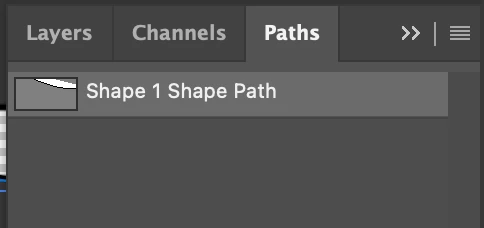
This is all I see in the path window when the layer is selected:
And here is what shows up for properties:
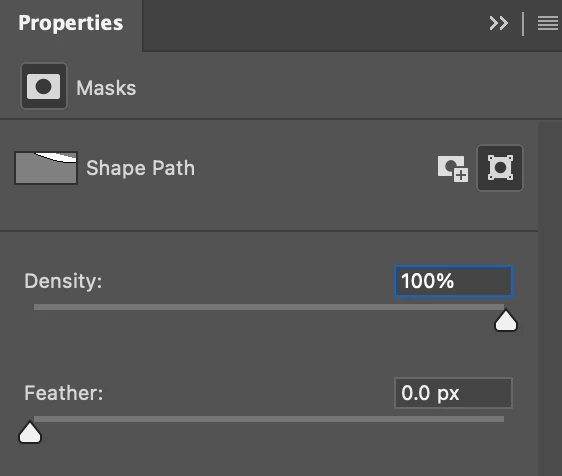
The vector mask cannot be deselected.

How do I disable this feature? All I want to do is edit the color of the lines that I've now based my whole design on.

4 replies

Participant
August 28, 2025

I was also searching a remedy forthis

JJMack
Community Expert
Community Expert
November 27, 2021

You edit the path of a shape  layer with Photoshop vector tools.  No matter how the shape layer was created. Here I have a shape layer I created with the Pen tool. I just create a shape layer  by laying out a closet path using four control points. You can see the Shape's Path the blue line overlay.   I switch to the curvature Pen tool and edit a top line segment.  I then switched to the  Pen +  point add tool and added a control point to a bottom line segment.  Switched to the direct select tool and  moved the control point I just added.  Switching to the Convert Path point I removed the curves moving the control point created.  Etc, etc, etc...

JJMack
Bojan Živković11378569
Community Expert
Community Expert
November 27, 2021

"how to color a line"


If your goal is to draw line in Photoshop and to assign color to it then yuse either path drawing mode or shape drawing mode with shape fill turned off. Choose color and thikness for Stroke from the Options bar and enjoy vector line that can be modified.

JJMack
Community Expert
Community Expert
November 27, 2021

You can not set the Pen tool to a mask mode just to Path, Shape, and Pixel mode. However, when you set it to Shape mode what it actually does is  create a Fill layer  with a Vector Layer mask. The mask is not  shown  the Layers Palette.  Just a shape layer icon is added to the shape layers Content Thumbnail bottom right corner in the layer Palette. When a shape layer is the current Photoshop target layer you can see the vector Layer mask in the Paths palette and the path should outline the shape in the Image displayed. So the Shape layer only property in the Properties Palette is the Vector Layer mask.  You can change the Layer's Fill in the Pen Tool Tool Option bar  Shape Fill option  Empty, Solid Color, Gradient, or Patter. You can add a normal Layer mask and target the normal layer mask an paint on the mask.  There will be two mask in the Properties panel. However you can only change the Fill layer content in the Tool Option Bar. Its not possible to target the fill layer content and paint on it even targeting the shape layer's thumbnail in the layers palette.

JJMack