Participant
June 10, 2026
Question

Can't print true to scale despite scale to fit being deactivated and size set to 100%

  • June 10, 2026
  • 2 replies
  • 14 views

I have been fighting trying to print large files true to scale for a month now and I’m at my wits’ end. I have set the printer and Photoshop options to print at 100% and scale to fit is not activated. You can see these settings here:
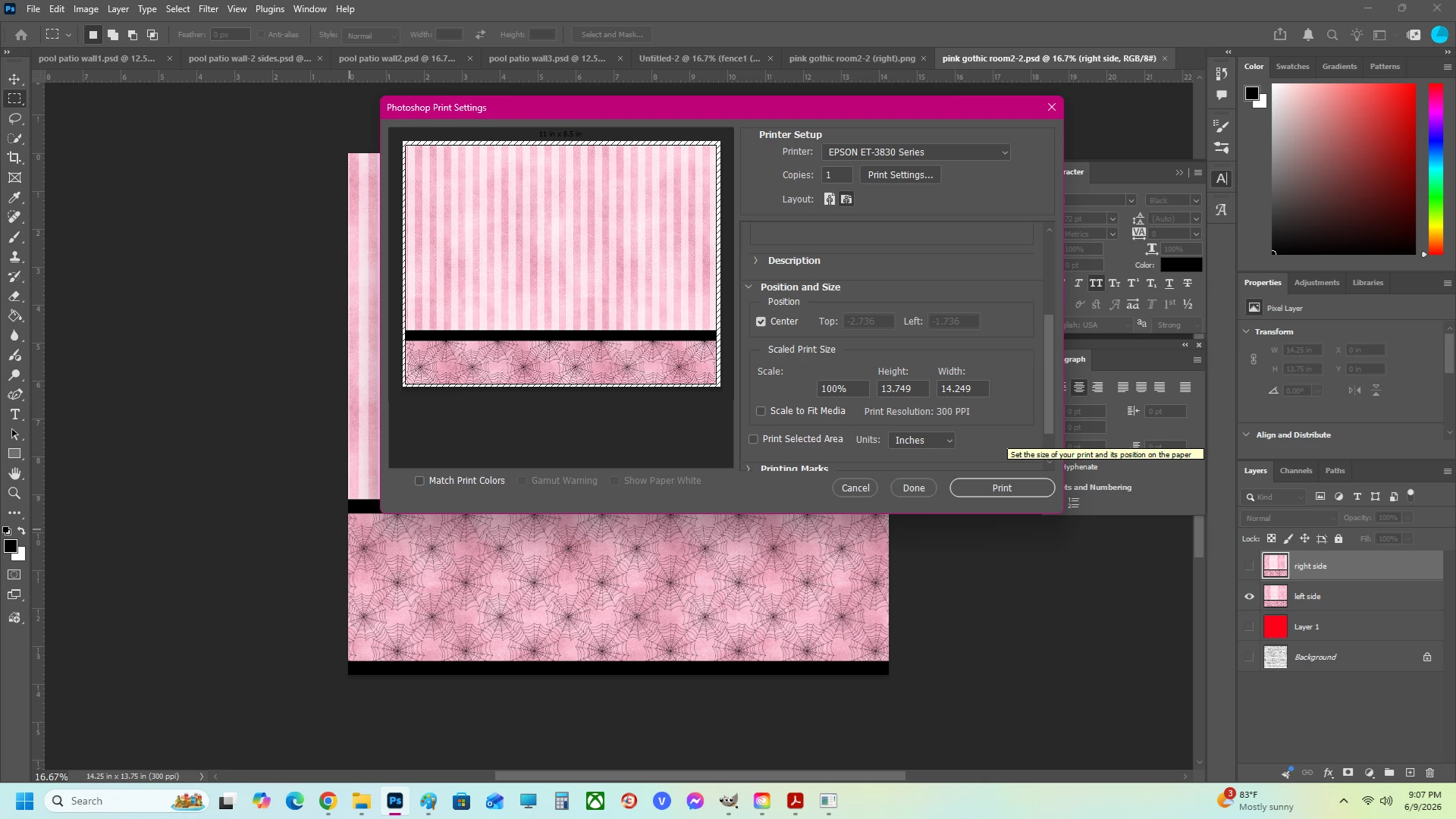
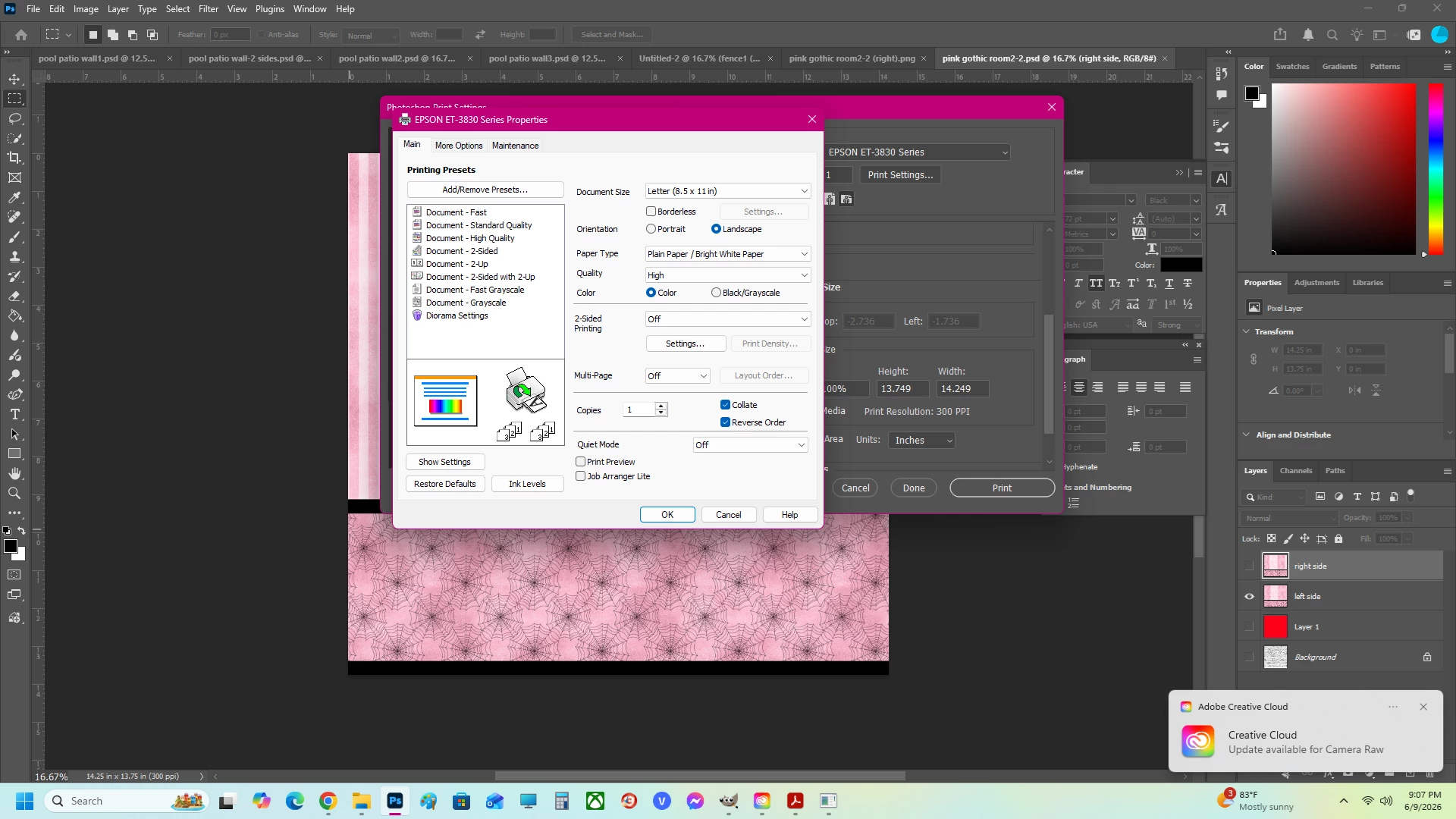
All looks right. In a perfect world, this would indicate that the file gets printed at the size it’s made (in this case, 14.25” wide by 13.75” tall), spanning across as many pages as necessary (in this case, four - that’s how it always printed with Paint until Microsoft released an update that royally broke it).

Instead, this is what I get:
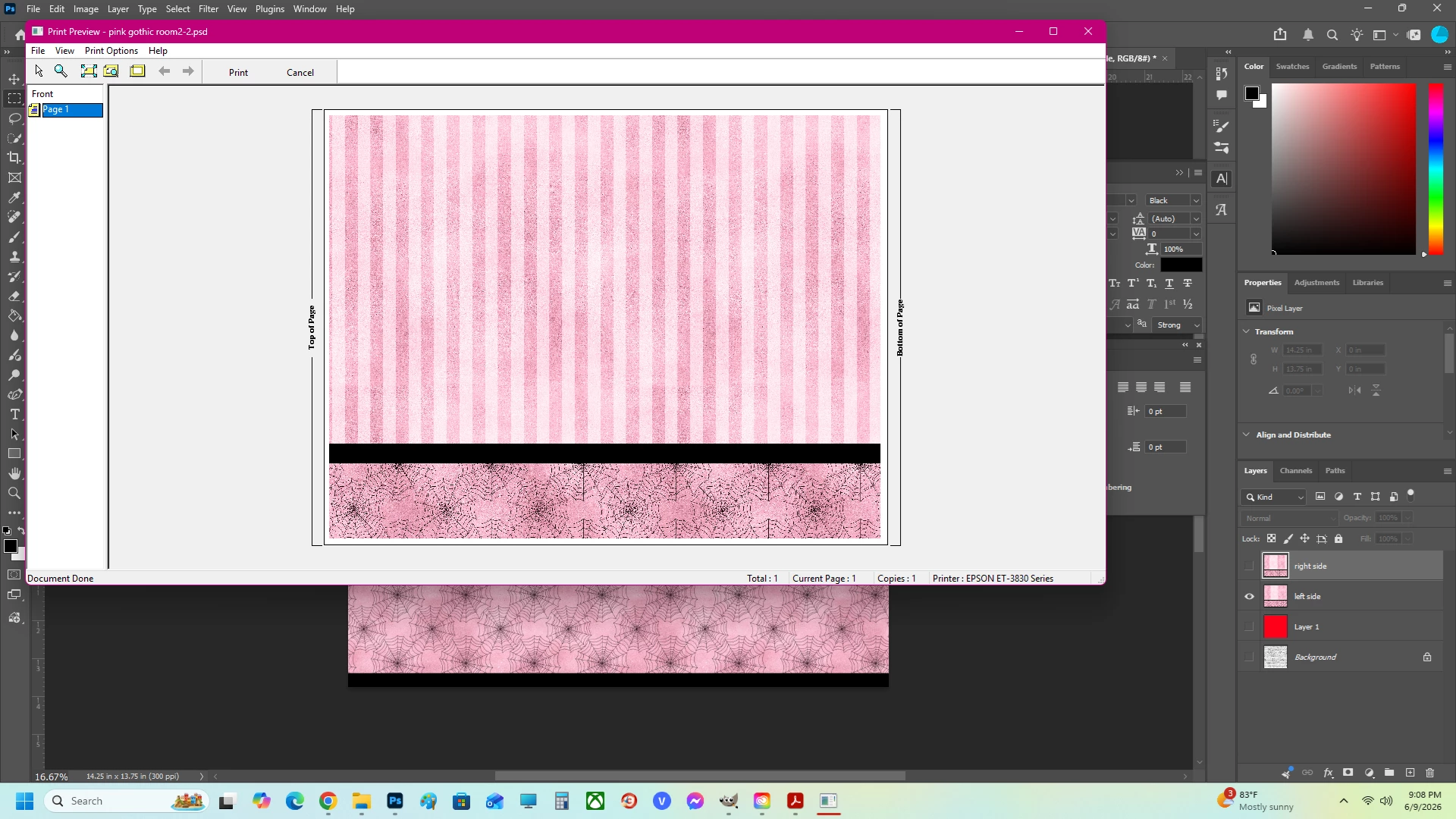
That entire large file gets confined to ONE piece of paper. Can someone explain what in the name of all that is hot pink is going on??? Why is it so difficult to print something true to scale? I’ve put the exact same file in Acrobat, thinking the splicing feature would help… no, in that case, the opposite happens - 100% means print 4 pages across 16, meaning everything is massive and once again not true to scale.


PLEASE HELP!!!

    2 replies

    jane-e
    Community Expert
    Community Expert
    June 10, 2026


    @TenderWolf1987 wrote: “I’ve put the exact same file in Acrobat, thinking the splicing feature would help”


    Acrobat, InDesign, and Illustrator all have a tiling feature in their print dialogs. Photoshop does not.


    See this page for the tile settings to use in Acrobat:

    https://helpx.adobe.com/acrobat/desktop/print-documents/booklets-posters-banners/posters-banners.html


    Their screenshot shows an overlap of zero, but a setting of about 3p0 (.5”) is better.


    Jane


    davescm
    Community Expert
    Community Expert
    June 10, 2026

    The screens you show are the Epson printer driver. That driver is expecting to make a single page print from the page sent from Photoshop. If you turn off (uncheck) Reduce/Enlarge you should get a full page print (albeit with borders) of the centre area of your document (You will get a warning of clipping before you print.


    To print across multiple sheets you have two choices :
    1. Make a selection of the area to print and print each sheet separately. Ensure reduce /enlarge is unchecked and do not check ‘borderless’ Repeat this for each section to be printed.
    or
    2. Enable Multi-Page in the Epson driver and set it to poster. However that is likely to introduce further scaling.


    Dave