
Participating Frequently
May 23, 2026
Answered

Can't save in JPEG format, nor open pics in JPEG anymore

  • May 23, 2026
  • 3 replies
  • 144 views

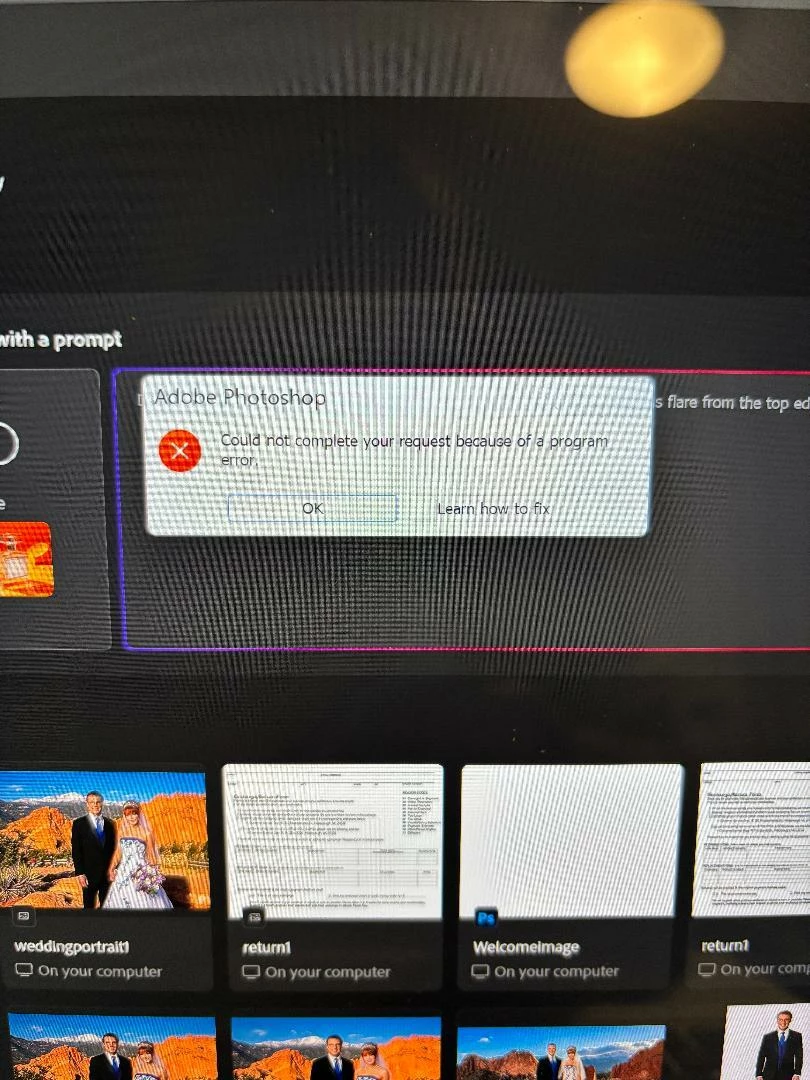
When I try to open a JPEG file on my hard drive, even one I’ve opened before, it won’t open it.  I also cannot save in JPEG format now, either.  It gives me an error message ‘Could not complete your request because of a program error.’  I click on the ‘let’s fix it’, but it sends me to a page of helps that tell me to update the files and restart the program.  I did, and it did nothing to help.

MIcrosoft Surface with Windows 11.  Photoshop is on my desktop.

Photoshop current version 27.6.0

Steps to reproduce:

Open an existing document.

Click Save As and try to find a JPEG extension to save it as after editing the photo.

Expected result  is to scroll down to see a JPEG file extension and save the picture.

What actually happens is not finding the right extension and not being able to save it.
 

    Correct answer AxelMatt

    @spauli1 

    For a clean reinstallation follow the steps below:

    If you're unable to install the cc desktop app at this stage, use an administrator account (solution 4 here,    https://helpx.adobe.com/creative-cloud/kb/creative-cloud-missing-damaged.html)


    3 replies

    Community Expert
    May 26, 2026

    Do you have tried to reset the preferences as T wrote in my former post?

    Try to reinstall the VC-runtime libraries. Go to this site Latest supported Visual C++ Redistributable downloads | Microsoft Learn  and download and re-install all versions of the C runtime Libraries.

    If this all doesn’t help try a clean reinstallation by following the steps below:

    If you're unable to install the cc desktop app at this stage, use an administrator account (solution 4 here,    https://helpx.adobe.com/creative-cloud/kb/creative-cloud-missing-damaged.html)


    My System: Intel i7-8700K - 64GB RAM - NVidia Geforce RTX 3060 - Windows 11 Pro 25H2 -- LR-Classic 15 - Photoshop 27 - Nik Collection 9 - PureRAW 6 - Topaz Photo AI
    spauli1Author
    Participating Frequently
    May 27, 2026

    I’ll try this.  I’ve tried uninstalling Photoshop then re-installing it, but that didn’t help at all.  

    Community Expert
    May 27, 2026

    I’ll try this.  I’ve tried uninstalling Photoshop then re-installing it, but that didn’t help at all.  

    If you only reinstalling Photoshop some files and the preferences are remaining and can subsequently lead to problems.


    So a clean reinstallation is the best way.


    My System: Intel i7-8700K - 64GB RAM - NVidia Geforce RTX 3060 - Windows 11 Pro 25H2 -- LR-Classic 15 - Photoshop 27 - Nik Collection 9 - PureRAW 6 - Topaz Photo AI
    D Fosse
    Community Expert
    Community Expert
    May 23, 2026

    Just to have it out of the way: You cannot save to jpeg unless the document conforms to the jpeg specification: 8 bit depth, no layers of any kind, no transparency and no alpha channels.


    A common gotcha is a setting in the Crop tool to “hide” instead of “delete” cropped pixels. The former produces a floating layer, which is not allowed in the jpeg file format specification.


    However, this looks more like either corrupt preferences or a corrupt install.

    spauli1Author
    Participating Frequently
    May 26, 2026

    What I do is upload a jpeg I want to edit, or a png, then do the edits, and save as a jpeg for both.  But I can’t even open them without that error message.  

    Community Expert
    May 23, 2026

    First try a reset of the Photoshop preferences: https://helpx.adobe.com/ie/photoshop/using/preferences.html#Manually

    Remember to back up your settings before doing the preference reset: https://helpx.adobe.com/ie/photoshop/using/preset-migration.html

    If this doesn’t help try to manually removing the preferences files. This is the most complete method for restoring to the default state. The manual method ensures all preferences which may be causing problems.

    Please follow the steps below:

    1. Quit Photoshop.
    2. Navigate to Photoshop's Preferences folder.

      MacOS: …Users/[user name]/Library/Preferences/Adobe Photoshop [version] Settings
      Windows: …Users/[user name]/AppData/Roaming/Adobe/Adobe Photoshop [version]/Adobe Photoshop [version] Settings

      Note: The User Library folder is hidden by default. To access the content in the hidden folders see here:

      MacOS: Access hidden macOS library files
      Windows: Show hidden files, folders, and filename extensions in Windows
       
    3. Drag the entire Adobe Photoshop [Version] Settings folder to a safe place to a backup your settings
    4. Open Photoshop.

     New preferences files with the default settings will be created automatically.

    There’s a update to Photoshop 27.7 available. Download and install it and check if it’s help.


    My System: Intel i7-8700K - 64GB RAM - NVidia Geforce RTX 3060 - Windows 11 Pro 25H2 -- LR-Classic 15 - Photoshop 27 - Nik Collection 9 - PureRAW 6 - Topaz Photo AI