joshuaclifford123
Participating Frequently
January 2, 2019
Answered

Can't wrap text with a path

  • January 2, 2019
  • 2 replies
  • 15339 views

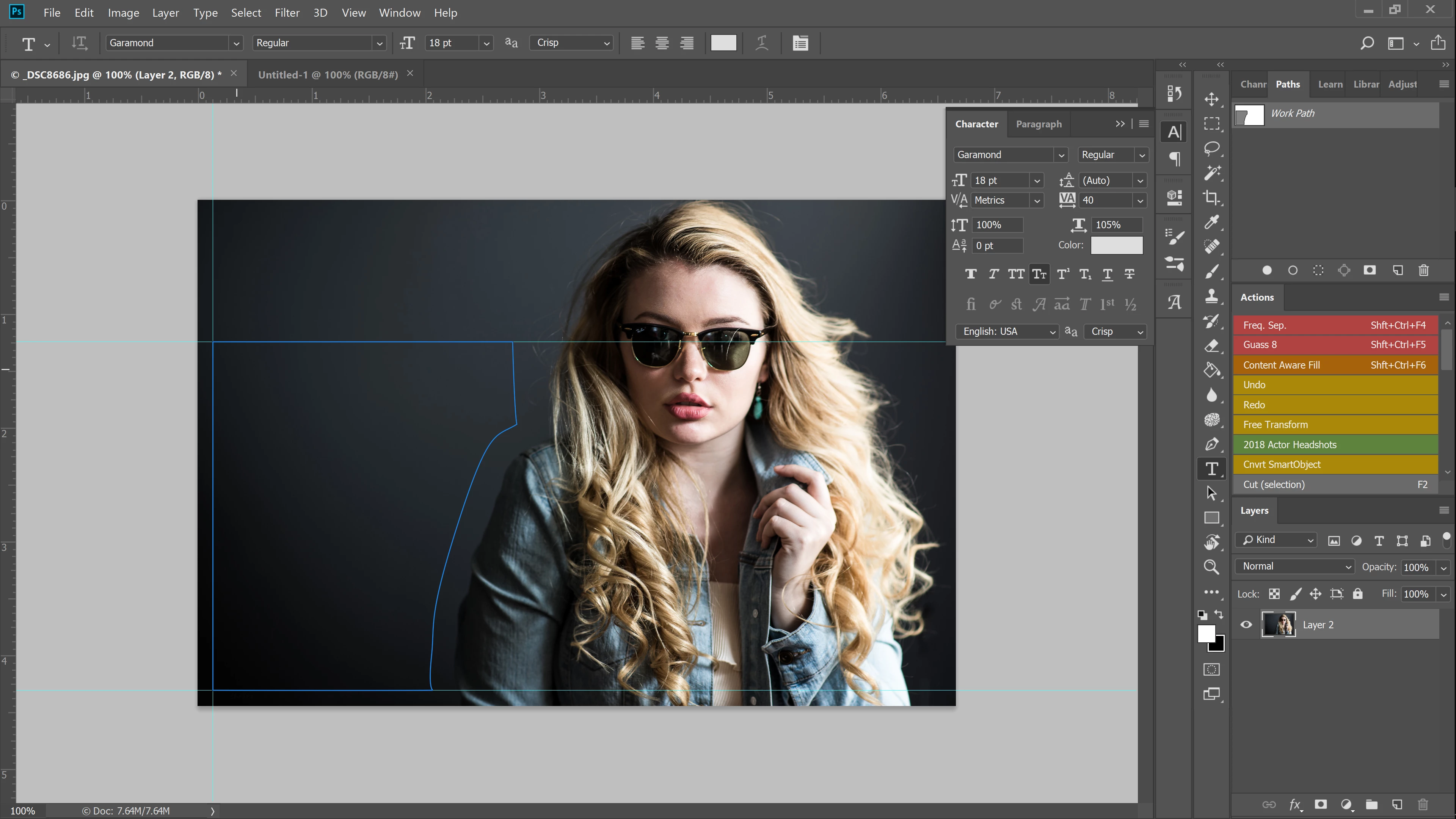
I have seen numerous videos on wrapping text using the pen tool and I know I'm supposed to be able to create a path, close it, then go to the text tool and click inside it and start typing for it to wrap. I've tried multiple times to do this and it won't wrap or stay within the defined box I made.

I've tried naming the path, selecting the path, having the path not selected, restarting photoshop, restarting my computer, remaking the path, duplicating the path, opening a different file, holding alt, holding shift, holding ctrl, the dotted circle never shows up that signifies you are about to type into the path. (couldn't screenshot with my mouse showing, but it's always showing a box like the regular text tool, whether inside or outside the path, but when on the path's line itself, it shows a curvy line, but that makes it wrap the text sitting on the path along the outside, not clipped to the shape on the inside like I want)

Correct answer Jeff Arola

and herein lies my problem, I've done exactly these steps (the extra layer is just the background extended so I could move the subject to the right to make room for the text) and the T with the dotted square never changes into the T with the dotted circle.

I don't know if this is relevant, but I just updated my photoshop to the most recent version.


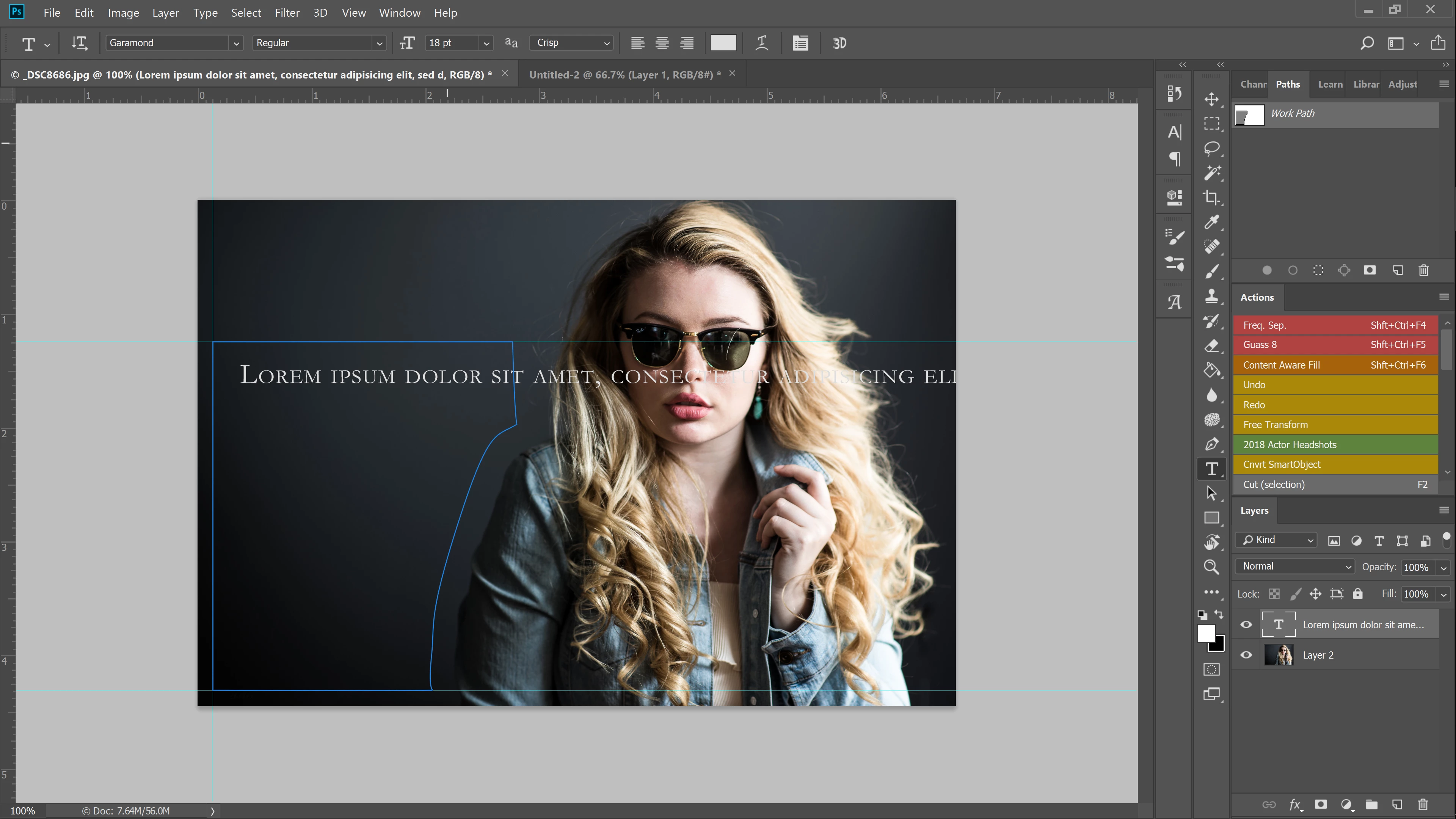
The only thing I've been able to do is wrap it around the path I created instead of inside it:


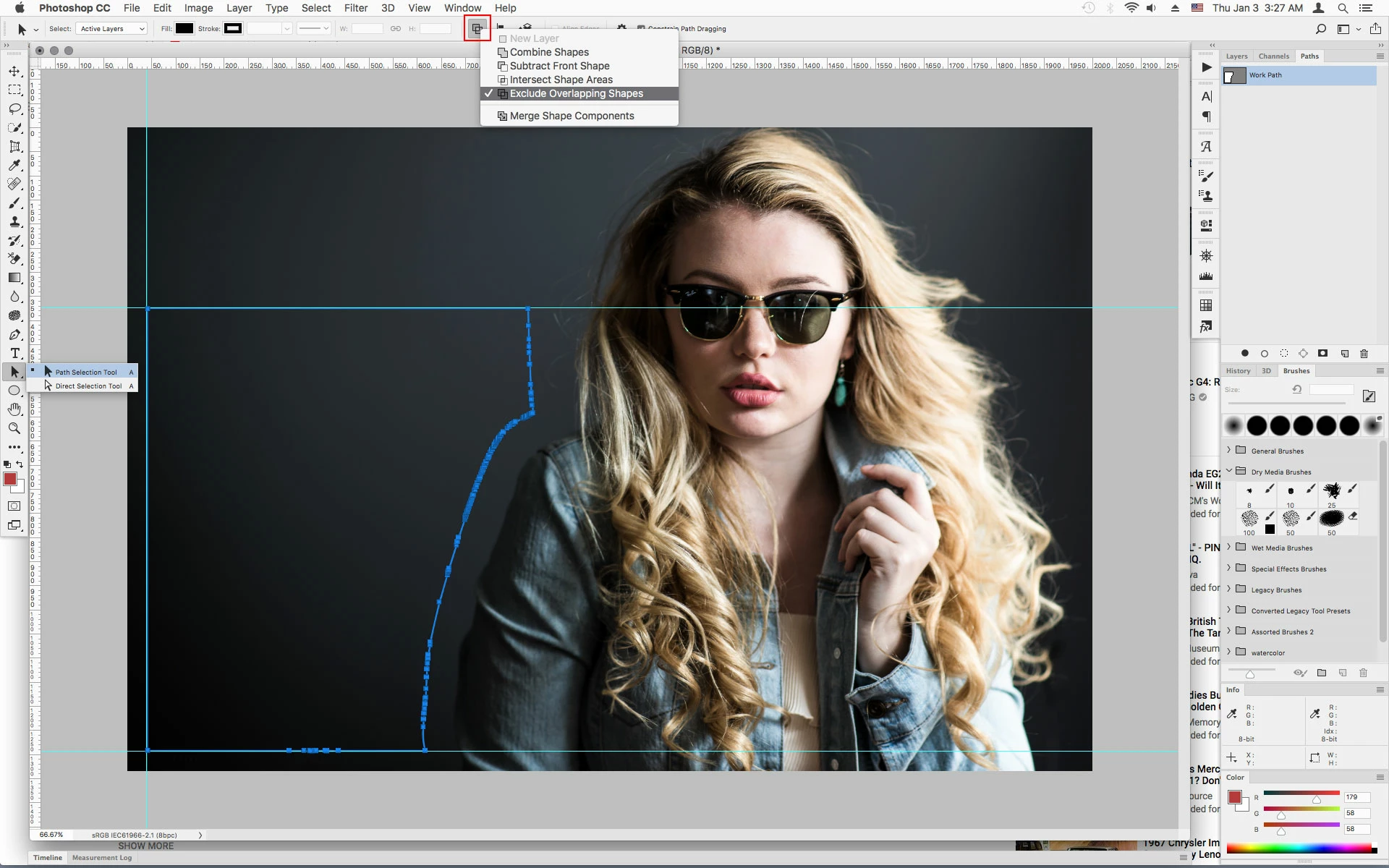
You need to invert the path.

Select the Path Selection Tool, click on the path in the document area and then in the tool options bar change the path operations to Exclude Overlapping Shapes. Then you should be able to type in the path.

2 replies

Participant
December 4, 2019

Hello! I've been trying to do this for a while now. I came accross this so I created a new doc and tried it, did the above and I still have the problem...I think I'm missing something. 


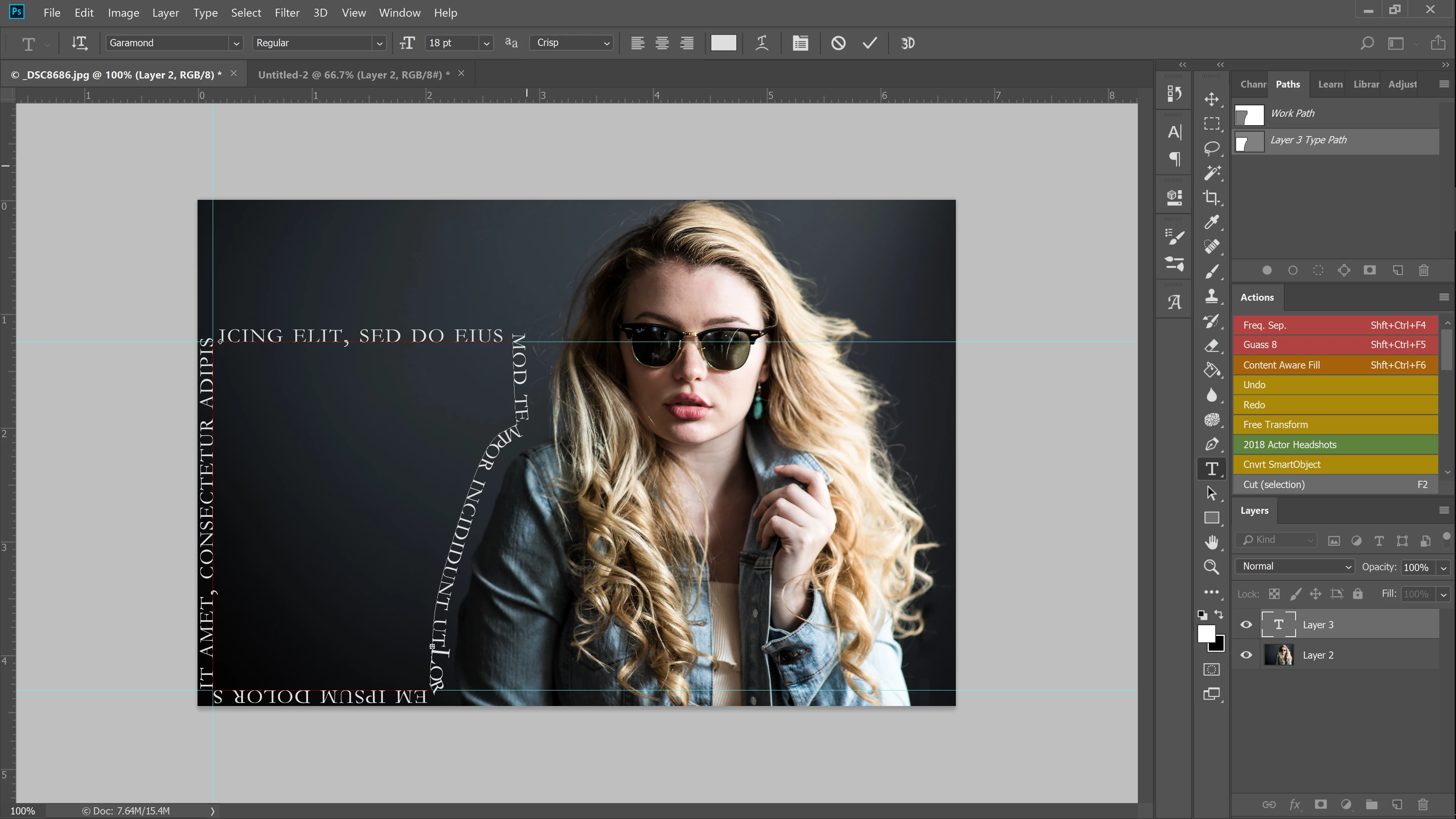
In the image below I have the path made with text in it.


The text however, runs off the page instead of wrapping in the box. 


Jeff Arola
Community Expert
Community Expert
April 13, 2021

Select your path with the Path Selection Tool and set the Path Operations to Exclude Overlapping Shapes, then you should be able type inside your path.


Participant
May 16, 2022

Hello, I am having a similar problem. I have checked that my settings are set to "Exclude Overlapping Shapes" and I get the right type cursor when staying within my work path (the type cursos surrounded by the circle) but for some reason when I do click to start typing I get the type layer on another work path. I have attached a screenshot. I'm not sure what the problem is - any ideas?

Jeff Arola
Community Expert
Community Expert
January 2, 2019
joshuaclifford123
Participating Frequently
January 2, 2019

That's actually one of the videos I watched, I did every step and I still can't. I was inspired to do this by that very video!

Trevor.Dennis
Community Expert
Community Expert
January 2, 2019

Start simple to prove the concept and that you have the workflow right.

Make a curved path with just two points

Select the Type tool, and hover over the path till you see the cursor shown below

Note that I have Type set to Centre, and I clicked on the centre of the path.

See how that goes, and well take it from there