


Inspiring
December 26, 2025
Answered

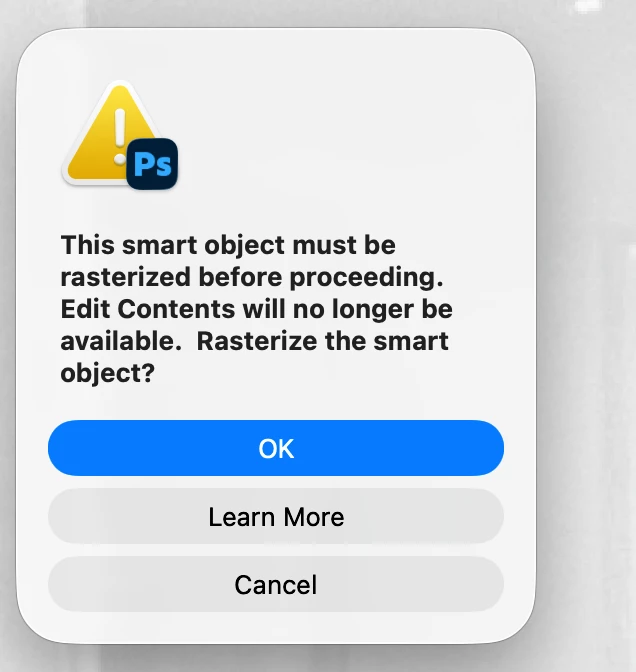
Cannot finish retouch, generative fill, something about rasterizing

  • December 26, 2025
  • 1 reply
  • 208 views

I have a photo where I see a strobe light and stand in the  mirror. Great time to test my chops with content aware!  So did lasso, edit fill content aware, nothing happened. Tried twice nothing. zero.


Gave up with that.


So did a right click and did lasso, generative fill. That got rid of the stand, but cords and cables remained, so 2 more rounds, better, but bright round flash still there, and get annoying.
 

Screenshot 2025-12-25 at 4.33.48 PM.png


I just ignorged it , figuring if rasterize, (honetly did not even want a smart object), pity they cannot do this without smart object, (can it be done without smart object?),  I'd be charged for AI credits sor something.


Left the bright light, still nice, to rid, but cannot even clone it out myself. Did ok to rasterize, But alas, nothing works.  clone, nothing after rasterizing functioins like just locked with one layer, so stuck



Correct answer creative explorer

@larry45 after using the Lasso tool, sometimes if you have a tiny, nearly invisible selection remains active could be the caus of it. If you have an active selection elsewhere on the screen, your brush won't work outside of it. Press Ctrl D (Windows) or Cmd D (Mac) to deselect everything. Or click once within the image to deselect as well. 

With regards to Smart Objcts, yes, you can work without Smart Objects. Adobe defaults to them for Generative Fill to keep the process "non-destructive" (meaning you can change your mind later), but you can flatten them at any time. 

What I do is I make a duplicate of the original layer so, I can see a before and after (lock the orginal layer). While using the different retouching tools to the clone stamp to the generative tool, I would sometimes merge the layers as one and continue. If you don't want to merge your layers yet, select your Clone Stamp tool and look at the top menu bar. Change the "Sample" dropdown from "Current Layer" to "All Layers." This allows you to paint on a new blank layer while pulling pixel data from the photo underneath.

1 reply

creative explorer
Community Expert
creative explorerCommunity ExpertCorrect answer
Community Expert
December 26, 2025

@larry45 after using the Lasso tool, sometimes if you have a tiny, nearly invisible selection remains active could be the caus of it. If you have an active selection elsewhere on the screen, your brush won't work outside of it. Press Ctrl D (Windows) or Cmd D (Mac) to deselect everything. Or click once within the image to deselect as well. 

With regards to Smart Objcts, yes, you can work without Smart Objects. Adobe defaults to them for Generative Fill to keep the process "non-destructive" (meaning you can change your mind later), but you can flatten them at any time. 

What I do is I make a duplicate of the original layer so, I can see a before and after (lock the orginal layer). While using the different retouching tools to the clone stamp to the generative tool, I would sometimes merge the layers as one and continue. If you don't want to merge your layers yet, select your Clone Stamp tool and look at the top menu bar. Change the "Sample" dropdown from "Current Layer" to "All Layers." This allows you to paint on a new blank layer while pulling pixel data from the photo underneath.

m
larry45Author
Inspiring
December 29, 2025

thanks C  desktop not working not ATT wifi broke, but will test later get  back. Also 7 layers verification with Adobe to reply

creative explorer
Community Expert
Community Expert
December 30, 2025

@larry45 I can't replicate your issue because I have no issue. I tried but, I guess am so used to my process that if I am jammed, I just deselect and try again, or a merge certain layers. 

Sorry, I can't say anything about the 'verify 7 layers with Adobe' — I didn't see any other post than this one? Unless, it was made elsewhere, and I just forgot? 

m