Inspiring
October 12, 2024
Answered

Change color of Rectangle

  • October 12, 2024
  • 2 replies
  • 1283 views

I need to change the color of my rectangle and have somehow lost access to the dialog box which contains that option - I believe it's referred to as Stroke, and there's also the option to change its width etc.  How do I get that back?  Thanks.


This topic has been closed for replies.
Correct answer Conrad_C

There’s no dialog box.


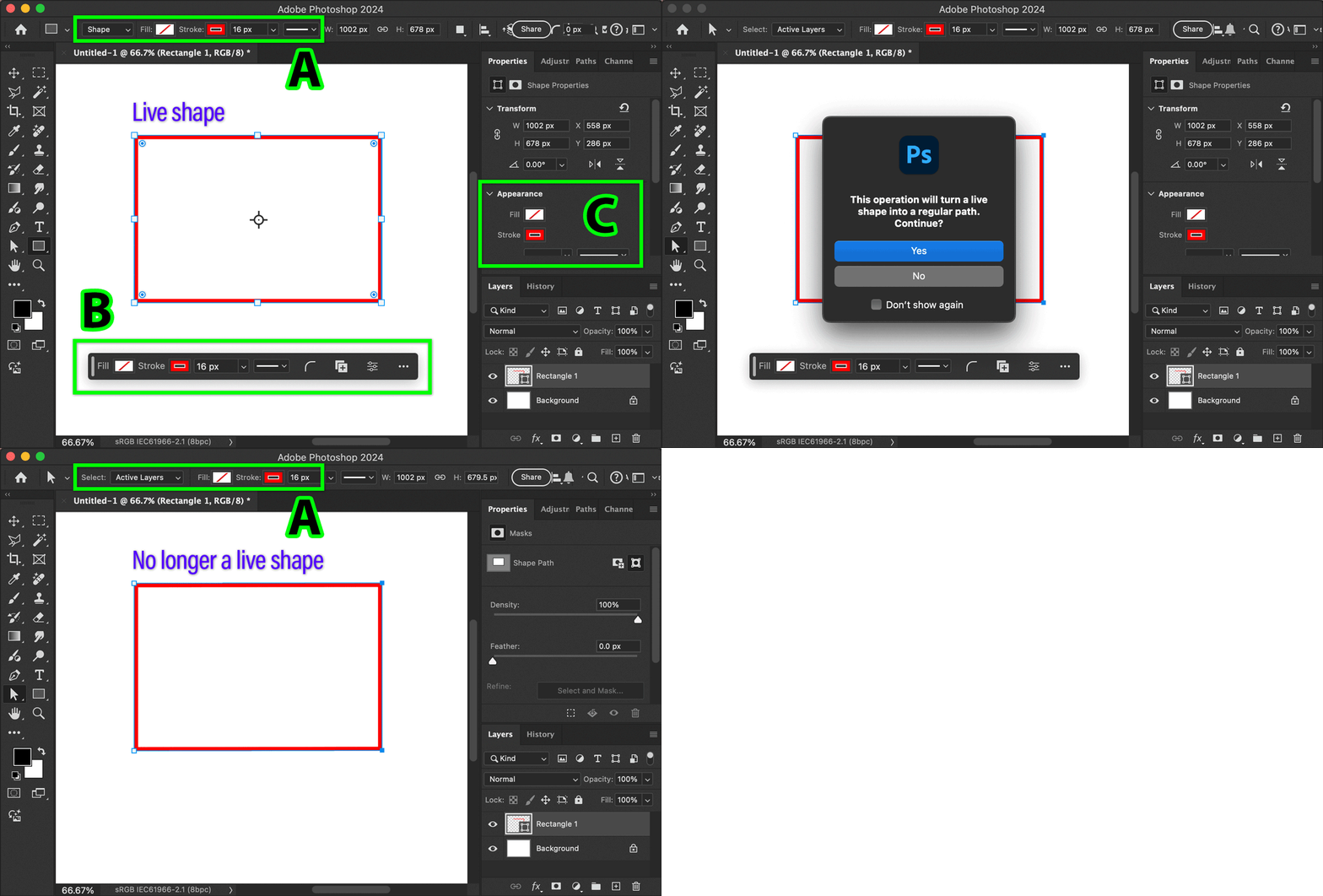
When you draw with the Rectangle tool in Shape mode, the layer you get is a Live Shape layer. Live Shape means you can adjust additional shape properties such as rounded corners, and also, a Live Shape displays Fill and Stroke in three places:

A. The options bar at the top, when a shape or pen tool is selected. 

B. The Contextual Task Bar that was added in recent versions. 

C. The Properties panel, in the Appearance section. 


But…if the layer was edited in any way that takes it out of Live Shape mode, such as editing an individual path point, then it loses Live Shape properties. Now the Fill and Stroke no longer appear in B or C, but you can still adjust Fill and Stroke in A (the tool options bar) if a shape or pen tool is selected. (Yes, it’s weird that they go away in B and C, and I don’t like that…but that’s how it works.)


This is shown in the demo below.


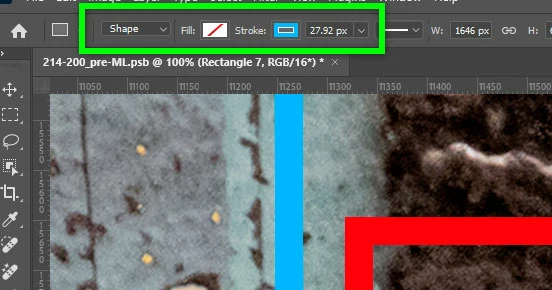
In your screen shot, you’ve selected everything correctly but Fill and Stroke properties are not available at B or C. This suggests that the rectangle is no longer a Live Shape. Your screen shot also shows that, up in the options bar at the top for the Rectangle tool, Fill and Stroke are available for your currently selected shape layer, as expected for a non-Live Shape layer. Are you able to use those Fill and Stroke options?

 

2 replies

Conrad_C
Community Expert
Conrad_CCommunity ExpertCorrect answer
Community Expert
October 12, 2024

There’s no dialog box.


When you draw with the Rectangle tool in Shape mode, the layer you get is a Live Shape layer. Live Shape means you can adjust additional shape properties such as rounded corners, and also, a Live Shape displays Fill and Stroke in three places:

A. The options bar at the top, when a shape or pen tool is selected. 

B. The Contextual Task Bar that was added in recent versions. 

C. The Properties panel, in the Appearance section. 


But…if the layer was edited in any way that takes it out of Live Shape mode, such as editing an individual path point, then it loses Live Shape properties. Now the Fill and Stroke no longer appear in B or C, but you can still adjust Fill and Stroke in A (the tool options bar) if a shape or pen tool is selected. (Yes, it’s weird that they go away in B and C, and I don’t like that…but that’s how it works.)


This is shown in the demo below.


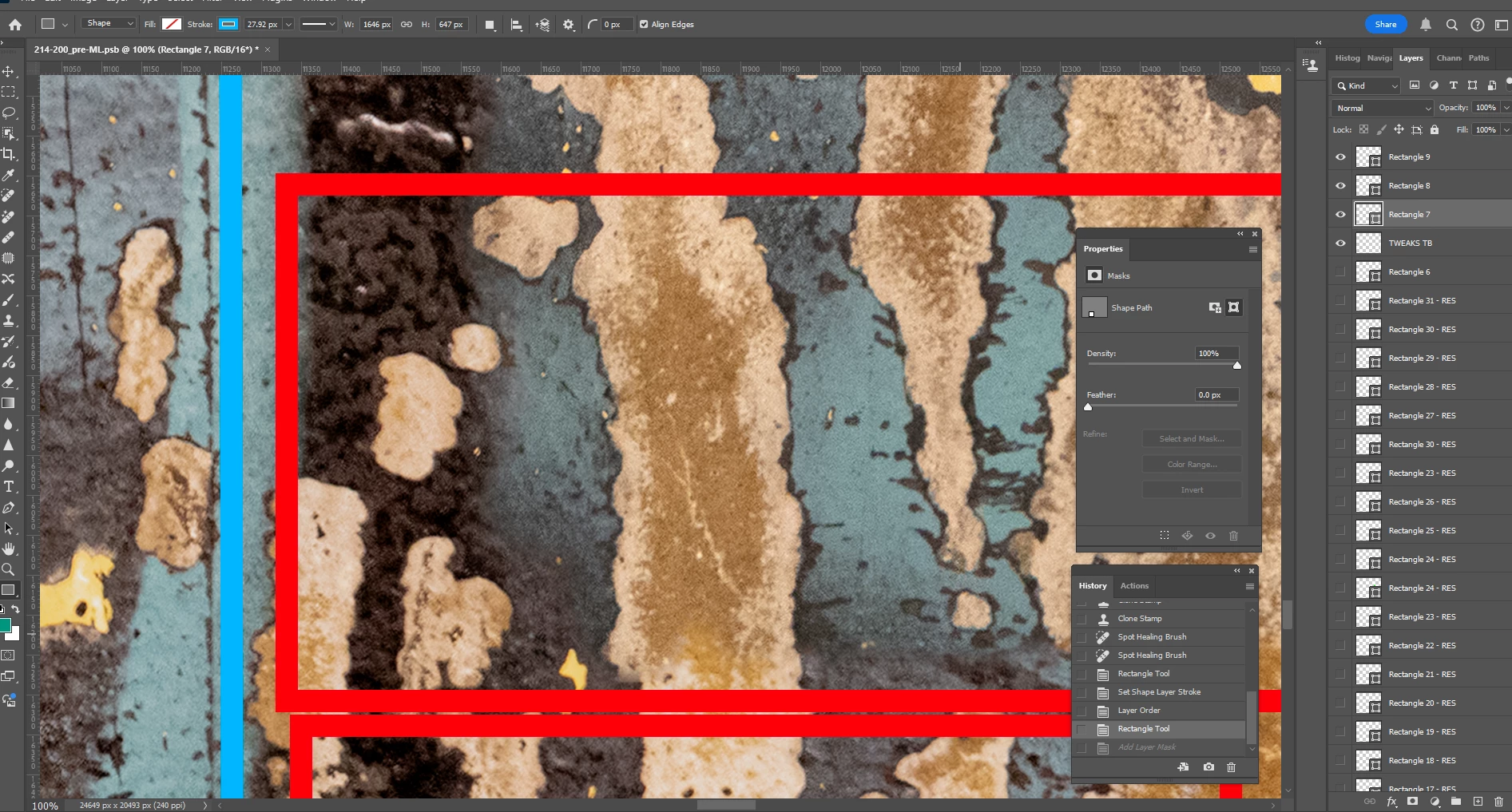
In your screen shot, you’ve selected everything correctly but Fill and Stroke properties are not available at B or C. This suggests that the rectangle is no longer a Live Shape. Your screen shot also shows that, up in the options bar at the top for the Rectangle tool, Fill and Stroke are available for your currently selected shape layer, as expected for a non-Live Shape layer. Are you able to use those Fill and Stroke options?
 

Inspiring
October 13, 2024

Thanks.  I can see now that Stroke and Fill were available for me.  After reopening the file today, however, and selecting the blue rectangle, I didn't see the A option (Stroke and Fill in the toolbar) after selecting the pen tool, as you advised.  But I noticed that in your demo it was the Path Selection Tool that was active at the point where the Rectangle was no longer a Live Shape.  After selecting that, the options appeared in the toolbar.  So all is working well.  Thanks.  


Bojan Živković11378569
Community Expert
Community Expert
October 12, 2024

Strange, you have the correct icon selected in the Properties panel, but instead of shape properties, mask properties are displayed. Try clicking on the mask icon (to the left of the currently selected one) to see what happens; will Photoshop show shape properties? If it doesn’t, try toggling between the icons. As a last resort, consider resetting the preferences, which can resolve unusual issues. By the way, which version of Photoshop are you using?