Participant
Jan 28, 2025 9:01 PM UTC
Answered

Change the color of the architectural plan

Hello,
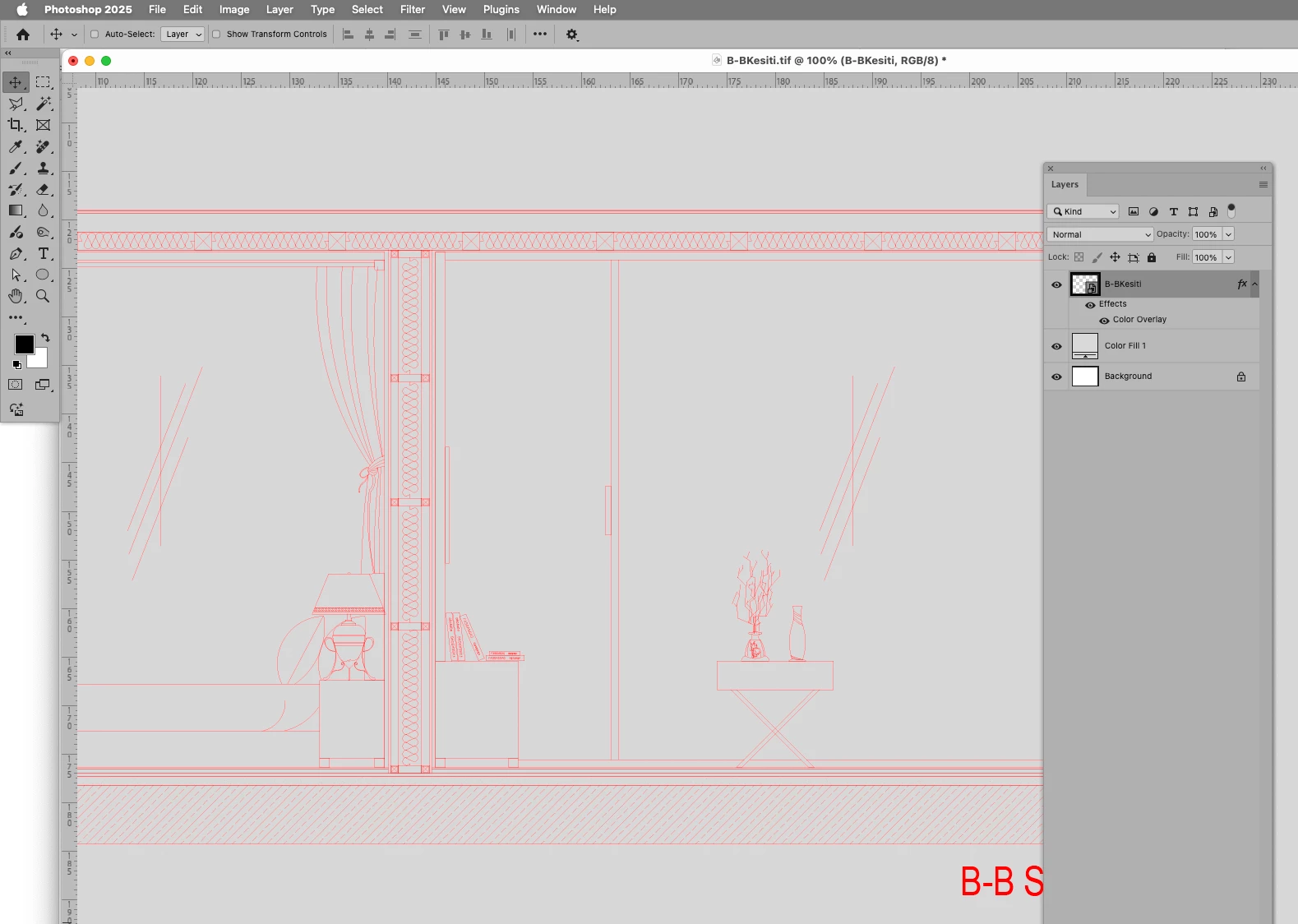
What do I need to do to change the color of an architectural plan when in Photoshop? I remember to do this by creating a new layer and moving the plan under this layer with the ALT key. But it doesn't work. I've done it this way before, but I can't remember right now and I don't have anyone to ask.

c.pfaffenbichler
c.pfaffenbichlerCorrect answer
Community Expert
Jan 29, 2025 12:17 PM UTC

I would recommend placing the pdf as a Smart Object to allow for (repeated) scaling without degredation. 


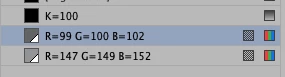
Aside from that there seem to be some elements with gray strokes. 

If those differences are irrelevant then a Color Overlay with the Blend Mode »Normal« should be fine. 

11 replies

c.pfaffenbichler
Community Expert
c.pfaffenbichlerCommunity ExpertCorrect answer
Community Expert
Jan 29, 2025 12:17 PM UTC

I would recommend placing the pdf as a Smart Object to allow for (repeated) scaling without degredation. 


Aside from that there seem to be some elements with gray strokes. 

If those differences are irrelevant then a Color Overlay with the Blend Mode »Normal« should be fine. 

Translate
N_d9632Author
Participant
Jan 29, 2025 1:21 PM UTC

I'm so sorry but why didn't it happen?

Translate
c.pfaffenbichler
Community Expert
Community Expert
Jan 29, 2025 1:38 PM UTC

The image is grayscale, please invoke Image > Mode > RGB and try again. 

Translate
c.pfaffenbichler
Community Expert
Community Expert
Jan 29, 2025 9:53 AM UTC

Please provide the pdf. 

Maybe the Layer Style > Color Overlay might suffice. 

Translate
Pariah Burke
Community Expert
Community Expert
Jan 29, 2025 9:56 AM UTC

I just said that.


Translate
c.pfaffenbichler
Community Expert
Community Expert
Jan 29, 2025 10:17 AM UTC

Depending on whether the pdf contains only black elements against transparency or also gray/other ones one may have to change the Blend Mode, though. 

So I asked for the pdf. 

Translate
Pariah Burke
Community Expert
Community Expert
Jan 29, 2025 9:19 AM UTC

If you only want to change the color of the existing layer there are several methods. The first I'd start with is to add a Hue & Saturation Adjustment Layer.

  1. At the bottom of the Layers panel click the black-and-white circle icon that looks like a moon cookie.
  2. Select Hue & Saturation.
  3. On the Properties panel adjust the sliders and/or activate Colorize to get the desired color.


There are other methods, of course, such as locking layer transparency and painting over it; using a layer style with a Color Overlay; painting over it with a blending mode on the brush; adding a fill layer above your artwork and blending it through half a dozen methods to color only the layer below; and, I'm sure, a few methods I'm forgetting at the moment.


Translate
N_d9632Author
Participant
Jan 29, 2025 11:55 AM UTC

Hello, the Hue & Saturation section does not appear to be active.

Translate
c.pfaffenbichler
Community Expert
Community Expert
Jan 29, 2025 12:10 PM UTC

Image > Mode > RGB (or CMYK if you prefer, but that cause its own problems and should only be used of one definitely knows the CMYK target space)

Translate