nicksmith0102
Participant
May 23, 2017
Answered

Changing 'background contents' setting in existing PS document?

  • May 23, 2017
  • 5 replies
  • 11935 views

When creating a new Photoshop file you are able to select either white, black or transparent as the documents background. Is there a way to change this after the fact in an existing document? I'm not after other methods - I need to do this for an action.

Cheers
    Correct answer davescm

    One additional point to add to the correct answers above.

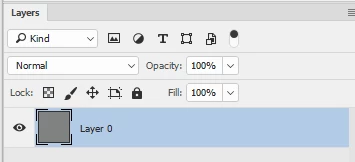
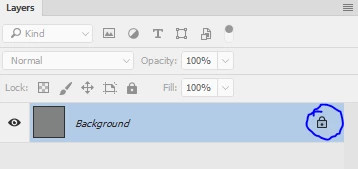
    If you want to change the background to be transparent, as opposed to a pixel colour, or even use the eraser tool on it to make part of it transparent - then you will need to change it from a "background layer" to a normal layer (Layer 0). To do this click on the lock symbol in the layers panel.

    Dave

    5 replies

    Inspiring
    May 5, 2023

    In Photoshop Version 24 (year 2023) for Mac, the command you use to set the document background for a regular document (not an artboard) when you create it is found in the File > New window under the name Background Contents.  However, if you are working on a document and do not like the background you chose, you can change it for that document (on Mac) in Apple icon > Settings > Transparency & Gamut (I believe the setting command is named Preferences in Windows.) 


    Here, you can change both the size of the boxes in the transparency grid and their color, or choose a solid color in place of the transparency grid.

    Tip:  White backgrounds on my display screen bother my eyes, and I just discovered that changing these settings to the ones shown above knock down the brightness of the transparent canvas noticeably without making it harder to see the contents of Layers panel thumbnails.

    Note:  If you only want to change the background contents for one file, you will need to go back and change the default in Settings (Preferences) at some point.

    Pixel Relish
    Participating Frequently
    November 19, 2019

    With newer versions of PSD (2020, for sure), select your artboard using the Artboard tool.  Up in the top bar — right side of Size, Width, Height —is a dropdown from which you can select Transparent, White, Black, or Other…; that's your background canvas setting for the document.

    Participant
    January 13, 2021

    You have just saved me so much time!! Thank you so much!

    davescm
    Community Expert
    davescmCommunity ExpertCorrect answer
    Community Expert
    May 23, 2017

    One additional point to add to the correct answers above.

    If you want to change the background to be transparent, as opposed to a pixel colour, or even use the eraser tool on it to make part of it transparent - then you will need to change it from a "background layer" to a normal layer (Layer 0). To do this click on the lock symbol in the layers panel.

    Dave

    c.pfaffenbichler
    Community Expert
    Community Expert
    May 23, 2017

    Selecting the Background Layer, setting Foreground Color and filling (or changing the Background Layer to a regular one and removing it) should work out fine in an Action.

    marliton
    Community Expert
    Community Expert
    May 23, 2017

    Hi. If the background is a separate layer just fill that layer with the color or erase it the pixels for getting transparency. Otherwise, you need first manually select the background.

    Marlon Ceballos