
Participant
May 11, 2022
Answered

Changing background in Photoshop using Masking

  • May 11, 2022
  • 3 replies
  • 760 views

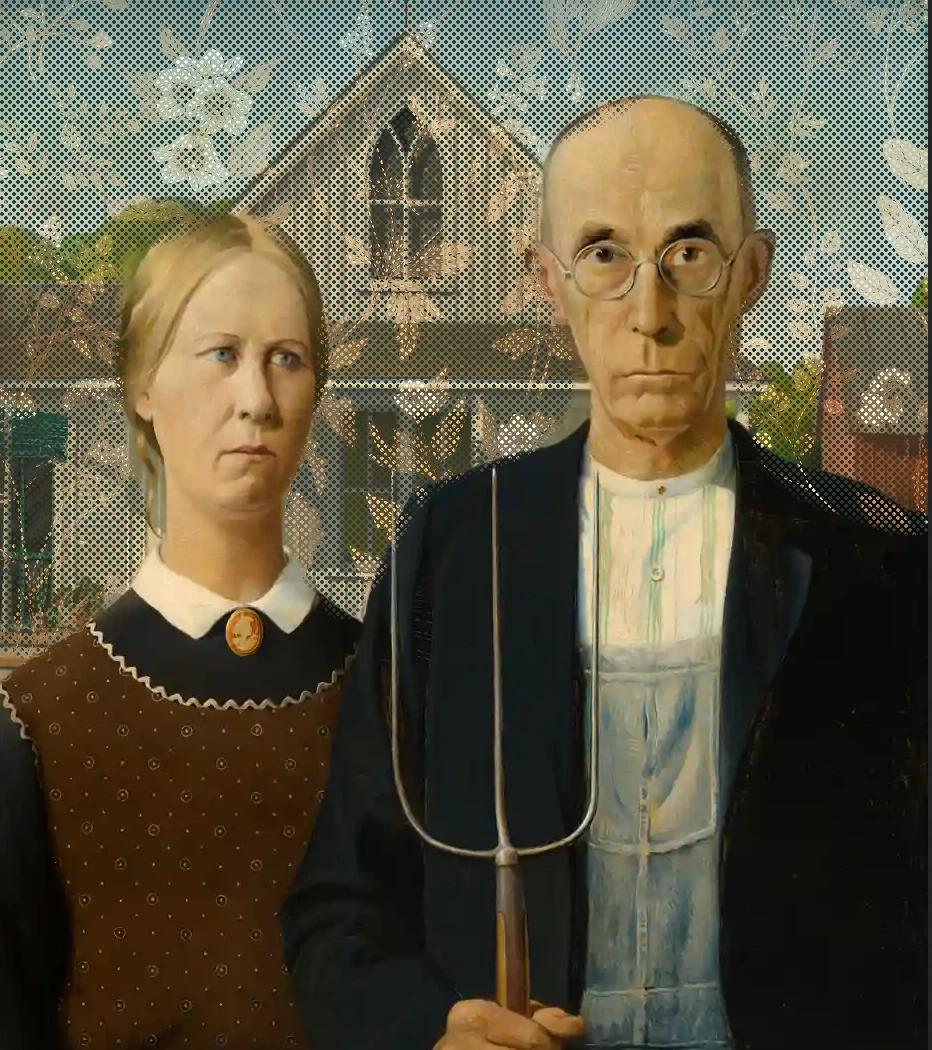
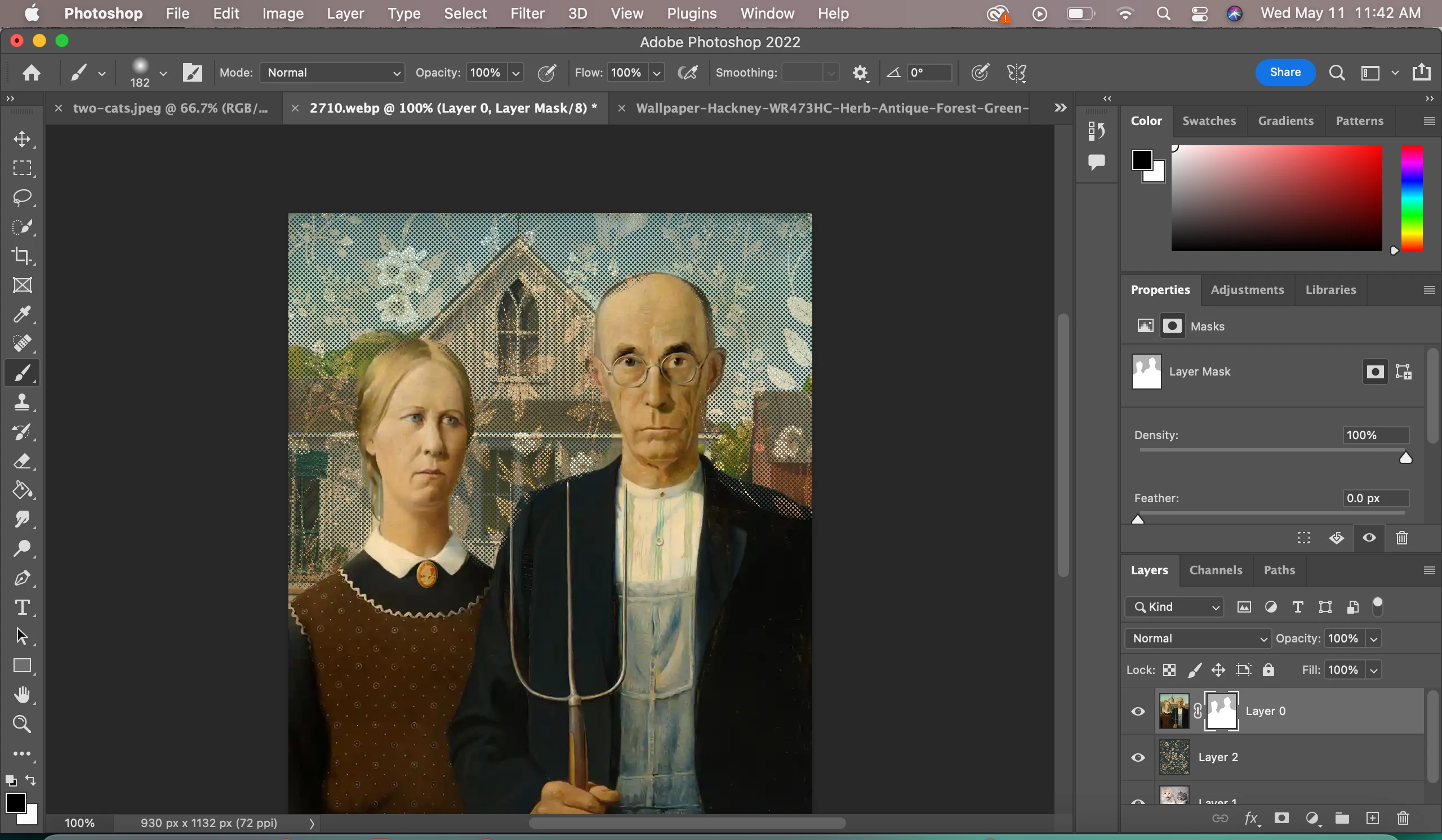
I am new to photoshop and im doing an assignment where I have to place two people over a new background using the mask layers. I have watched so many tutorials on how to do this and i have figured out how to do it but everytime i used my brush tool to paint out the background i get this pixel effect instead of the background coming through fully.


{Title edited by Moderator} 

This topic has been closed for replies.
Correct answer davescm

Hi

The forum software is broken which means I can't enlarge your second screenshot but it looks like you are painting with grey.

Make sure your brush is a simple round brush - no additional patterns or textures. Set the colour used by the brush to full black RGB 0,0,0. Ensure opacity is 100% and Flow 100% - don't use pen pressure to control opacity /flow.


Dave

3 replies

Participant
May 12, 2022

thank you everyone for your helpful suggestions so it turns out my brush had a texture on it...i have now turned off the texture and it is working!

davescm
Community Expert
davescmCommunity ExpertCorrect answer
Community Expert
May 11, 2022

Hi

The forum software is broken which means I can't enlarge your second screenshot but it looks like you are painting with grey.

Make sure your brush is a simple round brush - no additional patterns or textures. Set the colour used by the brush to full black RGB 0,0,0. Ensure opacity is 100% and Flow 100% - don't use pen pressure to control opacity /flow.


Dave

Trevor.Dennis
Community Expert
Community Expert
May 11, 2022
quote

Hi

The forum software is broken which means I can't enlarge your second screenshot

By @davescm


It's driving me crazy Dave.  Is there a discusion about the issue on another forum?


quote

t it looks like you are painting with grey.

Dave


By @davescm

With that full UI screen shot we should be able to see foreground colour, brush mode and opacity, and just possibly a hint as to what preset is being used.  If I expand the screen shot and drag a window across it with Greenshot, I can see the images are there, but they are a whisker off full black.  This has been going on for a while now, and I didn't know if I had a local issue or if it was a forum issue.  I would be very interested to have more information on what the heck is going on?


[EDIT]  I can click to expand the above screen shot and it is working.  I was wondering if it is related to the image size, but I have not really been getting the data to back that up.  The above image is just over a 1000 pixels square for instance, so on the small side, but it works OK.


davescm
Community Expert
Community Expert
May 11, 2022

@Trevor.Dennis The forum image issues have been reported to Adobe. Images posted by ACPs appear to be unaffected.

Dave

Ranjisha Sengupta
Legend
May 11, 2022

Hi there,


Thanks for reaching out. We're here to help.

Which brush are you using? Have you changed the brush and tried it? Did you check with a different background?
If you are looking to place a new subject over a background and mask them, I have an easy way to do it.

1) Place the subject's layer on top of the background layer.


2) Select the subject with the Quick Selection tool or Polygonal Lasso tool.

3) Click on the mask button. It will hide the background of the current picture; only the subject will be visible with a different background.


Let us know if it works.


Thanks.

Ranjisha