
Johnny Sokko
Inspiring
July 17, 2019
Question

Character Palette - Why does Photoshop do this?

  • July 17, 2019
  • 3 replies
  • 869 views

(Mac OS Sierra, Photoshop latest version)

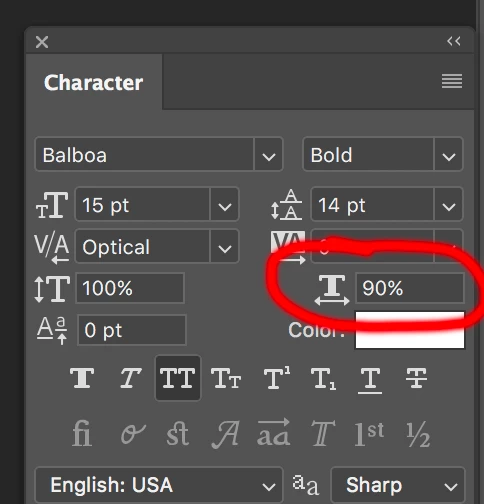
Why does the setting circled in red change randomly? Sometimes it's at 100%, and other times, like today, was set at 90%. I didn't even notice until every text block in the document had a 90% setting. I didn't enter a number into this box. And I was working on a new document. Why is Photoshop telling me how to live my life, instead of the other way around, as it should be?
{Thread renamed by moderator}

    This topic has been closed for replies.

    3 replies

    jane-e
    Community Expert
    Community Expert
    July 18, 2019

    M_G6  wrote

    I didn't even notice until every text block in the document had a 90% setting. I didn't enter a number into this box. And I was working on a new document. Why is Photoshop telling me how to live my life, instead of the other way around, as it should be?

    Hi MG6,

    It's also Small Caps with a negative leading.

    One thing that I've made a habit of doing when I have to work with text in Photoshop is to switch to the Type tool, make sure I am not on a Type Layer, and then Reset the tool from the options bar before I start to type. Photoshop holds the options for tools across documents until you change them or reset them.

    Jane

    Community Expert
    July 17, 2019

    The setting should remember what it was when you last used it. So, if you added some text with the setting at 90% and then added a new text layer, it should remain at 90%.

    Sahil.Chawla
    Adobe Employee
    Adobe Employee
    July 17, 2019

    Hi there,

    This is the Kerning option in the Character panel, the Kerning option is set to Metrics, which means that Photoshop is using the letter spacing information that was included with the font by the font's designer. This is often the option that will give you the best results, although it will depend on the quality of the font you're using. If you click on the triangle to the right of the Kerning input box to bring up the list of preset values, you'll see that another option we can choose, directly below Metrics, is Optical. Rather than relying on the font's built-in kerning information, Optical will try to adjust the spacing based on the shapes of the two characters. Again, it will depend largely on the font itself as to which of these options, Metrics or Optical, will give you the better result. You can also choose one of the other preset values in the list, or enter a value manually, or use the scrubby slider to adjust the Kerning value.

    You can learn more about Character spacing from here: Line and character spacing in Adobe Photoshop

    Regards,
    Sahil

    Johnny Sokko
    Inspiring
    July 17, 2019

    Sahil.Chawla  wrote

    Hi there,

    This is the Kerning option in the Character panel,...

    Regards,
    Sahil

    Um... that's NOT the kerning option. It's the horizontal scaling option.

    Community Expert
    July 17, 2019

    It's the horizontal scaling option.

    Yes.

    Here's a good page that gives details of all settings in the Character panel:

    Photoshop Type - The Character Panel