


Participating Frequently
December 27, 2025
Question

Clicking print settings prompts errors 95% of the time

  • December 27, 2025
  • 3 replies
  • 153 views

This has been an ongoing issue and I've dealt with it long enough to say something. Whenever I print in Photoshop, because my printer prints darker no matter what I do and never true to my screen, I have to use the Print Settings dialog box to ensure the correct paper is selected, that Photoshop manages the colors, and that the colors are coming from Adobe and not the printer. At least 95% of the time, whenever I click the Print Settings button to open the dialog box, I get some irritating error like this (usually two or three).
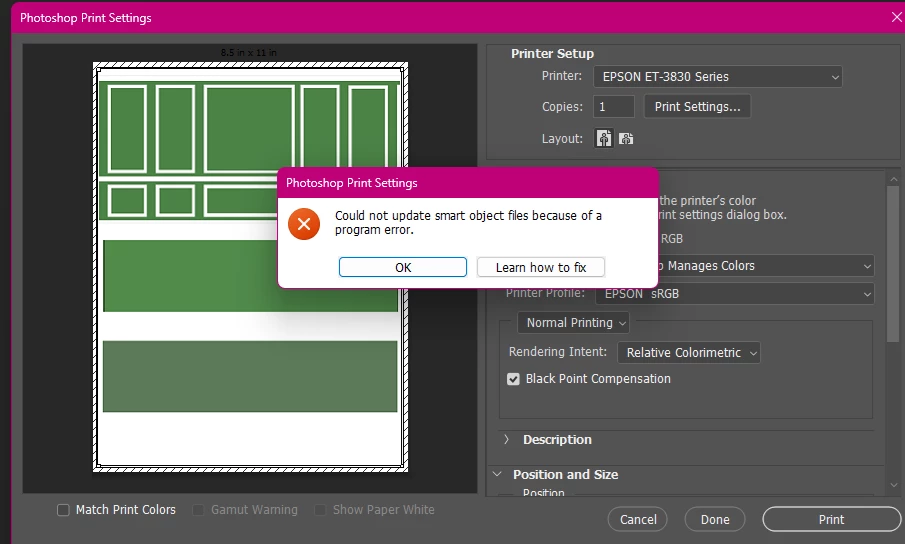
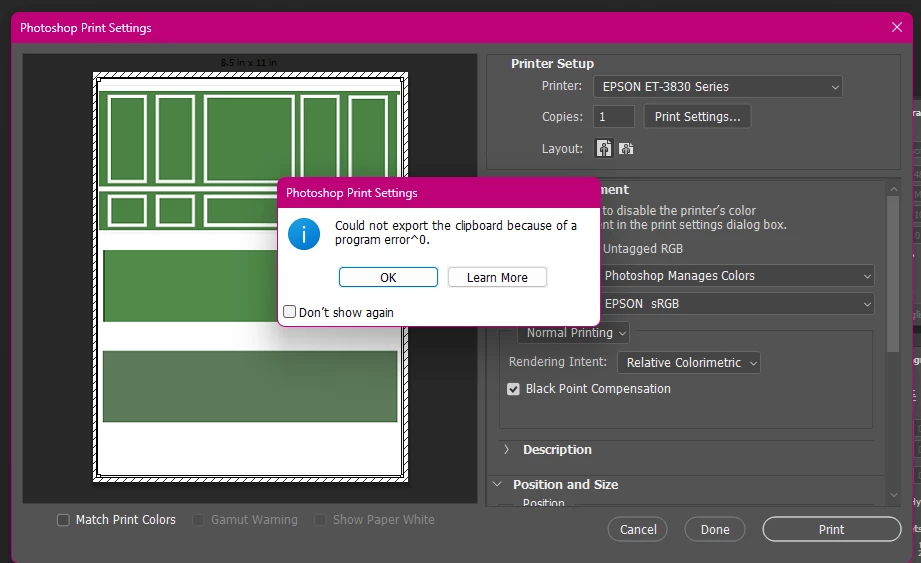
 

error1.pngerror2.png


The dialog box never pops up when this happens. The only way I've been able to fix this is to completely restart the program. What is causing this and how do I get rid of it? I've disabled and enabled the clipboard export preference, copied something else to "clear" it, etc. Nothing works. It's very irritating.

3 replies

mglush
Community Expert
Community Expert
January 1, 2026

Hi Troy,

Printing can be problematic! Here are a couple of work arounds that you might try to see if you can get around this error issue. It may take a couple of extra steps, but it will give us some insight into your printing issues.


First, Try flattening your file and saving it with the word "Print" added to the file name--just to make sure that you do not save over your layered file. Send it to print, and tell us what happens.


If your printer cannot interpret things like smart objects then it cannot print them. Trying this flattening option will tell us if this might be the problem.


Second, try saving the file out as a pdf, and printing the file from Acrobat. If it prints fine from Acrobat or as a flattened file, then the printer is having trouble reading the Photoshop file.


What version of Photoshop are you usng? And what type of printer are you printing to? Are your printer drivers up to date?


Thanks,

Michelle

Participating Frequently
December 31, 2025

Nothing is linked. Everything is copied/pasted into brand new files. I never link anything because I tend to move files around frequently, so everything is just copied and pasted into the file.

Srishti_Bali
Legend
December 30, 2025

Hi @Troy22932790qu23


I’m sorry you’re running into this error. Could you please check whether your file contains any Smart Object layers? This error commonly occurs when a document includes a linked Smart Object and Photoshop is unable to locate its original source file. To troubleshoot this:

  • Right-click on the Smart Object layer.
  • Select Replace Contents.
  • Navigate to the original file location and relink the source file.


If the issue persists after relinking, I’d recommend trying the additional troubleshooting steps outlined in this Adobe HelpX article, which covers common causes of program errors: https://adobe.ly/3LdazAv


Please let us know how it goes, we’re happy to help further.


Regards,

Srishti