
Participant
July 27, 2017
Answered

Clone Stamp Tool Error (Alt-click does not define source)

  • July 27, 2017
  • 2 replies
  • 13164 views

Hello. I have come upon a very frustrating problem that I can't find any answers to, despite a lot of googling.

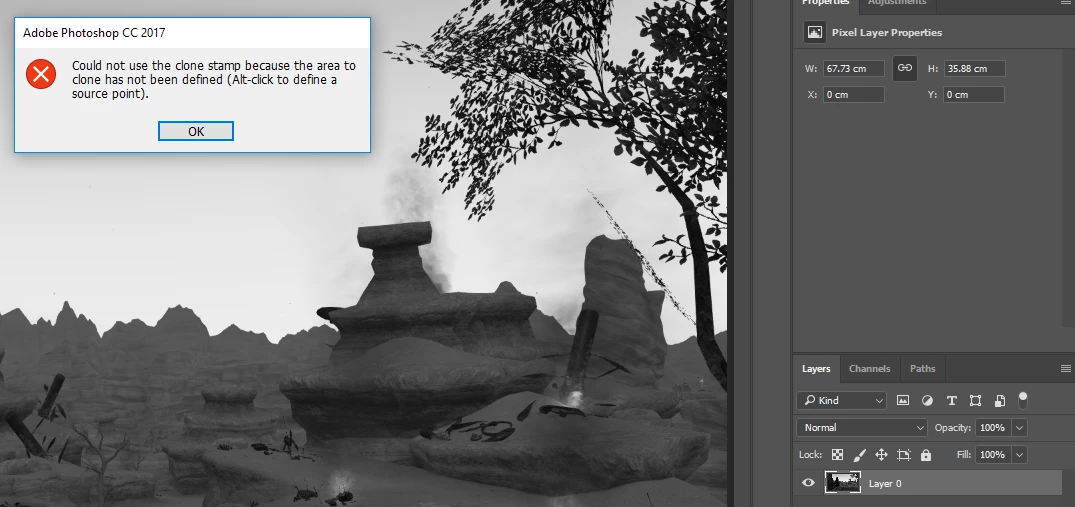
I am very new to Photoshop and I am learning how to use the clone stamp tool by following various tutorials, however I get stuck with the following error:

"Could Not Use Clone Stamp Tool Because Area To Clone Has Not Been Defined" and then it tells me to Alt-click to define the source. However when I do that, I get the error again!

I have tried:
- To reset the tool
- Made sure all layers were selected (It initially gave me an error for that)

- Made sure the layer isn't locked.
- Reinstalled Photoshop
- Tried to see if it was somehow not the alt-key I needed to use but I can't find any other key that lets me do this.
- Closed all other programmes besides google chrome to see if anything was conflicting

I use Windows 10, my computer is brand new and powerful, I have a wired mouse and keyboard.
The only thing I seem to be able to conclude is that my Alt key is not working probably in Photoshop, but it works fine in other contexts. I can also still alt-tab between programmes when I have photoshop open. My keyboard is nordic as I am from the nordic countries.

I was initially working on two layers but since I was having issues now I am just working on one layer. I am really at a loss as how to solve this, it is the first time I ever have to use the clone tool and right away it gives me this error. I appreciate any help you can give.
This topic has been closed for replies.
Correct answer c.pfaffenbichler

Thanks, but now you hid the Layers Panel.

Does the Clone Stamp Tool’s cursor change to crosshairs when you press the alt-key?

When you alt-click does the Layer’s appear near the top of the Clone Source Panel?

Does the issue arise with both alt-keys?

2 replies

Participant
December 11, 2024

Same problem 


c.pfaffenbichler
Community Expert
Community Expert
December 12, 2024

Have you tried using another keyboard? 

c.pfaffenbichler
Community Expert
Community Expert
July 27, 2017

Please include the Clone Source Panel, Channels Panel, Toolbox and Options Bar in a screenshot.

- Made sure all layers were selected (It initially gave me an error for that)

Only one Layer should be selected.

What have you done for trouble-shooting so far?

Restoring Preferences after making sure all customized presets like Actions, Patterns, Brushes etc. have been saved might be a good starting point:

https://helpx.adobe.com/photoshop/kb/basic-trouble-shooting-steps.html

Participant
July 27, 2017

I hope I got everything onto it.

By all layers selected I meant the sample-all layers setting.


Some keybindings involving Alt does not appear to be working correctly. For example if I try to do control+alt+shift+k it should have brought up keyboard shortcuts, but it brought up Color Settings instead. I tried this after I did a reinstall of photoshop where I told it to delete all of my settings. I have not messed around with the settings a whole lot beforehand either, like I never had any costumized presets before.

c.pfaffenbichler
Community Expert
c.pfaffenbichlerCommunity ExpertCorrect answer
Community Expert
July 27, 2017

Thanks, but now you hid the Layers Panel.

Does the Clone Stamp Tool’s cursor change to crosshairs when you press the alt-key?

When you alt-click does the Layer’s appear near the top of the Clone Source Panel?

Does the issue arise with both alt-keys?