January 1, 2026
Answered

Color management in Ps v. 27/2

  • January 1, 2026
  • 6 replies
  • 382 views

Color management in Ps v. 27/2

I have been working with Photoshop for years. Since I mainly create photo books, I have always converted my photos to CMYK and TIF. This has always worked without any problems and produced excellent color results. The latest version of Photoshop makes this impossible for me personally (apparently, I don't understand the new version). It starts with me opening an already edited RGB photo with colors that are perfect for me in Ps: the result is shocking. The colors are gray and without contrast, as if a milky layer has been placed over them. I then worked with the RGB photo first, and when I thought the result was acceptable, I saw that the result in Id was dark and completely unacceptable in terms of color. I then tried to create a CMYK version. First of all, I found it very complicated (Convert to Profile etc.), and secondly, the colors are terrible. It seems to me that Ps actively discourages conversion to CMYK. I don't know if I don't understand the new version or if something has changed significantly. Can anyone help me understand this? Thank you very much!

Translated with DeepL.com (free version)

Correct answer Conrad_C

The screen shot of Photoshop in the second page of your PDF is missing any readouts that tell us about the color space and color profile of the image, so it is not clear how your copy of Photoshop is displaying the colors of that document. At the very least, the screen shot should show the document’s embedded color profile. In his earlier reply, D Fosse already posted an example of how to show the document’s color profile in the document window status bar.


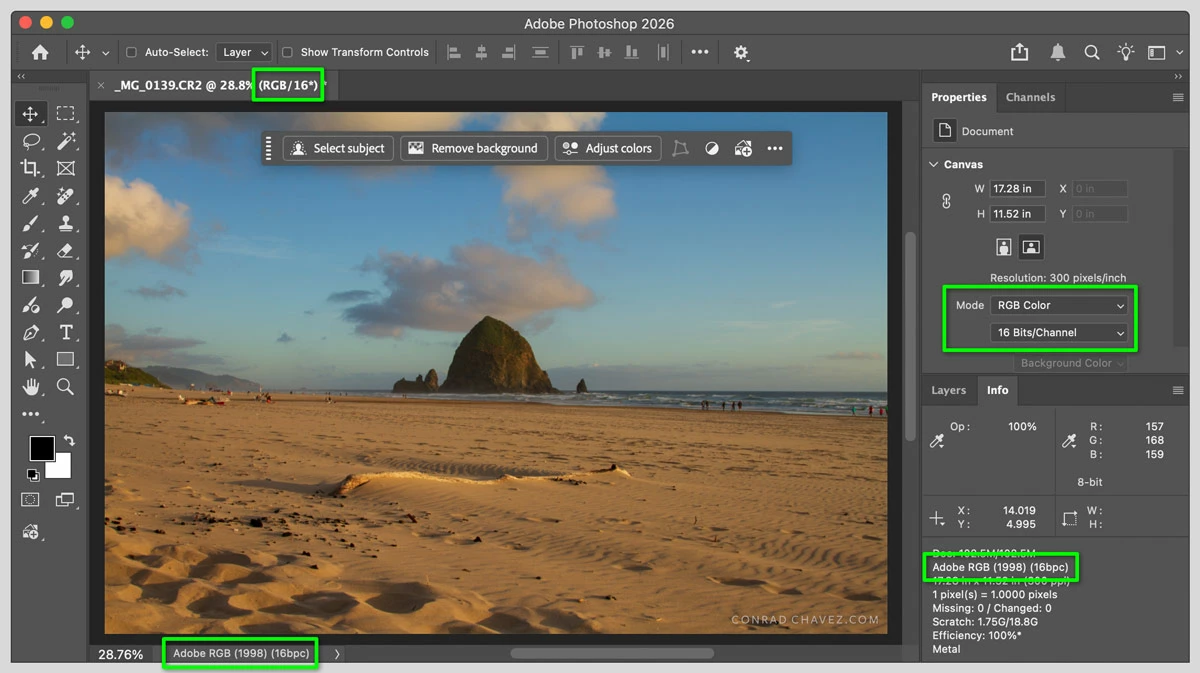
There are several other places in a Photoshop workspace that can display the document color space and color profile, as shown in my picture below. Like D Fosse, I leave my status bar set to Document Profile so that I always know the color profile of every Photoshop document I have open. More info:

  • The document tab shows the color mode and bit depth, but not the profile. 
  • The status bar can show the color profile and bit depth if you set it to Document Profile. 
  • The Properties panel shows the current document’s color Mode and bit depth, when no layers are selected. 
  • The Info panel can show the same color profile and bit depth information as the status bar. But it does not show all of the information in my screen shot by default, they must be enabled (choose the Panel Options command from the Info panel menu). 


The reason these readouts are useful is because there is a difference between Photoshop color settings defaults (in the Edit > Color Settings dialog box) and the color settings for each individual open document (shown in the readouts in the picture below). Knowing both gives you a more complete sense of the color situation. 


872517iBD2B3C025398C1D6.jpg


The Photoshop Color Settings shown on the first page of your PDF look OK because the Color Management Policies are set to Preserve Embedded Profiles. That means Photoshop does not change the color profile of any image you open, it respects and applies whatever profile is embedded in the document. 


If everything looks OK but colors still look wrong, another thing to try is to open the display settings at the OS level (outside of Photoshop) and check which display profile and settings are applied to your system. 

6 replies

Conrad_C
Community Expert
Community Expert
January 1, 2026

I agree with D Fosse...nothing has changed, or at least there have been no announced or noticed changes to how color management works in Photoshop for many years. The options and behaviors are all the same as far as we know. I think the last significant change was the addition of support for color-managed OCIO workflows (Edit > OpenColor IO Settings), but that shouldn’t affect what you’re doing. 


If files are not opening as they were, the most likely cause (and the first place to troubleshoot) is to check the settings in the command Edit > Color Settings. For example, if the Color Management Policies were changed, that could force a color conversion when a document is opened. Again, that’s worked the same way for maybe 25 years now, so the only way that should have changed is if a user changed a setting. Or, another way an unexpected change could happen is if your Color Management Policies were always set to Convert to Working RGB/CMYK and that has not changed, but at least one of the Working Spaces was changed.


@anke_8599 wrote:

I saw that the result in Id was dark and completely unacceptable in terms of color.


If the image looks different than Photoshop when added to an InDesign layout, then I would also check the InDesign command Edit > Color Settings and see if any options have been changed to force a conversion on import. That in itself is not necessarily wrong, unless it’s set to force a conversion to a color space that is not what you want. For any individual images on an InDesign layout, you can also check the current color settings for that (Object > Image Color Settings), which can override the defaults. This has not changed in many years in InDesign. 


@anke_8599 wrote:

First of all, I found it very complicated (Convert to Profile etc.)


Again, that specific process hasn’t changed in many years. And it should not be complicated, these should be the only steps:

1. Choose Edit > Convert to Profile.

2. Select the correct Destination Space, and (only if necessary) change the Conversion Options or Advanced Options.

3. Click OK.


So just three steps, maybe just two (choose the command and hit OK) if the Destination Space and options already come up correct.


What easier way do you remember doing it? Were you using Image > Mode > Convert to Profile to do it in just one step? That can be OK as long as you are certain that the CMYK profile it uses is absolutely the correct one; it should default to the CMYK working space set in Color Settings. Nothing has changed about this in many years too, except that Adobe added a warning in case someone is not paying attention to the exact CMYK profile it’s using for the conversion.

anke_8599Author
January 2, 2026

Thanks again! Yes, I did it in one step under Image>Mode....

When I reopen a RGB file the colors also are grey and blurred..... this is difficult to understand for me. I tried 9 different profils..... No one was satisfing. Well I very much appreciate your time and effort! The problem is obviously I my  self. 🙂 

D Fosse
Community Expert
Community Expert
January 1, 2026

Color management hasn't changed. It works just like it always has.


You need to keep track of your color spaces - sRGB, Adobe RGB, ProPhoto, US Web Coated SWOP, Coated FOGRA39, etc etc etc. You need to know where you are and where you're going.


Post a full-screen screenshot of a file you're having problems with, with the status bar set to show "document profile" like this:

872426iF6FF77AB53DF4DAB.png.


Also post a screenhot of your Edit > Color Settings.


The other component in this is the monitor profile. The basic principle in display color management, as in all color management, is that there's a source (document) profile, and there's a destination (display) profile. If both these profiles are correct, Photoshop will display correctly. 


To go from an RGB document to a CMYK document, the principle is the same: source and destination profiles. Again, you need to know where you are and where you're going. You must know which CMYK profile to convert to, and the printer will tell you that.


anke_8599Author
January 2, 2026

Thank you very much for your answers! You are much more knowledgeable than I am. That's why I'm concerned that nothing has changed in terms of the program itself. As I said, I didn't have these problems in earlier versions.
Please find attached the screen prints. I hope they reflect my problem.
Thank you in advance.

Conrad_C
Community Expert
Conrad_CCommunity ExpertCorrect answer
Community Expert
January 2, 2026

The screen shot of Photoshop in the second page of your PDF is missing any readouts that tell us about the color space and color profile of the image, so it is not clear how your copy of Photoshop is displaying the colors of that document. At the very least, the screen shot should show the document’s embedded color profile. In his earlier reply, D Fosse already posted an example of how to show the document’s color profile in the document window status bar.


There are several other places in a Photoshop workspace that can display the document color space and color profile, as shown in my picture below. Like D Fosse, I leave my status bar set to Document Profile so that I always know the color profile of every Photoshop document I have open. More info:

  • The document tab shows the color mode and bit depth, but not the profile. 
  • The status bar can show the color profile and bit depth if you set it to Document Profile. 
  • The Properties panel shows the current document’s color Mode and bit depth, when no layers are selected. 
  • The Info panel can show the same color profile and bit depth information as the status bar. But it does not show all of the information in my screen shot by default, they must be enabled (choose the Panel Options command from the Info panel menu). 


The reason these readouts are useful is because there is a difference between Photoshop color settings defaults (in the Edit > Color Settings dialog box) and the color settings for each individual open document (shown in the readouts in the picture below). Knowing both gives you a more complete sense of the color situation. 


872517iBD2B3C025398C1D6.jpg


The Photoshop Color Settings shown on the first page of your PDF look OK because the Color Management Policies are set to Preserve Embedded Profiles. That means Photoshop does not change the color profile of any image you open, it respects and applies whatever profile is embedded in the document. 


If everything looks OK but colors still look wrong, another thing to try is to open the display settings at the OS level (outside of Photoshop) and check which display profile and settings are applied to your system.