


Participant
October 21, 2026
Question

Color Mixing using Photoshop 2020

Hi everyone,


I am doing WPAP using Photoshop 2020.

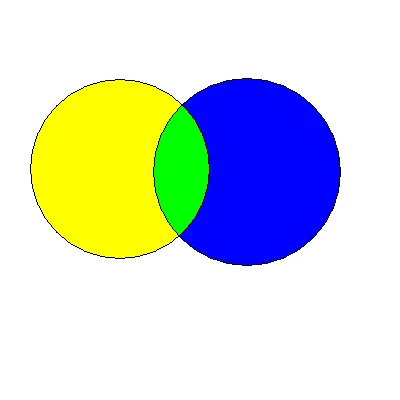
How do I create color mixing like attached image in Photoshop 2020?

For example, first I create the yellow circle, next I create blue circle.

How do I make so that the intersection of these two circles become the mixing of these two colors, which is green?


Please advance and explain.


Thank you


    3 replies

    Conrad_C
    Community Expert
    Community Expert
    October 22, 2026

    If you want the yellow and blue to mix as green dynamically in a digital photo editor (not just Photoshop but any of them), there is no way to do it with that combination of yellow and blue.

    You can get green if you shift the blue toward cyan. Then you can apply a layer blending mode such as Linear Burn to the upper layer, and that makes the two colors combine as green. You can change the resulting green by shifting the color values of the two colors. But you will never get green if you use RGB (0,0,255).

    When possible, it’s much better to combine the colors using blending modes instead of selections. That’s because with blending modes you are free to edit the two layers at any time and the overlap will adjust automatically.

    (I recorded a demo that I’m trying to post here as a GIF animation, which worked in the past, but the forum software isn’t successfully uploading those right now.I’ll try again later.

    Pure yellow and blue only make green when you use real paint, because of the way subtractive color works with reflected light and impure pigments. But it does not work that way in typical digital color software. I found a web page about this misconception:

    https://colourliteracy.org/green-made-of-yellow-and-blue

    But when you combine truly pure colors using transmissive light, as with a projector or a digital display, then things work as they do with Photoshop blending modes. 

    Translate
    CORCTON34033231
    Community Expert
    Community Expert
    October 21, 2026

    Hi, for a flat WPAP result like your example, make the overlap as its own filled area — don't rely on the two circles blending by themselves:


    1. Put the yellow circle and the blue circle on separate layers.

    2. Ctrl-click (Windows) / Cmd-click (Mac) the yellow circle layer's thumbnail to load it as a selection.

    3. Ctrl+Alt+Shift-click (Windows) / Cmd+Option+Shift-click (Mac) the blue circle layer's thumbnail. The selection now shrinks to just the intersection of the two circles.

    4. Add a new layer above both circles, set your foreground colour to the green you want, and press Alt+Backspace (Windows) / Option+Delete (Mac) to fill only the intersection.

    5. Ctrl+D / Cmd+D to deselect.


    That gives you the flat green overlap in your image, and you can repeat the same steps for any other overlapping pair, filling each overlap with its mixed colour.


    Hope this helps!

    Translate
    Participant
    October 22, 2026

    I am sorry, I follow your method but it doesn't work. What should I do?

    This is the screenshot of what I am doing based on your suggestion:


    https://i.ibb.co.com/fV89tzQp/color-mixing-ps-2020.png


    Translate