
danm70726247
Participant
December 22, 2017
Answered

Colour overlay not working!

  • December 22, 2017
  • 3 replies
  • 47677 views

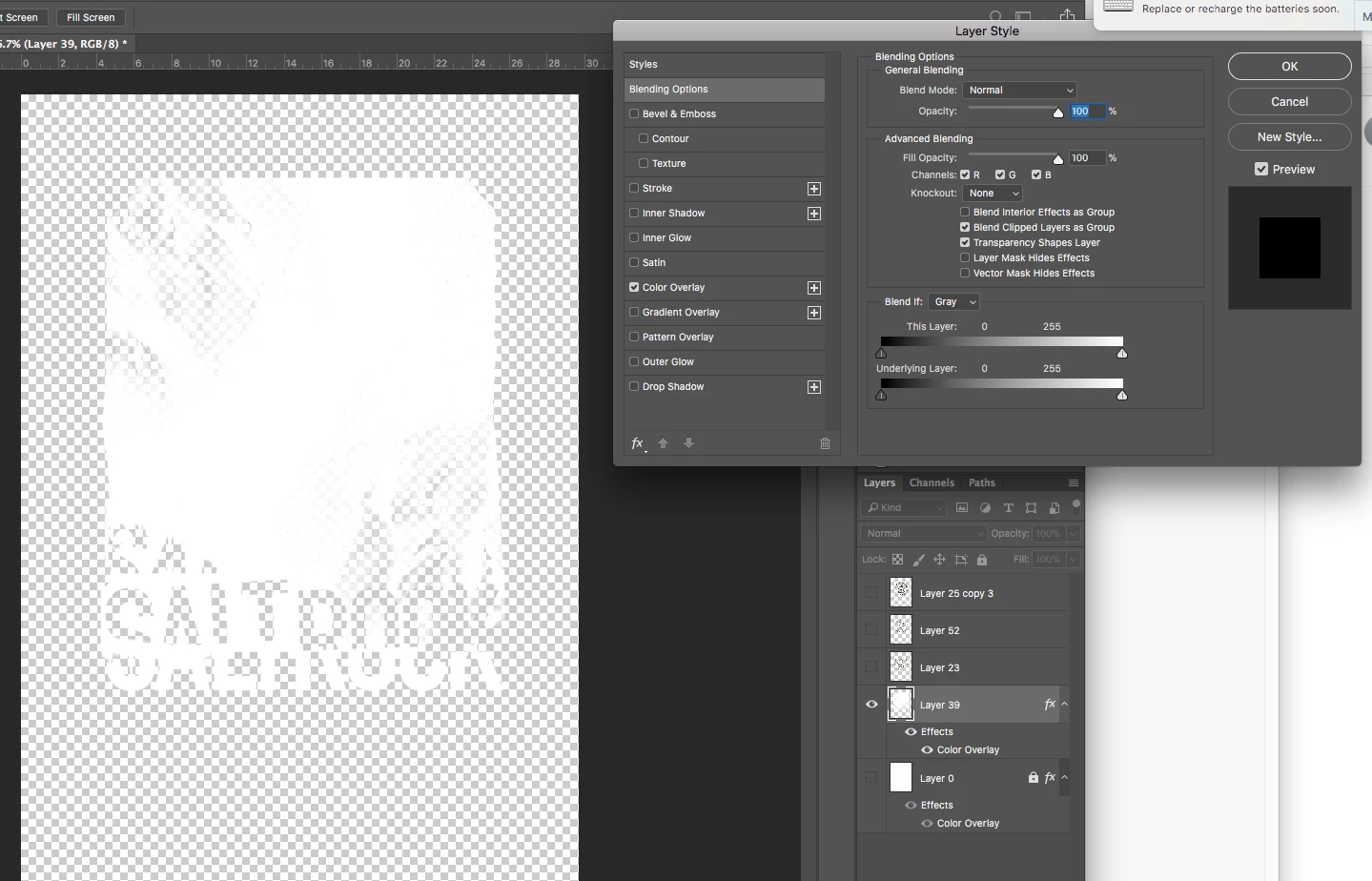
So i'm a clothing designer that uses photoshop to construct prints for garment's, since starting in a new company and using there Photoshop CC i have come across this problem quite a few time's and its very very frustrating, when ever i double click my layer to change it to black (because that how i set up my screen's) it won't actually change! I was wondering if this was some sort of bug that other people are experiencing and if there is a way to fix it, i have tried looking through the preferences and comparing it to my computer i use at home but there is no difference to my home set up! Any info on this would be amazing.

(This has now changed to only one layer seems to have to problem, this white layer that is shown is the only layer that wont colour overlay!)
This topic has been closed for replies.
Correct answer danm70726247

Hi guy's,

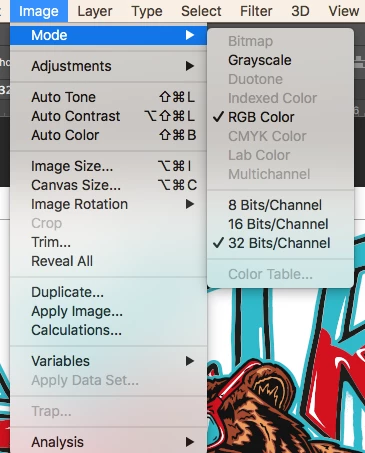
I solved it! (large slap on face) i was only using it on an 8bit channel! as soon as i changed it to 32bit channel it worked fine!

3 replies

danm70726247
danm70726247AuthorCorrect answer
Participant
January 15, 2018

Hi guy's,

I solved it! (large slap on face) i was only using it on an 8bit channel! as soon as i changed it to 32bit channel it worked fine!

Participant
January 8, 2024

I had the same issue and you helped me solve it. Thanks!

Martin_Bns
Inspiring
December 22, 2017

Hi my friend,

There is a small mistake you did which a lot of people do. When you "tick" the Color Overlay feature, you still see the "selected" feature.
If you want to see the options of the Color Overlay, click on the actual name and not just tick it.

Hope it helps,
Martin

danm70726247
Participant
January 4, 2018

Hi Martin,

Thanks for your reply, yeah i usually click into the overlay option selecting the chosen colour of eye drop a colour in the graphic but for some reason it wont turn the layer into the colour that i have chosen, i've done in on CMYK, RGB and grey scale but still no luck, i have used other's computers where i work and they are all fine and doing what the function is supposed to do!

Terri Stevens
Legend
December 22, 2017

I think I must be misunderstanding your question, but to apply a color overlay you must select that type of layer style and use the color blend mode. In your illustration you are selecting 'blending options'

danm70726247
Participant
January 4, 2018

Thank's for the Reply,

Well you see usually i would click on a solid object that i had copied over from illustrator such as a logo or even a scanned in line work, go to colour overlay it turning the layer to a solid colour that i have chosen or eye dropped but it's not working to the colour's that i choose (see pic, i have eye dropped white). I have no idea why this is happening, i have tried the same thing on other computers in my office and they work fine.