


Inspiring
July 26, 2026
Answered

Configuration Radial adjustment mask

  • July 26, 2026
  • 2 replies
  • 38 views

Is there a way to configure the radial adjustment mask in Photoshop to match the view in Lightroom CC, where two circles are visible and adjustable? In Photoshop, only the outer circle appears. It's only with this mask.
    Correct answer AxelMatt

    @Wil1305 No, it isn’t possible.

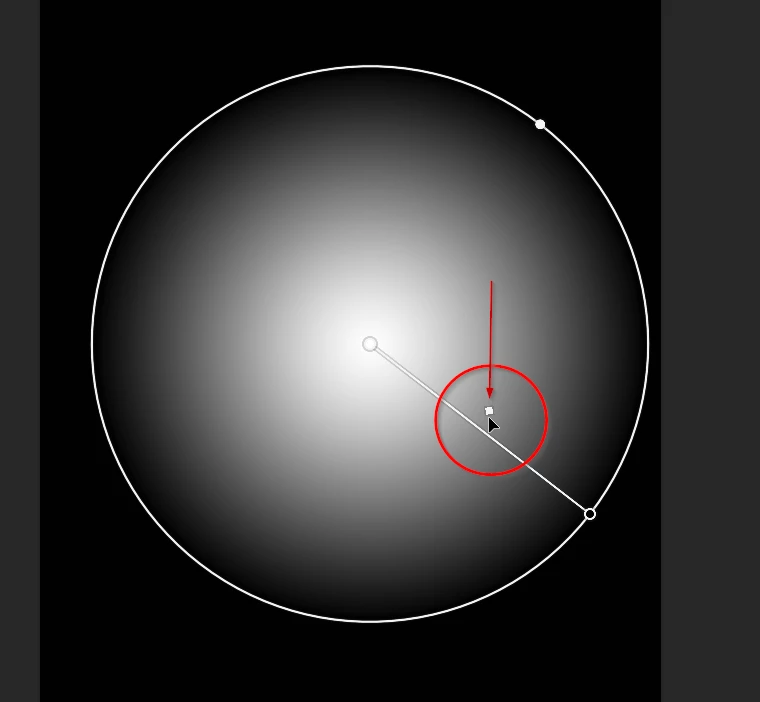
    The radial mask in Lightroom controls the softness of the transition edge dragging the inner circle.

    In Photoshop you can do the with moving the little rectangle on the line (see screenshot).


    2 replies

    Conrad_C
    Community Expert
    Community Expert
    July 26, 2026

    The one in Lightroom is only an adjustment mask, and it is only an opacity mask. And, it only has two values, starting and ending, which you balance using the Feather option. But that’s it.


    The gradients in Photoshop have many more controls. You can use a Photoshop gradient on a mask, but also (unlike Lightroom) as a full content layer. And the gradients have more than just starting and ending values, because you can add any number of stops at any point along a gradient. So a gradient in Photoshop can have multiple stops all set to different colors, in addition to opacity stops. In a mask, you can have multiple stops set to different tones.

    So where Lightroom has only two circles to control it, in Photoshop you can add as many as you need.


    AxelMattCommunity ExpertCorrect answer
    Community Expert
    July 26, 2026

    @Wil1305 No, it isn’t possible.

    The radial mask in Lightroom controls the softness of the transition edge dragging the inner circle.

    In Photoshop you can do the with moving the little rectangle on the line (see screenshot).


    My System: Intel i7-8700K - 64GB RAM - NVidia Geforce RTX 3060 - Windows 11 Pro 25H2 -- LR-Classic 15 - Photoshop 27 - Nik Collection 9 - PureRAW 6 - Topaz Photo AI
    Wil1305Author
    Inspiring
    July 26, 2026

    Thank you very much. I wasnot aware or familiar with that🫢