
Participating Frequently
January 26, 2023
Answered

Content aware fill greyed out

  • January 26, 2023
  • 4 replies
  • 13479 views

Hi there, new to PS but I know that something must be selected, and that content aware fill does not work on an adjustment layer or a smart object. I don't believe the layer I am working on is either of these.

I even started a fresh project in photoshop and all I have done is added the photo in and made it fit the size of the page.

When i click  select > Subject >

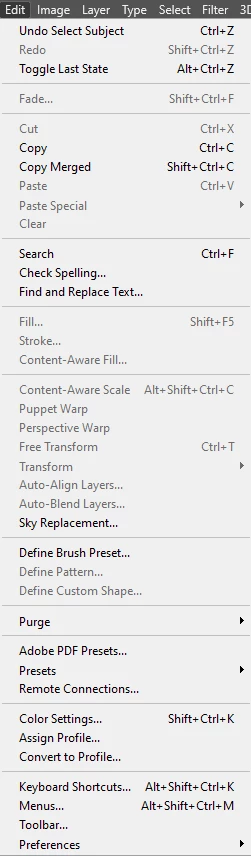
then  Edit, Fill , stroke, and content aware fill does not allow me to click, it is greyed out.

Then I tried Shift backspace and i get a popup that says "Could not complete your request because the smart object is not directly editable."

I don't know what this means or how to solve it. Please help. Thanks!


Correct answer Kevin Stohlmeyer

If you rasterize the image or double click into the Smart Object,  you can reselect and then use the new Content Aware Fill Workspace (Edit>Content Aware Fill) which will give you greater controls than the traditional Edit>Fill menu.

4 replies

Participating Frequently
February 28, 2023

 Created a page added a photo and moved it to where I want


 selected off of the image

 selected Subject to have a selection

 expanded selection to 5 pixels

    Went to edit and content aware fill is blocked out

Kevin Stohlmeyer
Community Expert
Community Expert
February 28, 2023

Hi @Marketing27902106xstn

You can't use Content Aware or any fill directly on a Smart Object.

When you placed your image it automatically created a Smart Object:


Kevin Stohlmeyer
Community Expert
Kevin StohlmeyerCommunity ExpertCorrect answer
Community Expert
February 28, 2023

If you rasterize the image or double click into the Smart Object,  you can reselect and then use the new Content Aware Fill Workspace (Edit>Content Aware Fill) which will give you greater controls than the traditional Edit>Fill menu.

PECourtejoie
Community Expert
Community Expert
January 27, 2023

Hi and welcome! By default , if you place an image in a document, you get a smart object, in order to scale it losslessly. You can change this setting in the preferences: Edit(Pc) or Photoshop(Mac)/Preferences/General/ and uncheck "Always Create Smart Objects when Placing"

It is possible to convert the smart object (see the little icon in the corner of its layer thumbnail) to a regular layer, if you right-click on its name in the Layers Panel.

enjoy learning !

Participating Frequently
February 28, 2023

Hey, 

I don't think it is a smart object as when i right click on it,one of the options is "convert to smart object"


Trevor.Dennis
Community Expert
Community Expert
January 27, 2023

Can you show us a full size screen shot of your entire UI including the layers panel and the area selected?

BTW you can use CAF on a Smart Object.  You just need to double click to open it in a new window where CAF will then work on raster layers in the SO.

Participating Frequently
February 28, 2023

Thanks for wanting to help, I just added screenshots 🙂

Participating Frequently
January 27, 2023

Edit I have tried on a new page with a new photo and this time it is still greyed out but Shift and backspace let me select but after it gives me the pop up "Could not fill because the pixels in a group cannot be edited without merging the group."

Still do not know what this means.

Bojan Živković11378569
Community Expert
Community Expert
January 27, 2023

Something must be selected means layer with pixels that you want to make changes. In your case Layer group is selected in the Layers panel thats why you are getting message "Could not fill because the pixels in a group cannot be edited without merging the group."

Note: Shift + Backspace will display Fill dialogue which is not exactly the same as Content-Aware Fill workspace which will give you more options. CAF workspace can be invoked using Edit > Content-Aware Fill.