Participating Frequently
Dec 9, 2019 2:35 AM UTC
Answered

Copy and Paste color issues in PS

Hello,

After substracting my subject from an image and pasting it into another document for a composite, the image colors look muted. Could you tell me what the problem could be? All the vibrancy is gone from the picture.


Thanks.

This topic is closed to new replies. Start a new post to keep the conversation going.
lambiloon
lambiloonCorrect answer
Community Expert
Dec 9, 2019 3:10 AM UTC

See attached. The first photo is the correct colors, the second is after pasting it into another document.


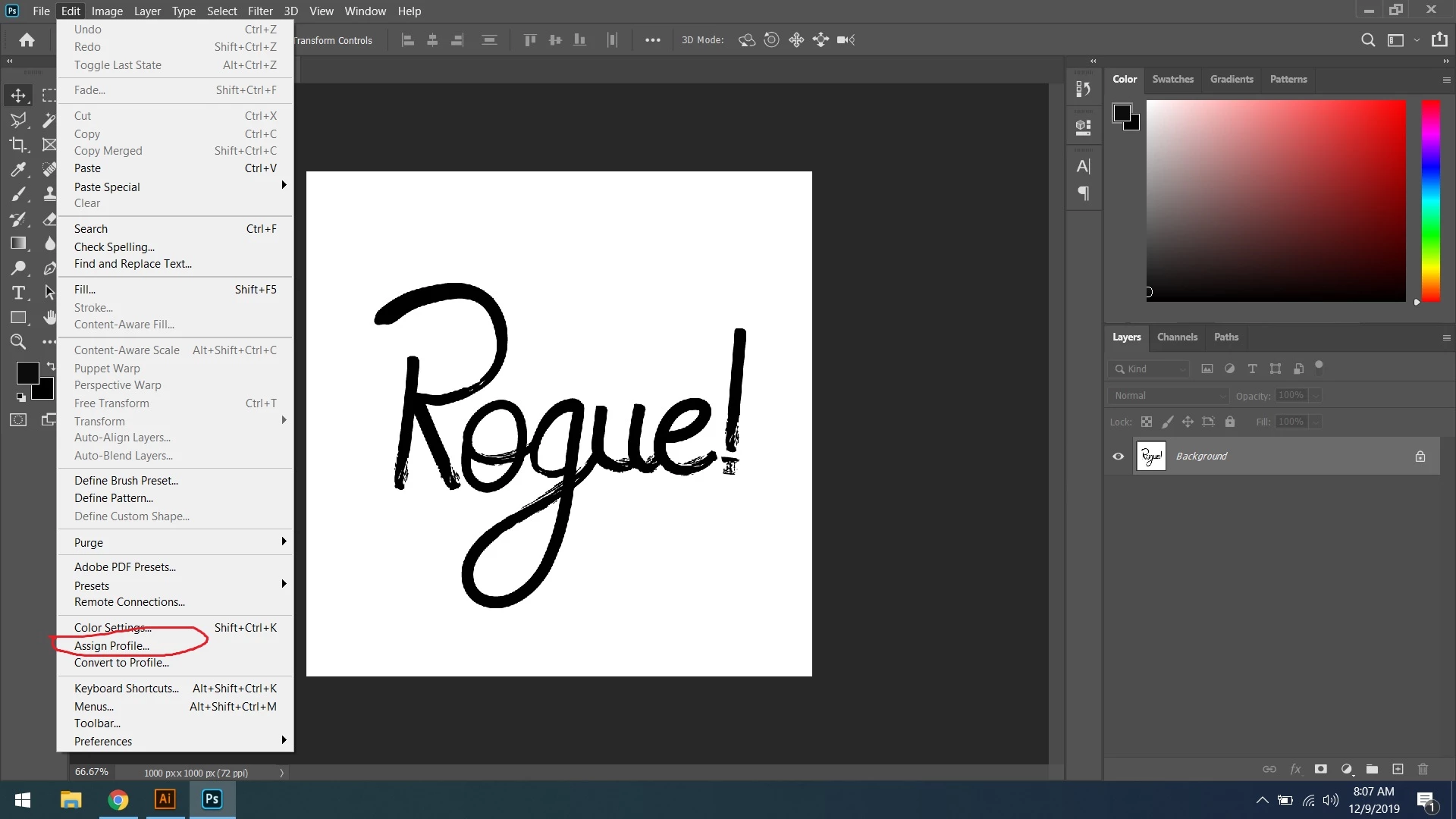
Hi check the picture go to assign profile then from there make color profile same for both documents...Regards


Ali Sajjad / Graphic Design Trainer / Freelancer / Adobe Certified Professional

15 replies

Participant
Mar 5, 2020 7:13 PM UTC

Photo Grab from Internet: Was getting DULL COLOR when grabbing a photo from internet browser and pasting into Photoshop.

GRAB PHOTO from Internet to PHOTOSHOP

--> Right click on Internet photo -> Copy Image

--> Photoshop > File New > Change Color Profile to > Don't Color Manage

This keeps the color the same as the original image.

-- You get the vibrant color, and it is not changed into a preset or previous setting.

Translate
davescm
Community Expert
Community Expert
Mar 5, 2020 7:21 PM UTC

@Abertsch

Sorry - but working without colour management is bad advice, and will cause other issues downstream.  The correct way is (as mentioned in earlier posts) make sure the incoming image is assigned with the correct colour profile. For internet images without an already embeded profile then a safe starting assumption is to assign sRGB.


Dave

Translate
Participant
Mar 5, 2020 10:44 PM UTC

Thanks Dave. -- Good advice on the sRGB.


Translate
D Fosse
Community Expert
Community Expert
Dec 9, 2019 6:25 AM UTC

This is what happens when images don't have an embedded color profile (untagged images).


In Photoshop's color settings, policies should always be set to "Preserve Embedded Profiles". This is the default, don't change it, ever. 


A problem is Save For Web/Export, both of which strip the profile at default settings. The result is what you see here. To avoid falling into that trap, you need to check "embed color profile" manually. Once you do that, however, it should stick.

Translate
Chuck Uebele
Community Expert
Community Expert
Dec 9, 2019 3:04 AM UTC

There are different RGB profiles: sRGB, Adobe RGB 1998, ETC. Make them all the same.

Translate
Participating Frequently
Dec 9, 2019 3:06 AM UTC

The first picture is open in PS, then copied and pasted into another document still in PS. How can the profiles are diffrent in the same application and how do I fix them?

Translate
lambiloon
Community Expert
Community Expert
Dec 9, 2019 2:40 AM UTC

Hi i think this due to difference in Color mode of documents you copy and pasting form RGB to CMYK....Regards

Translate
Ali Sajjad / Graphic Design Trainer / Freelancer / Adobe Certified Professional
Participating Frequently
Dec 9, 2019 2:41 AM UTC

Thanks. Any idea how to fix it?

Translate
lambiloon
Community Expert
Community Expert
Dec 9, 2019 2:45 AM UTC

Just make color mode same for both documents .... Regards

Translate
Ali Sajjad / Graphic Design Trainer / Freelancer / Adobe Certified Professional