



Catalin Muntean
Inspiring
December 1, 2023
Answered

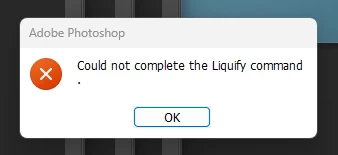
Could not complete the liquify command version 25.2

  • December 1, 2023
  • 36 replies
  • 17267 views

Hello guys,

Since the last update, I'm encountering the error "Could not complete the liquify command". This happened multiple times today while I was working so every time I had to restart Photoshop. What should I do? Thanks.
 

Correct answer V.Ts

Preferences > Image Processing > Remove Tool Processing setting > More stable

and we will make you happy)
helped me

36 replies

Participant
February 13, 2025

I fix it on my own after trying different methods. The problem is when I set the image size to 300 dpi, the image became too big and Photoshop could not operate the liquify properly. 


I discovered this when trying other images and it works perfectly fine. To fix this, I just reduced the image size to 100 dpi and the issue was fixed. You can try if this works for you as well. This is my self-discovery. I hope this helps.

Participant
February 6, 2025

Disabling harware acceleration is bull, is so slow after, my side i chaged the scratch disk to another SSD and did the trick, for how long will se in a week or so

Participant
December 12, 2024

After trying all the tips I could find the thing that is working at the moment is going back to the oldest version of photoshop downloadable in creative cloud, version 22.

Participant
December 12, 2024

I have the same problem. Tryed all the solutions I could find but nothing worked. Adobe please help!!!

Known Participant
November 12, 2024

Im having this exact same issue, both on my desktop (i7 12th / RTX3080 / 32gb) and my Book 3 Ultra (i7 13th / RTX4050 / 32GB)

It's frustrating to see Adobe releasing new features but leaving the bugs behind. This problem has been around for years, and they still haven't fixed it. And the worst part is that when we reach out to support, all they do are those standard procedures that solve nothing!

NICKSUSHKEVICH
Participating Frequently
October 9, 2024

Just updated to the latest version and Liquify still bugging out. Image processing set all to More Stable

NVIDIA RTX4090

What's causing this bug?


V.TsCorrect answer
Inspiring
June 10, 2024

Preferences > Image Processing > Remove Tool Processing setting > More stable

and we will make you happy)
helped me

Participant
June 13, 2024

is it really helped you ?


Inspiring
June 13, 2024

yes to me, try it

Inspiring
June 9, 2024

!!!

 
Participant
May 4, 2024

The same here. Liquify and everything else was working fine all week and then suddenly yesterday the above Liquify problem. Closing and restarting Photoshop allows me to keep working for the moment.

Participant
April 29, 2024

try and hold the 'alt' key (windows) or 'opt' key (apple) when clicking the liquify command. Worked for me.

joelix
Participant
May 13, 2024

Yes! This worked for me too! Thank you!

Participant
May 14, 2024

This worked for me as well!! thank you!!!!