
Participant
August 3, 2018
Beantwortet

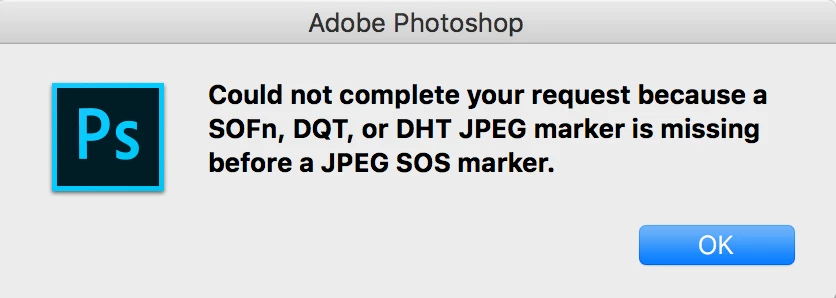
Could not complete your request because a SOFn, DQT ...
  • August 3, 2018
  • 34 Antworten
  • 309923 Ansichten

This is a weird message from Photoshop, could not open an image !!?

Could not complete your request because a SOFn, DQT or DHT JPEG marker is missing before a JPEG SOS marker.

what is that mean at first place !!! ... Im using MacBook and its up to date, photoshop version is 19, and it was working perfectly, I use it everyday to edit photos and so on.

Now I have one way to avoid this message by take a screenshot of the image and open it, but this is not a solution at all !

I don't know why this message is thrown by Photoshop.

is there anyone have a solution of this error !!!!!!

THANKS

Beste Antwort von Rafael Osipov

I have created a free and open-source tool to fix these issues with images. It is easy to use and fast.

Application works for Windows and MacOS as well.

Source code and binaries are available here: https://github.com/cdefgah/whatsapp-jpeg-repair

Instructions are displayed on the page link I provided above (check README.md file).

34 Antworten

Participant
April 10, 2020

https://youtu.be/CxekU9heRAc                   Worked for me.

Participant
April 2, 2020

Not sure if this works on all Windows pc, but I tried this and it works for me.

1. Open your photo in photo preview.

2. Press edit, and then save a copy without editing it.

3. Right click, open with Photoshop.

Participant
January 1, 2020

Hey just found a fix to this error. Just save the file as .png using Paint or any other software. It worked for me.

Btw I wish you a very Happy New Year!

PECourtejoie
Community Expert
Community Expert
November 27, 2019

Hello, for bugs and problems, it is always a good idea to open a thread on https://feedback.photoshop.com with details of the issue. I found a thread for similar problems, maybe vote and explain the issue...

https://feedback.photoshop.com/photoshop_family/topics/jpeg-markers

yen lingc22543404
Participant
August 5, 2019

If come with batch of Whatsapp photos,

i prefer use Lightroom to import and save as jpg file again in batch

(or other software that work well in batch save..)

After resave those photos work well in photoshop.

I have same problem here. I try every solution given on web whole day and this is what i think is better.

Participant
July 2, 2019

This is work, i tried this, open the image file with paint, then save as .jpg file, i dont know why, but .JPEG and .jpg could make a different on photoshop, and try re-open that image.jpg. thank you

Participant
May 29, 2019

Access

Microbe101
Participant
May 29, 2019

I tried this it woks wonder,

1) open the image with paint select 'save as' and select .bmp

2) when the save as local window opens change the file name to anything and change the format from previously selected .bmp to .jpg and press save. Tada!!!

Now you can open it with photoshop

Microbe101
Participant
May 29, 2019

I tried this it woks wonder,

1) open the image with paint select 'save as' and select .bmp

2) when the save as local window opens change the file name to anything and change the format from previously selected .bmp to .jpg and press save. Tada!!!

Now you can open it with photoshop

Participant
May 27, 2019

Hope this helps !