


Participant
April 17, 2025
Answered

Crash on startup
  • April 17, 2025
  • 1 reply
  • 555 views

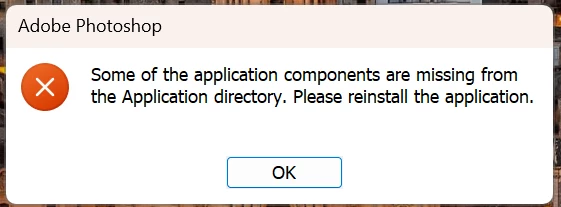
Immediately upon startup, it reports an error (picture) and the only thing you can do is confirm and the program closes. Tried a new installation and it's the same. Tried a new installation of the Windows operating system and reinstalled Adobe Photoshop and the error is the same. Please help

Correct answer Aleke

Hi @Anze_Weit

I'm sorry to hear that nothing has worked yet. Some users have found that changing the install language to English in Creative Cloud > Preferences can resolve this issue. Could you give that a try?

Let me know how it goes. Thanks a bunch!

Alek

1 reply

Community Manager
April 17, 2025

Hi @Anze_Weit! Welcome to the community! 

It sounds like there might be some corrupt files in your Photoshop installation. Could you try resetting your preferences? This is the most thorough way to restore Photoshop to its default state. Make sure to use the manual method as shown here.

If that doesn't help, you can try using the Creative Cloud Cleaner tool.

Hope this helps!

Alek

*(If you mention me with an @, like @Aleke, I’ll get a notification and can respond faster.)*
Anze_WeitAuthor
Participant
April 18, 2025
Hi,

I tried everything that was suggested, but I still can't launch Photoshop. Immediately after starting, an error window appears stating that some files are missing. I am using Windows 11, and I think this started happening after an update. I also have a problem when trying to install Photoshop Express — it doesn't install and shows an error during the installation. Is there any way to obtain the missing files? Or is there any other solution?

Best regards,

Anže
AlekeCommunity ManagerCorrect answer
Community Manager
April 18, 2025

Hi @Anze_Weit

I'm sorry to hear that nothing has worked yet. Some users have found that changing the install language to English in Creative Cloud > Preferences can resolve this issue. Could you give that a try?

Let me know how it goes. Thanks a bunch!

Alek

*(If you mention me with an @, like @Aleke, I’ll get a notification and can respond faster.)*