



💡 Create a Sci-Fi Glow Effect in Photoshop
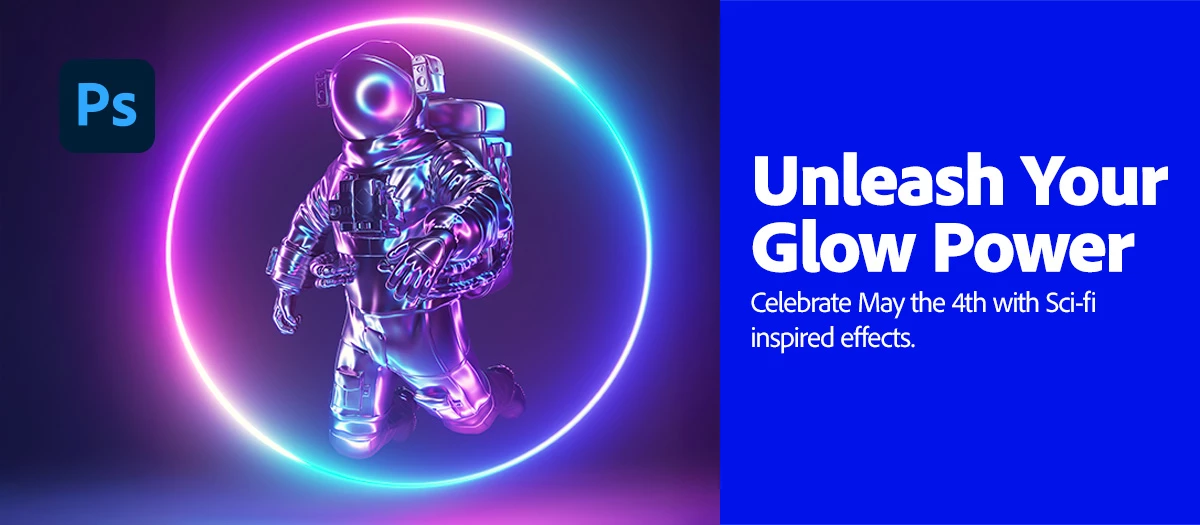
Celebrate May the 4th with a glowing effect that's out of this world!
In this quick tutorial, we’ll show you how to create a stunning glow effect in Photoshop using simple shapes, layer styles, and masks—perfect for sci-fi or fantasy-inspired visuals.
 |
Try it in the Desktop App Download the latest version and dive into the new features offered in Adobe Photoshop. |
Step-by-Step: How to Make a Glow Effect in Photoshop
|
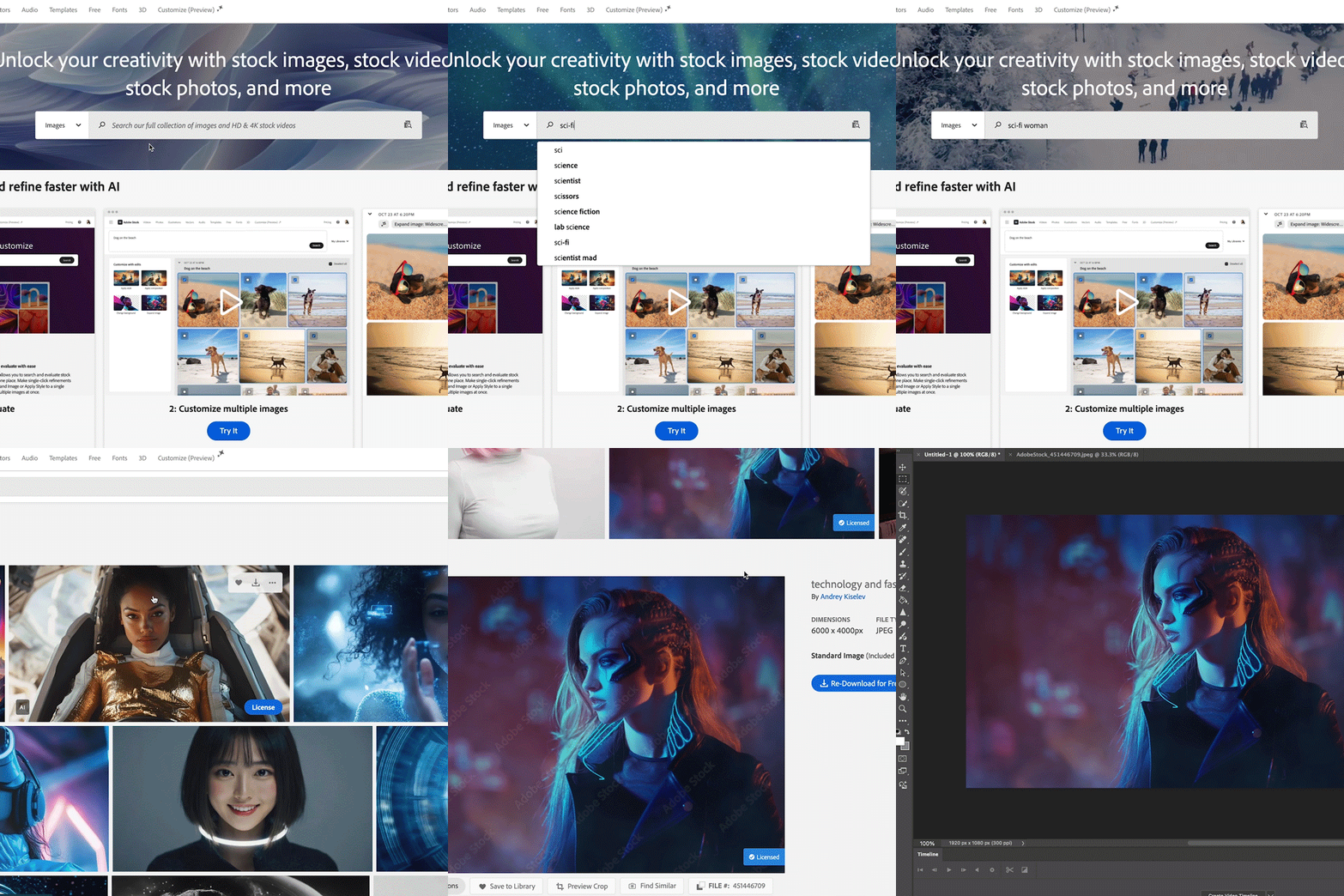
1. Choose your image: Start a new project and select your image. Don't have one on hand? Visit stock.adobe.com to explore thousands of high-quality assets. You can use stock images to add a background to your scene, practice with certain subjects, or add elements such as interfaces to your Sci-Fi world. |
 |
|
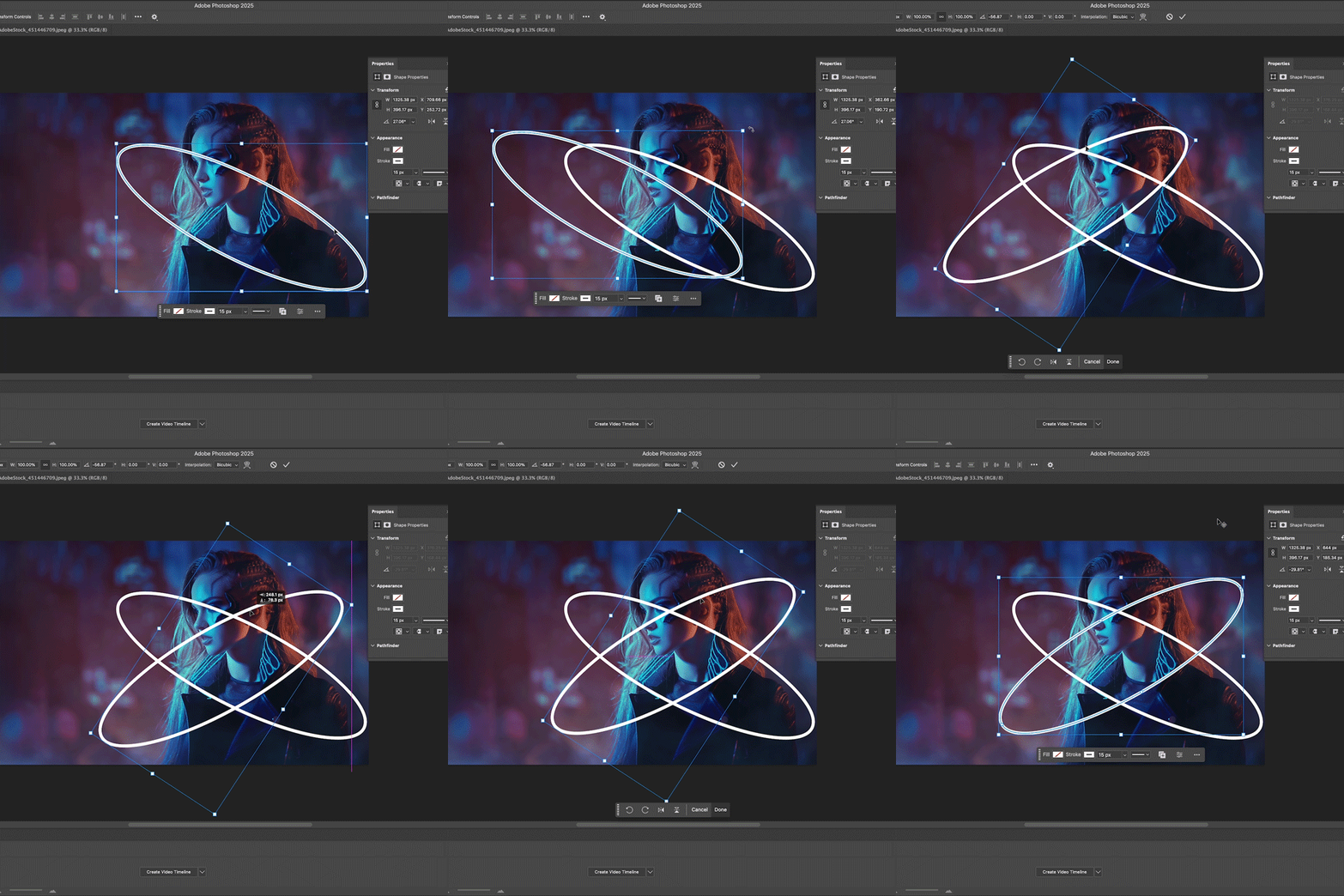
2. Design your glow shapes: Use the Ellipse Tool (or any shape tool) to create the objects that will glow in your image. In our example, we used two orbit-style rings around the subject to represent glowing energy. |
 |
|
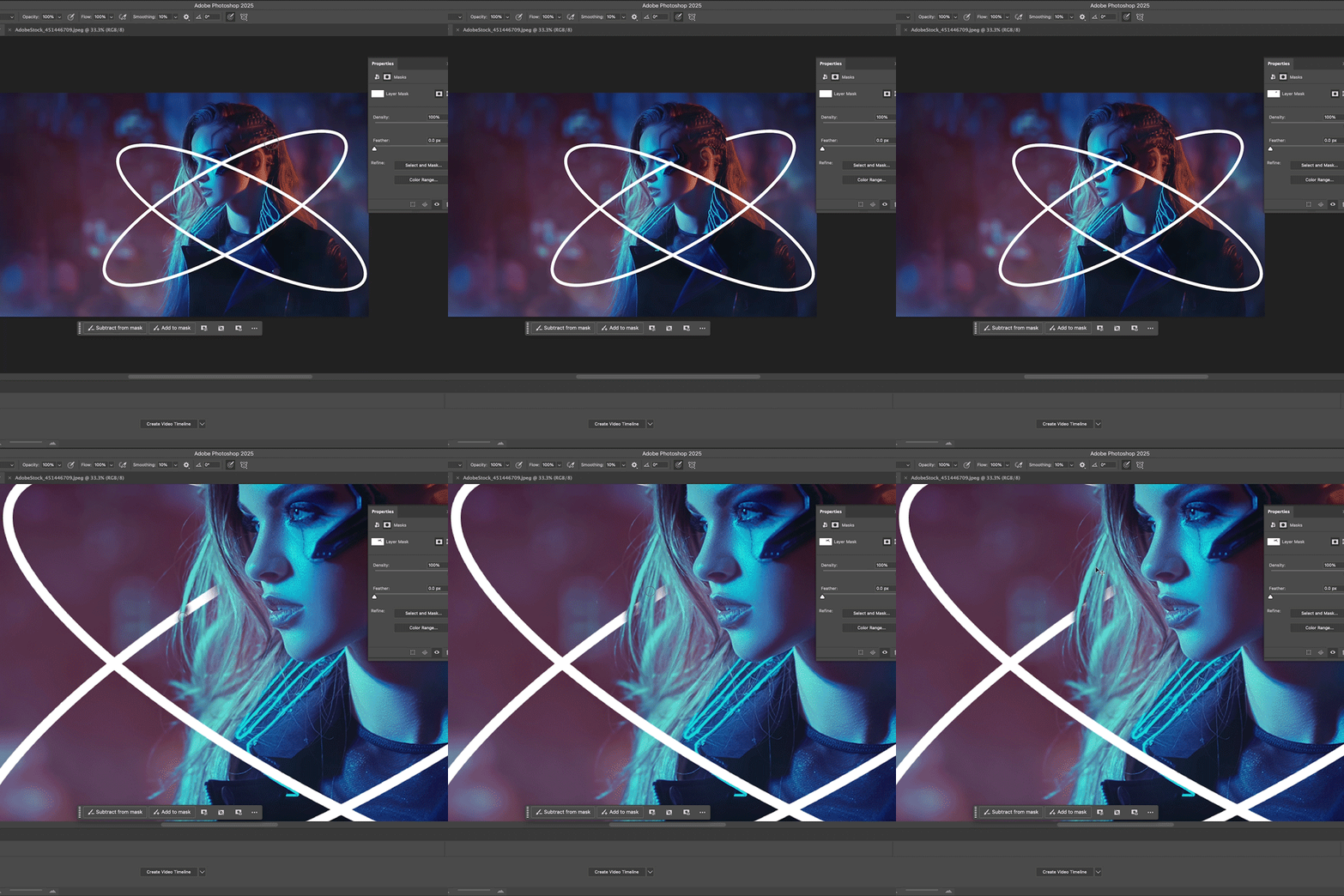
3. Mask your shape: Use Layer Masks and a soft brush to hide parts of the glow behind your subject—this helps integrate the effect naturally into the scene. |
 |
|
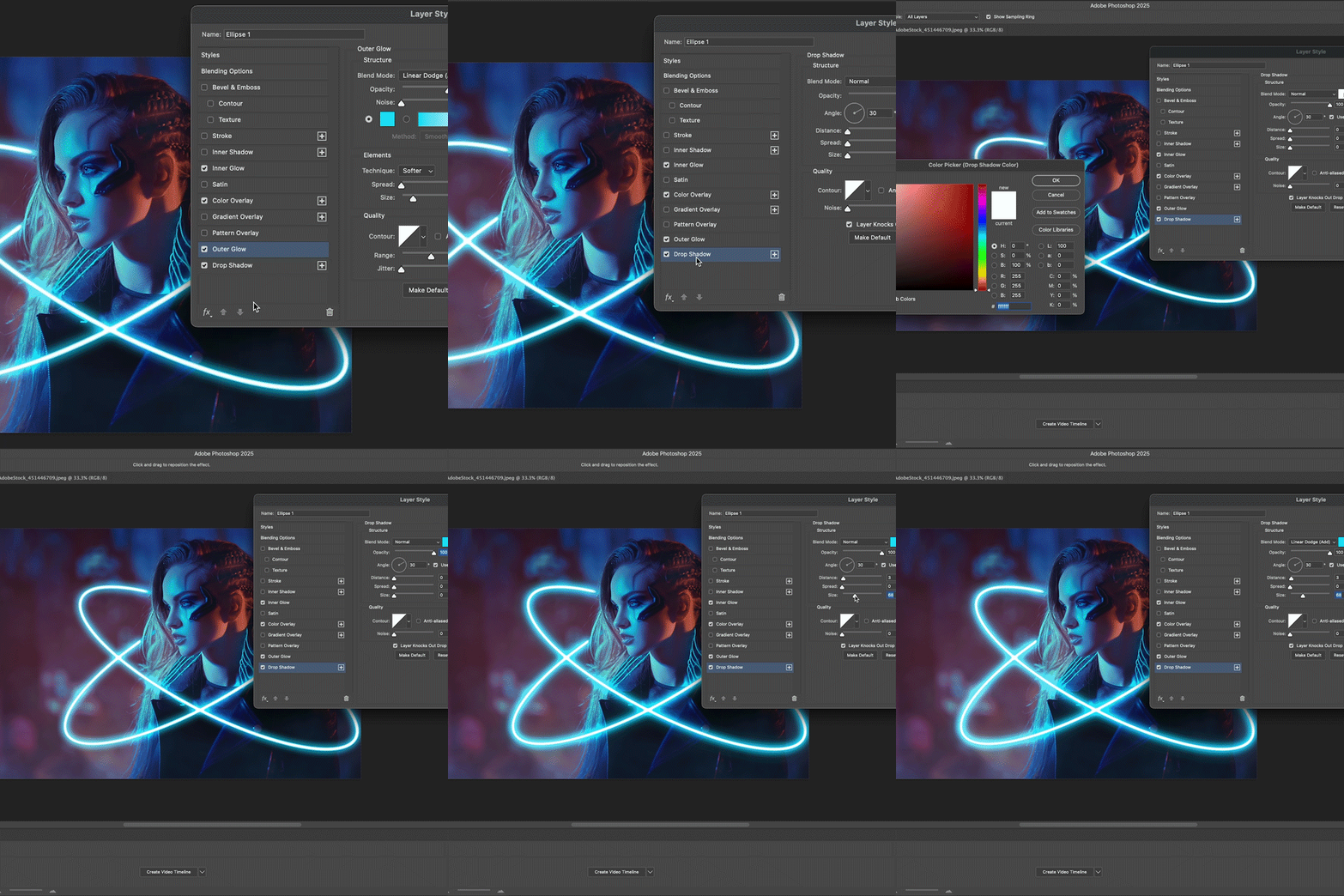
4. Apply the glow:
|
 |
|
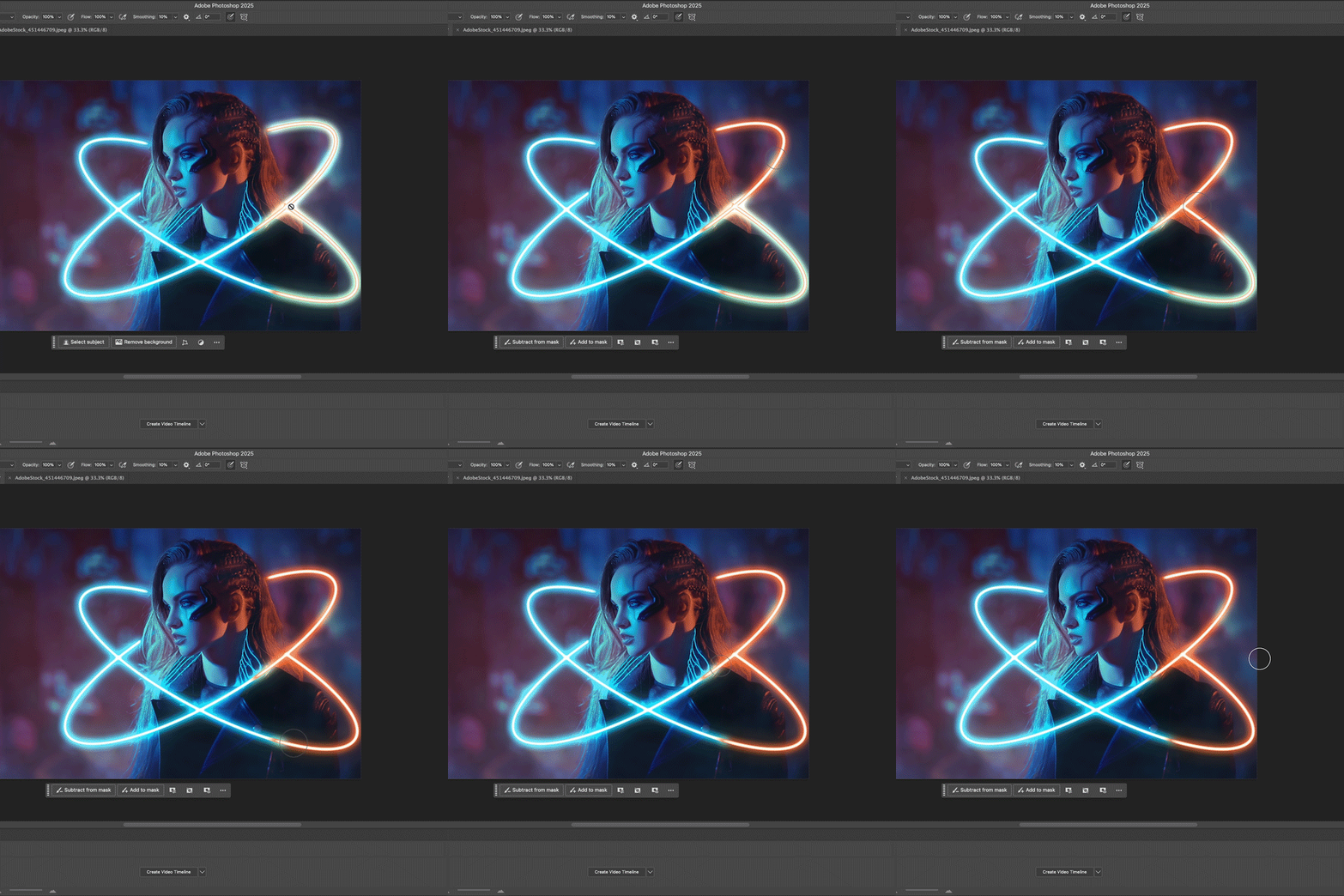
5. Add more colors: Duplicate the shape and repeat the steps with a different color for a multi-toned effect. Mask out where you want the two colors to overlap and spill over into the image. This is a great effect when you have multiple light sources in your scene. EXTRA! Add text: Add a title or caption to your image and apply the same glow styles to keep a cohesive look. |
 |
Try it yourself! Fire up Photoshop and experiment with your own glow effects—whether it’s energy, starships, or futuristic portraits!

Created a glowing masterpiece? Post your glow effects in the comments below! Also, check out this HelpX article for more on creating neon glow effects and follow along with downloadable assets.
Need help or feedback? Drop your questions here in the community and we’ll be happy to help.
May the Force (and the glow) be with you.
We’d love to hear from you!
Try out the glow effect in Adobe Photoshop, and let us know your thoughts. Feel free to reach out if you have any questions or need more tips!
We’d love to see what you’ve created and hear about your experience or feedback! Click 'Reply' below.
Click 'Follow' below to bookmark this post for easy reference.
For other questions, feel free to start a new post in the community.


 AdChoices