
Known Participant
October 15, 2023
Answered

Create Gradient Text Using Photoshop

  • October 15, 2023
  • 1 reply
  • 56075 views

Hi Guys,

I am hoping someone there can help me with the whys and wherefores of creating gradient text in PS.  I have been sitting for about the last hour trying to figure it out without success.  I am trying to create a gradient that goes from left to right across the text that starts as pale yellow and ends as a deep orange.  I've included the image that it will be used with to give you an idea where my head is.  Thanks In Advance for any help you can provide.
 

Correct answer Conrad_C

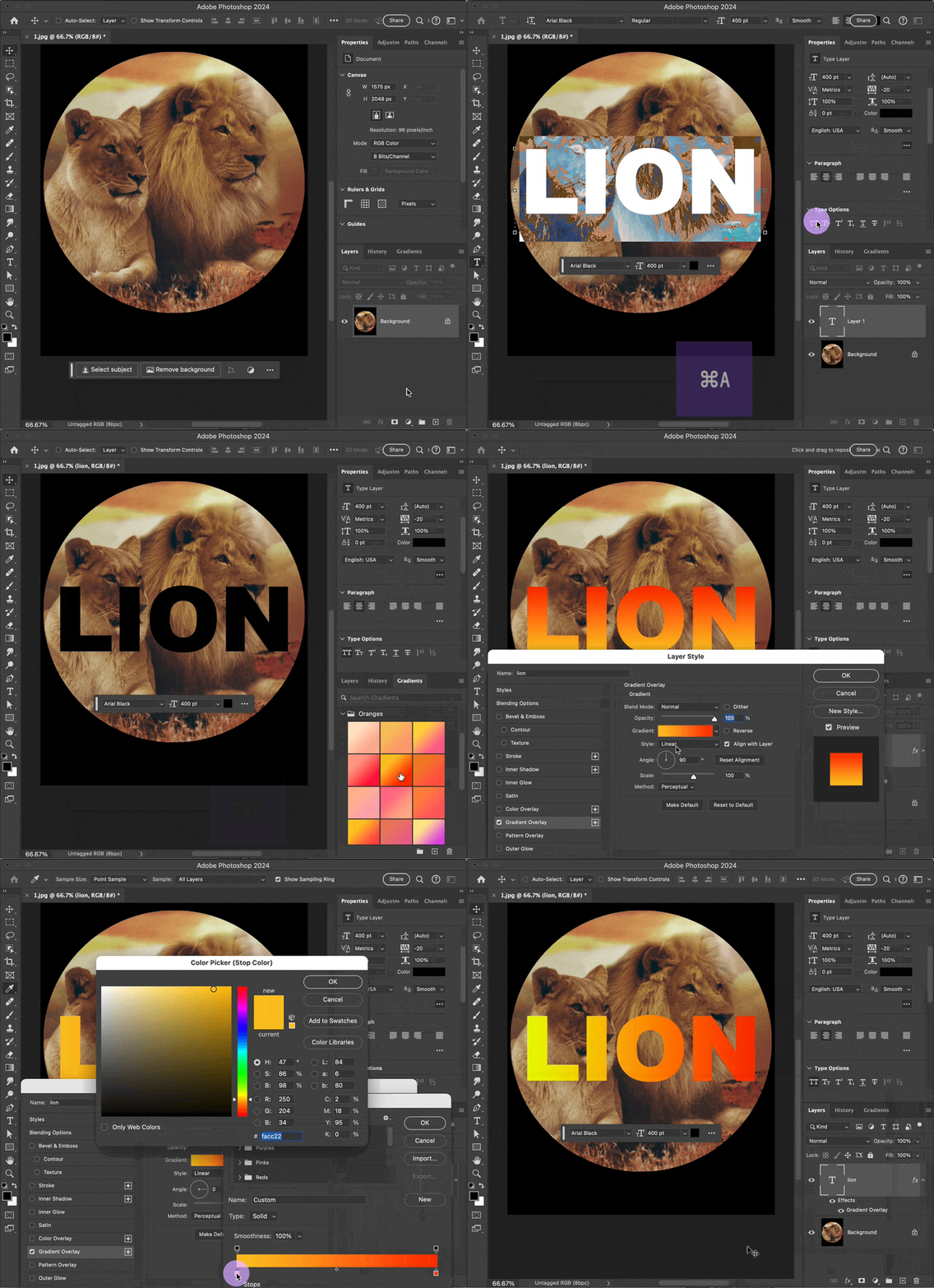
Is the demo below what you’re looking for?


If so, the steps are:

1. Open the Gradients panel (choose Window > Gradients), find the gradient you want, and drop it on the text. Or, if the text layer is selected, just click the gradient you want.

2. The gradient is applied as a Gradient Overlay layer style attached to the text, so to edit it, double-click it in the Layers panel.


(Sorry about the color quality, it looked better before uploading…looks like the forum software recompresses GIF animations)


1 reply

Conrad_C
Community Expert
Conrad_CCommunity ExpertCorrect answer
Community Expert
October 16, 2023

Is the demo below what you’re looking for?


If so, the steps are:

1. Open the Gradients panel (choose Window > Gradients), find the gradient you want, and drop it on the text. Or, if the text layer is selected, just click the gradient you want.

2. The gradient is applied as a Gradient Overlay layer style attached to the text, so to edit it, double-click it in the Layers panel.


(Sorry about the color quality, it looked better before uploading…looks like the forum software recompresses GIF animations)


Trevor.Dennis
Community Expert
Community Expert
October 16, 2023

Nice job Conrad.  I especially like how you have adapted the UI to fit the image keeping your GIF nice and compact.