Participant
Jan 31, 2024 10:35 PM UTC
Answered

Create shortcut for Convert Point Tool

Hey all, I'm using Photoshop 2024. Is there a way to create a shortcut for the Convert Point Tool? or an easy way to rotate through the pen tools in general to speed up production and swapping between the options? 


Thanks all

This topic is closed to new replies. Start a new post to keep the conversation going.
Conrad_C
Conrad_CCorrect answer
Community Expert
Jan 31, 2024 10:52 PM UTC

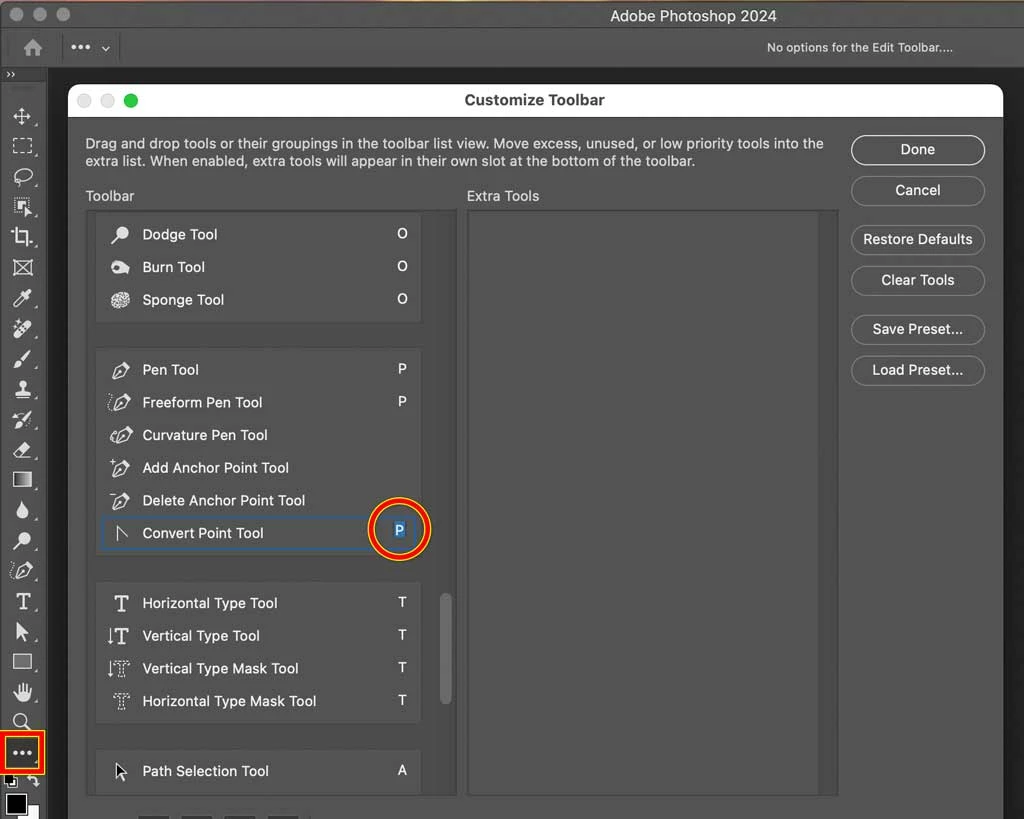
Click the three dots on the toolbar and choose Edit Toolbar.


In the Customize Toolbar dialog box, add a single-key shortcut for the Convert Point tool. If it’s the same letter as the other tools in that group, it will be added to the set of tools that you can cycle through by pressing that single-key shortcut repeatedly. (If tools aren’t cycling when you press their single-key shortcut, add the Shift key. If you wish you didn’t have to add the Shift key, in Photoshop Preferences (Settings) open the Tools pane and deselect Use Shift Key for Tool Switch.)

 

4 replies

Conrad_C
Community Expert
Conrad_CCommunity ExpertCorrect answer
Community Expert
Jan 31, 2024 10:52 PM UTC

Click the three dots on the toolbar and choose Edit Toolbar.


In the Customize Toolbar dialog box, add a single-key shortcut for the Convert Point tool. If it’s the same letter as the other tools in that group, it will be added to the set of tools that you can cycle through by pressing that single-key shortcut repeatedly. (If tools aren’t cycling when you press their single-key shortcut, add the Shift key. If you wish you didn’t have to add the Shift key, in Photoshop Preferences (Settings) open the Tools pane and deselect Use Shift Key for Tool Switch.)

 

Translate
Participant
Jan 31, 2024 10:57 PM UTC

Worked perfectly TY!!!


R

Translate
D Fosse
Community Expert
Community Expert
Feb 1, 2024 7:25 AM UTC

With the pen tool active, pressing Alt temporarily shifts to the Convert Point tool.


Pressing Ctrl shifts to the Select tools (whichever is active) in the same way.


In other words, keeping two fingers on the keyboard lets you fluently switch between these three tools as you work.

Translate