Participant
July 28, 2020
Answered

Creating Cabochon Images

  • July 28, 2020
  • 1 reply
  • 851 views

Hello,

First, I would like to preface this with saying I am an amateur, but I can follow directions well, so feel free to answer in-depth, if necessary, as I would appreciate it!

I am not sure if anyone can help me, but I have a project where I need to create printable images that fit inside a 25mm height x 18mm width oval. This would either be one single oval on a page that I can replace the image anytime, or I can try for a type of sticker sheet with many ovals that I would print several of the same image with.

When I attempt to use the Elliptical Tool, though, it either lets me free-draw one or I can type in some pixel numbers (after clicking). I cannot seem to figure out how to create an oval of the dimensions above.

Any help at all would be appreciated.

Thank you and be safe!

Elle
This topic has been closed for replies.
Correct answer jane-e

Hi elled,

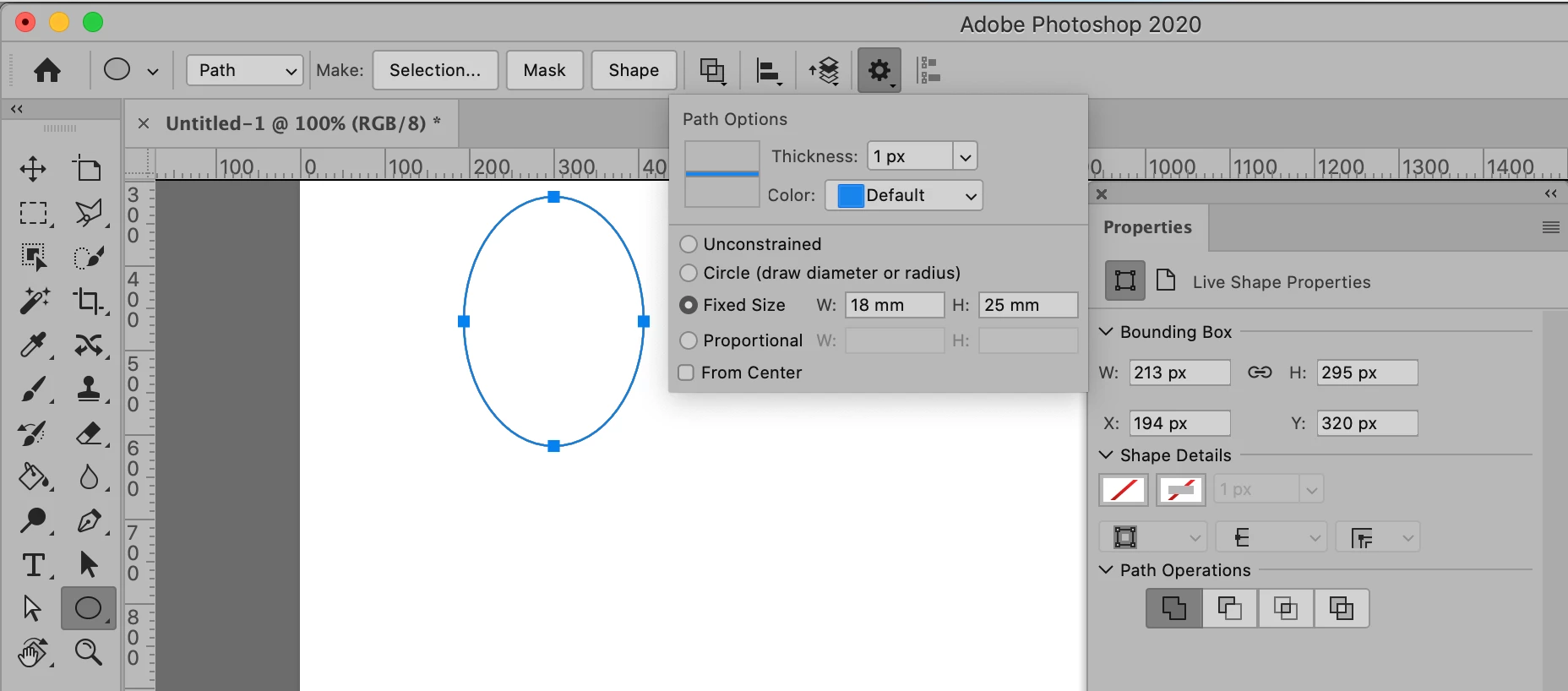
We are on two different tools. You are on the Ellipse tool in Path mode. You can set the shape size in the Path Options dialog (the gear) or change it in the Properties panel.


I am on the Marquee Selection tool. You said "I need to create printable images that fit inside a 25mm height x 18mm width oval." This will work best with a Selection Marquee.


One way to do this is:

  • Make a selection that is the correct size with the elliptical marquee tool.
  • Copy the image
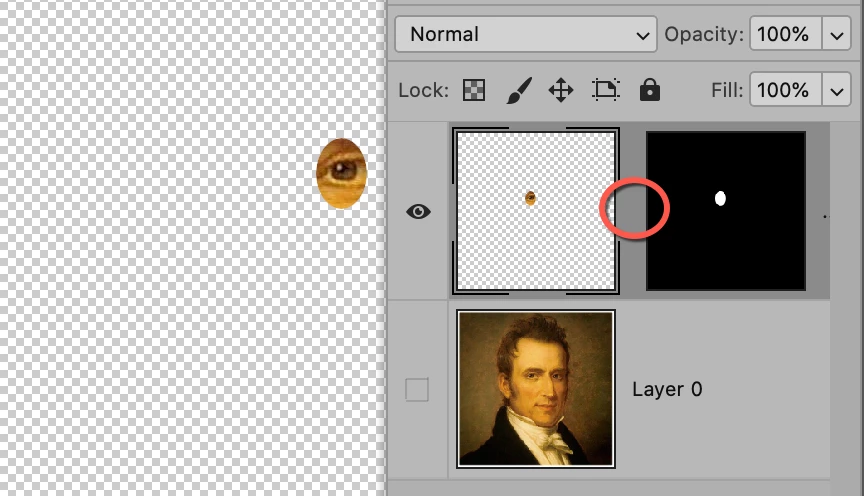
  • Instead of Paste, use Edit > Paste Special > Paste Into to create a mask around the image
  • Note the red circle. The image and mask are not linked by default, so you can move or scale the image if you need to make adjustments. Click where the circle is to link the two and move them as a unit.


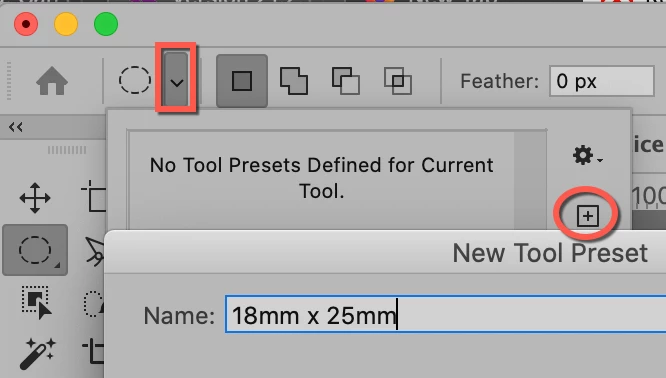
One other tip. Since you do this a lot, create a preset. Click the dropdown, click the plus, and give it a name. Then you can select it from the list another time.


Ask again if this doesn't answer everything,

Jane


1 reply

jane-e
Community Expert
Community Expert
July 28, 2020

Hi Elle,

Select the ellipse tool, then in the options bar choose fixed size and type the size: 18mm by 25 mm. Be sure to type "mm" or it may revert to pixels.

~ Jane


Participant
August 5, 2020

Jane,

Thank you so much for your response!


I do not see the Options Bar for this, though, for some reason (probably my fault). I am using the monthly subscription Photoshop that is the most current. I have pasted a screenshot below. I have selected the Elliptical Tool, but the only options are Path/Shape/Pixels.

Do you mind helping me a bit more with finding the area to input the measurements you suggested?


Thank you, in advance.


Semaphoric
Community Expert
Community Expert
August 5, 2020

Your screenshot is for the Ellipse tool, which makes a path. You set the size etc. by clicking on the little cogwheel in the options:

Jane was showing the Eliptical Marquee tool, which makes a selection. Which one would depend on what exactly you will be doing with this ellipse.