Inspiring
December 13, 2025
Answered

Crop Issue

  • December 13, 2025
  • 2 replies
  • 192 views

I know I was able to do this before, but:

I need to crop an image to a certain aspect ratio, but also need to change the proportions by unchecking 'constrain proportions.'

If I crop first, I can't seem to further edit the image; even if I uncheck 'delete cropped pixels', to fit the image into this new crop, it seems the deleted pixels are not available anymore.

Is there a way to do this without going back and forth to check if the crop size is correct?

Correct answer Trevor.Dennis

If you are wanting to change proportions as well as aspect ratio, then take a look at Edit > Content Aware Scale.  That will let you keep the important image elements as they should be, while changing spacing etc.


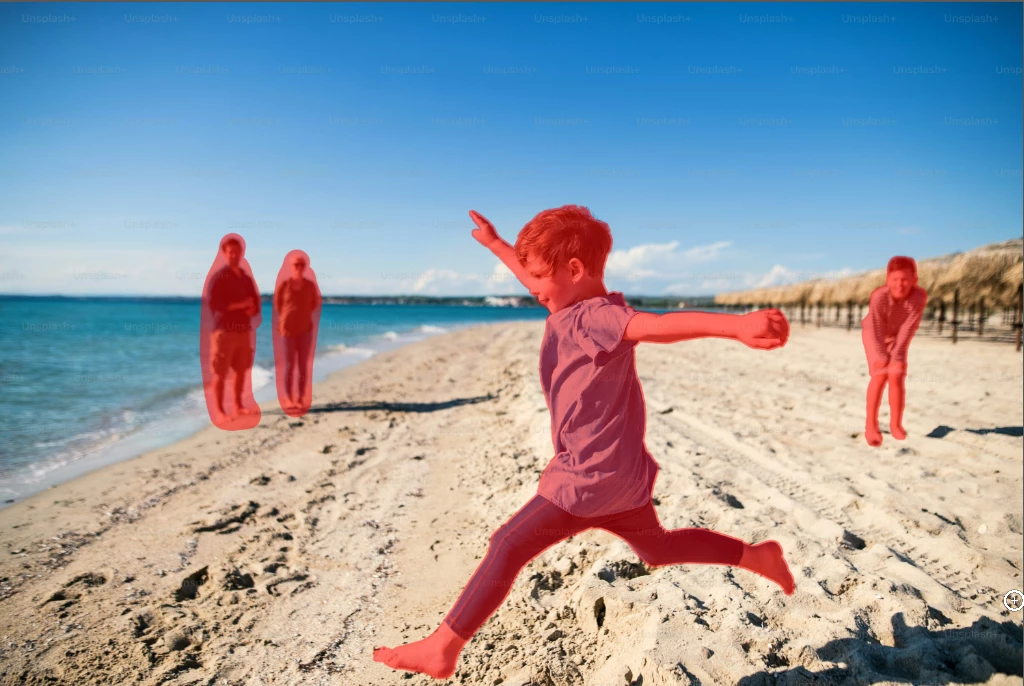
So if I want to change this nearer to square, or even into a portrait mode, I first select the elements I want to protect, and save that selection. (I'm in Quick Mask below)

image.png


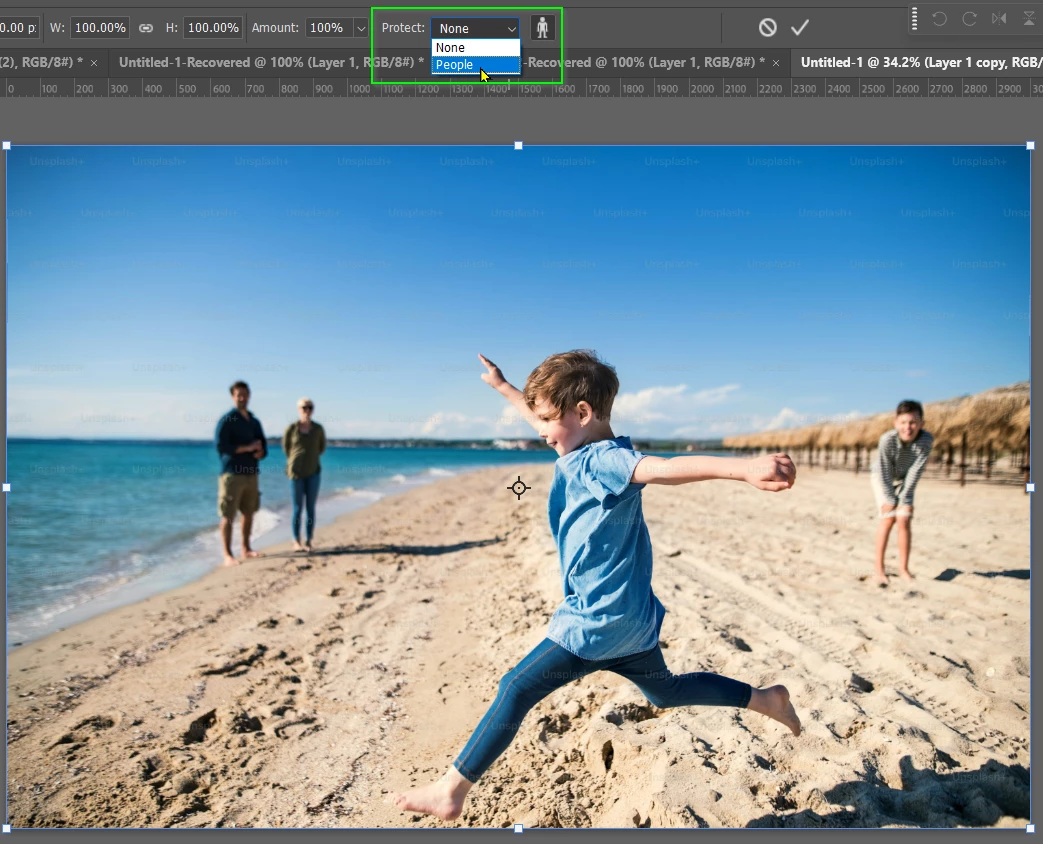
I then Select All (Ctrl A) and use Edit > Content Aware Scale, and in the Options bar use the Protect Dropdown and choose People (which is what I named the selection I saved.

image.png

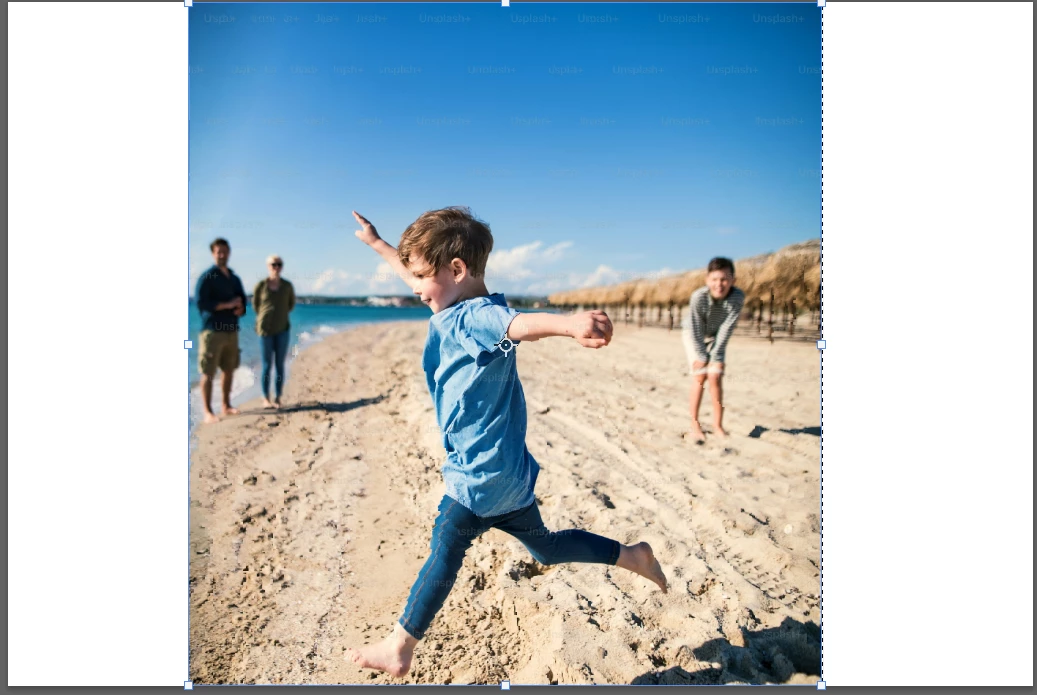
You can drag either the sides, or top and/or bottom which will let you get rid of some of the less important image area.  Note it has reduced the wee boy in the foreground just a tiny bit.

image.png

2 replies

Trevor.Dennis
Community Expert
Trevor.DennisCommunity ExpertCorrect answer
Community Expert
December 14, 2025

If you are wanting to change proportions as well as aspect ratio, then take a look at Edit > Content Aware Scale.  That will let you keep the important image elements as they should be, while changing spacing etc.


So if I want to change this nearer to square, or even into a portrait mode, I first select the elements I want to protect, and save that selection. (I'm in Quick Mask below)

image.png


I then Select All (Ctrl A) and use Edit > Content Aware Scale, and in the Options bar use the Protect Dropdown and choose People (which is what I named the selection I saved.

image.png

You can drag either the sides, or top and/or bottom which will let you get rid of some of the less important image area.  Note it has reduced the wee boy in the foreground just a tiny bit.

image.png

D Fosse
Community Expert
Community Expert
December 13, 2025

It's simpler to do this with Image Size. Uncheck the contrain link, and check resample.


I'd recommend resizing in pixels first, keeping the long side as it is, and resizing only the short side. Then you have the correct aspect ratio and can determine final size later. 

jane-e
Community Expert
Community Expert
December 13, 2025

Is there a way to do this without going back and forth to check if the crop size is correct?
By @ommadawn13


In addition to what DFosse said, another way to crop is to make a selection with the Rectangle Marquee tool, then choose Edit Crop. You can set the exact size in pixels in the options bar..


Jane