That’s all I want to do. I have a series of images all laid out on my board, I want to crop a single photo of those 10 photos to fit in my grid better. That’s it. I want to crop. I want to select a single layer, and crop it.
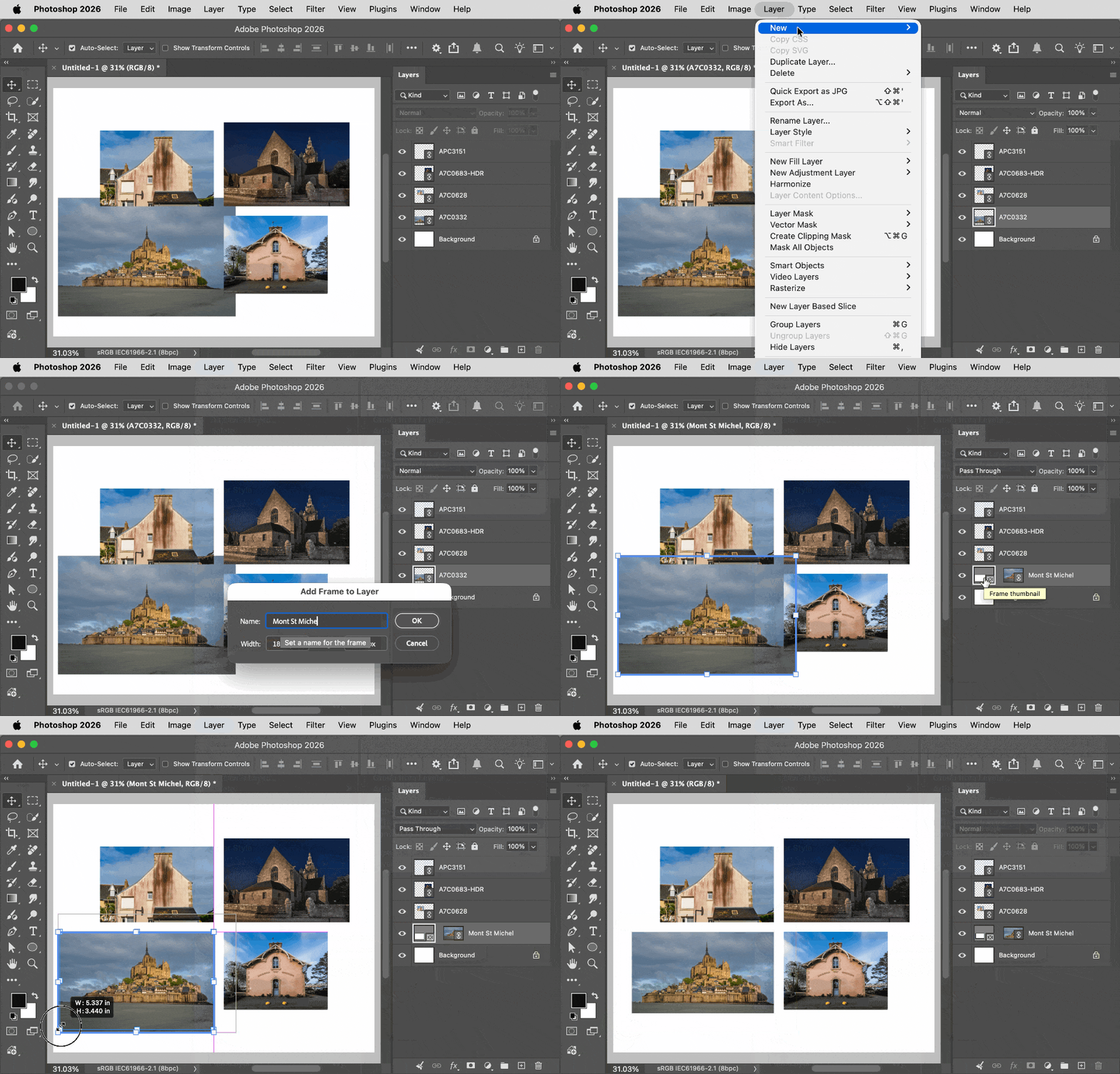
In Photoshop, you can use frames for this. Put the image in a frame and you can drag in the frame corners to crop it, as shown in the demo below.
If there were no pictures on the canvas already, you could use the Frame tool to draw empty placeholder frames that you later drop images into. But if you already have pictures on the canvas, you can put any layer into a frame by using the command Layer > New > Frame from Layers. In the demo below I selected just the one photo I wanted to “crop,” but if I wanted to crop them all, I would have selected all of the picture layers before choosing the command Layer > New > Frame from Layers.
In other words, in Photoshop, a frame makes a layer work more like it would in page layout software, where just that one object can easily be trimmed. After I put the bottom left image into a frame, I drag the frame corners inward to “crop” the image.*
A note on terminology: In most photo software, including Photoshop, “crop” means to trim the total document canvas, not individual layers. So although you want to “crop” one image out of many in the way you would in page layout software, when it’s one layer in a single image document, things work a little differently. That’s where frames come in.
(In older versions of Photoshop, or in other image editors that don’t have frames, you can still “crop” a layer by creating a pixel or vector mask that hides the layer edges you don’t want to see. But that takes a lot more steps than making a frame, so it’s very convenient that Photoshop added frames.)
*Note that you can manually crop with a frame as long as you haven’t applied any auto-fitting options to the frame.
I think the easiest way for this kind of grid layout is to use a Smart Object. Convert the layer to a Smart Object, open it, crop it to the exact ratio you need, then save and close. The cropped version will update back in your main document without affecting the other layers.
In Photoshop, you can use frames for this. Put the image in a frame and you can drag in the frame corners to crop it, as shown in the demo below.
If there were no pictures on the canvas already, you could use the Frame tool to draw empty placeholder frames that you later drop images into. But if you already have pictures on the canvas, you can put any layer into a frame by using the command Layer > New > Frame from Layers. In the demo below I selected just the one photo I wanted to “crop,” but if I wanted to crop them all, I would have selected all of the picture layers before choosing the command Layer > New > Frame from Layers.
In other words, in Photoshop, a frame makes a layer work more like it would in page layout software, where just that one object can easily be trimmed. After I put the bottom left image into a frame, I drag the frame corners inward to “crop” the image.*
A note on terminology: In most photo software, including Photoshop, “crop” means to trim the total document canvas, not individual layers. So although you want to “crop” one image out of many in the way you would in page layout software, when it’s one layer in a single image document, things work a little differently. That’s where frames come in.
(In older versions of Photoshop, or in other image editors that don’t have frames, you can still “crop” a layer by creating a pixel or vector mask that hides the layer edges you don’t want to see. But that takes a lot more steps than making a frame, so it’s very convenient that Photoshop added frames.)
*Note that you can manually crop with a frame as long as you haven’t applied any auto-fitting options to the frame.
Absolutely superb response. Frustrating software limitation but I guess this is what I’ll have to amend to my photoshop grids for future reference. Thank you for such a phenomenal write up and I hope others that go through this find this too!!
I am using art boards and the frame tool and grid lines and the slicer. All of that doesn’t help because I can’t crop a single layer in Photoshop in the year 2026.
I have a 4x5 gridlined board. I have a two 9x16 images. I want to crop each 9x16 image into a 4x3 or whatever equivalent I can, to fit two images into a single 4x5 art board.
I can. not. do. that. And if I use the masking and selection process, it doesn’t let me adjust my selections, and doesn’t let me format a ratio to help make this process easier.
I fail to see the problem and you seem unwilling to post screenshots to clarify what you mean in the year 2026.
I suspect that layer masks (or vector masks) would suffice to hide the unnecessary parts of the layers (deleting the inverted selection would be a destructive alternative) but a smart object approach would naturally also be possible.
Genuinely just a simple crop. On a single layer. Of a document. In Photoshop of the year of our lord in 2026. almost 40 years since the creation of Photoshop as a program.
I want to crop. A single. Layer. How do I do that?




 AdChoices