
Known Participant
May 27, 2026
Answered

Crystalize effect - doesn't work both in Photoshop and Illustrator

  • May 27, 2026
  • 3 replies
  • 79 views

Hi, I was following a tutorial today and noticed that the “Crystalize” effect doesn't work in Photoshop. Neither for raster layers, nor for smart objects. I tried everything and double checked that I am working in RGB 8-bits channel mode. Interestingly enough, I tested this effect as well in Illustrator for some vector and encountered the same issue.

I have latest updates of Adobe Apps, Mac Book Air M5, macOS Tahoe 26.5.

Could you take a look, please? Thanks a lot :)
    Correct answer c.pfaffenbichler

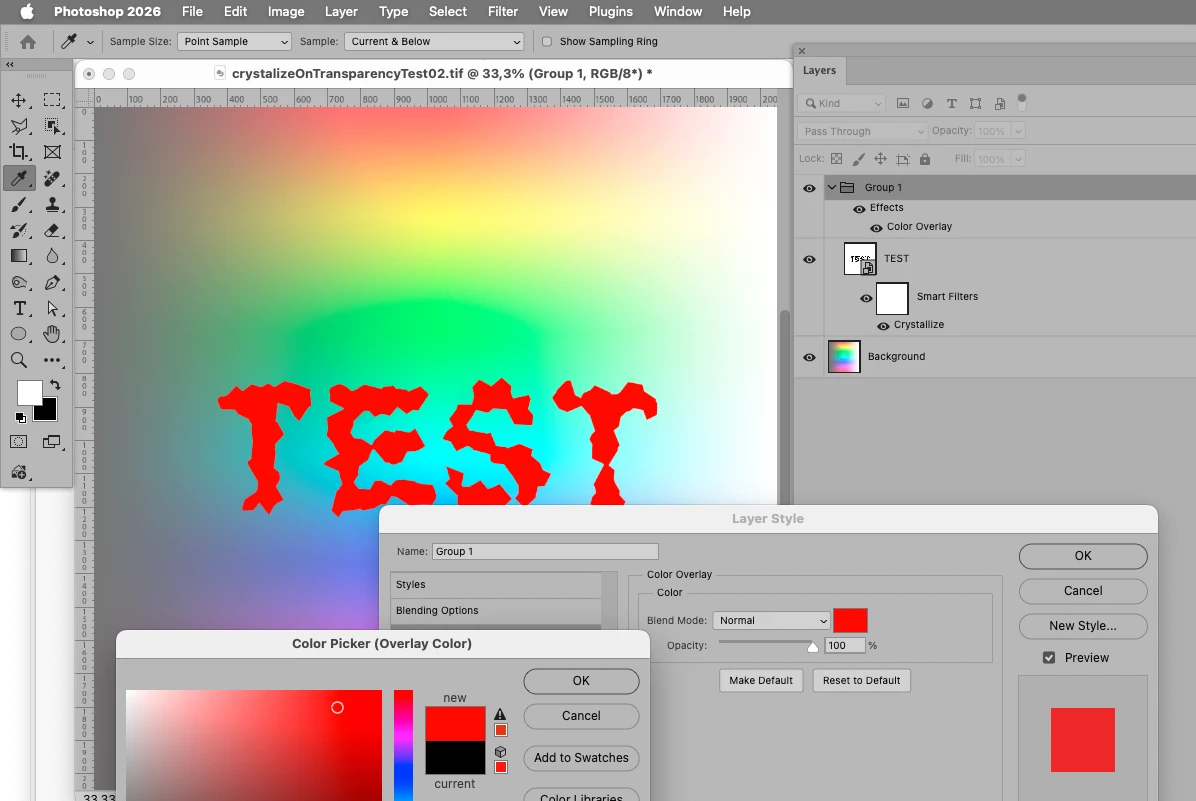
    @Anna ?mejkalov� , then the blend if/color overlay-method should work out fine – see screenshot below. 


    As for calling this a »bug« I do not fully concur on a technicality … certain Filters simply do not and have never operated on transparency due, in all probability, to their age. (Remember there was a time before Layers existed in Photoshop.) 

    I do agree, though, that it would be desirable for those Filters to be updated, both for incorporating transparency and for live previews.

    And in the case of a few others for working at more than 8bit bit depth. 


    3 replies

    c.pfaffenbichler
    Community Expert
    Community Expert
    May 30, 2026

    @Anna ?mejkalov� , the work-around is a bit involved, but if the object is one-color only it is at least easier than with halftone content. 


    Essentially one can remove the transparency to create a b/w-image and use Blend If-settings to translate that back into transparency and then apply a Color Overlay to a Group containing that element. (The Blend If-handles can be split by alt-dragging.) 

    This may sound complicated so I hope these screenshots can help illustrate. 


    Changing the Filter settings will not be displayed live, but after confirming the element updates. 


    c.pfaffenbichler
    Community Expert
    Community Expert
    May 30, 2026

    I the text is black anyway the whole Blend If-workaround is unnecessary and simply applying the Blend Mode »Multiply« would suffice. 


    Known Participant
    May 30, 2026

    Thanks of course, I can resolve it with multiply belding mode. But it's complicated in case I need to apply different colors + I am mainly reporting, what I believe is, bug here - ideally to be fixed 👍🏻

    Trevor.Dennis
    Community Expert
    Community Expert
    May 27, 2026

    Hi Anna.  I just checked it with Windows 11and it is working OK, but doesn’t have a Preview.  This is what I got with cell size set to 30 on an image 1200 pixels wide.

    OK, I pulled out my M2 MBP which is running Tahoe and it is working OK there as well.  Did Ged’s suggestion help?

    Known Participant
    May 27, 2026

    Hi, thank you. I tried, it help but not completely. Now, I can apply this effect on layers which has no transparency only. Then it works.

    c.pfaffenbichler
    Community Expert
    Community Expert
    May 29, 2026

    Could you please post screenshots including all pertinent Panels? 

    While the filter does not affect the transparency I can apply it to a Layer with transparency. 


    (Crystallising the transparency could be achieved with a work-around.) 


    Ged_Traynor
    Community Expert
    Community Expert
    May 27, 2026

    @Anna ?mejkalov� just testing with Photoshop version 27.7 on Windows 11, and it’s working as expected, try manually resetting your Photoshop preferences