nateaufie
Participant
May 5, 2025
Answered

Curved edges become straight on export

  • May 5, 2025
  • 2 replies
  • 515 views

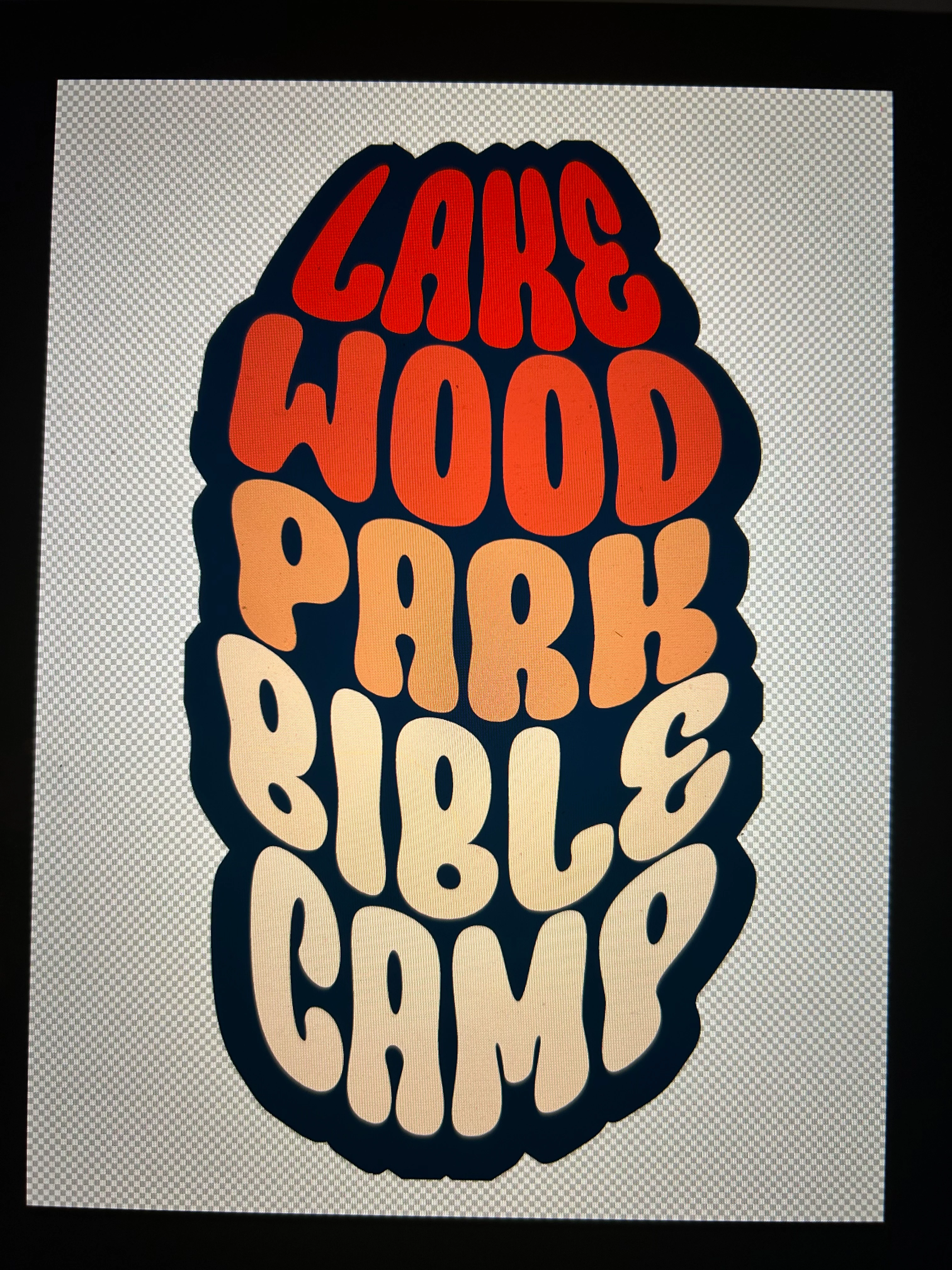
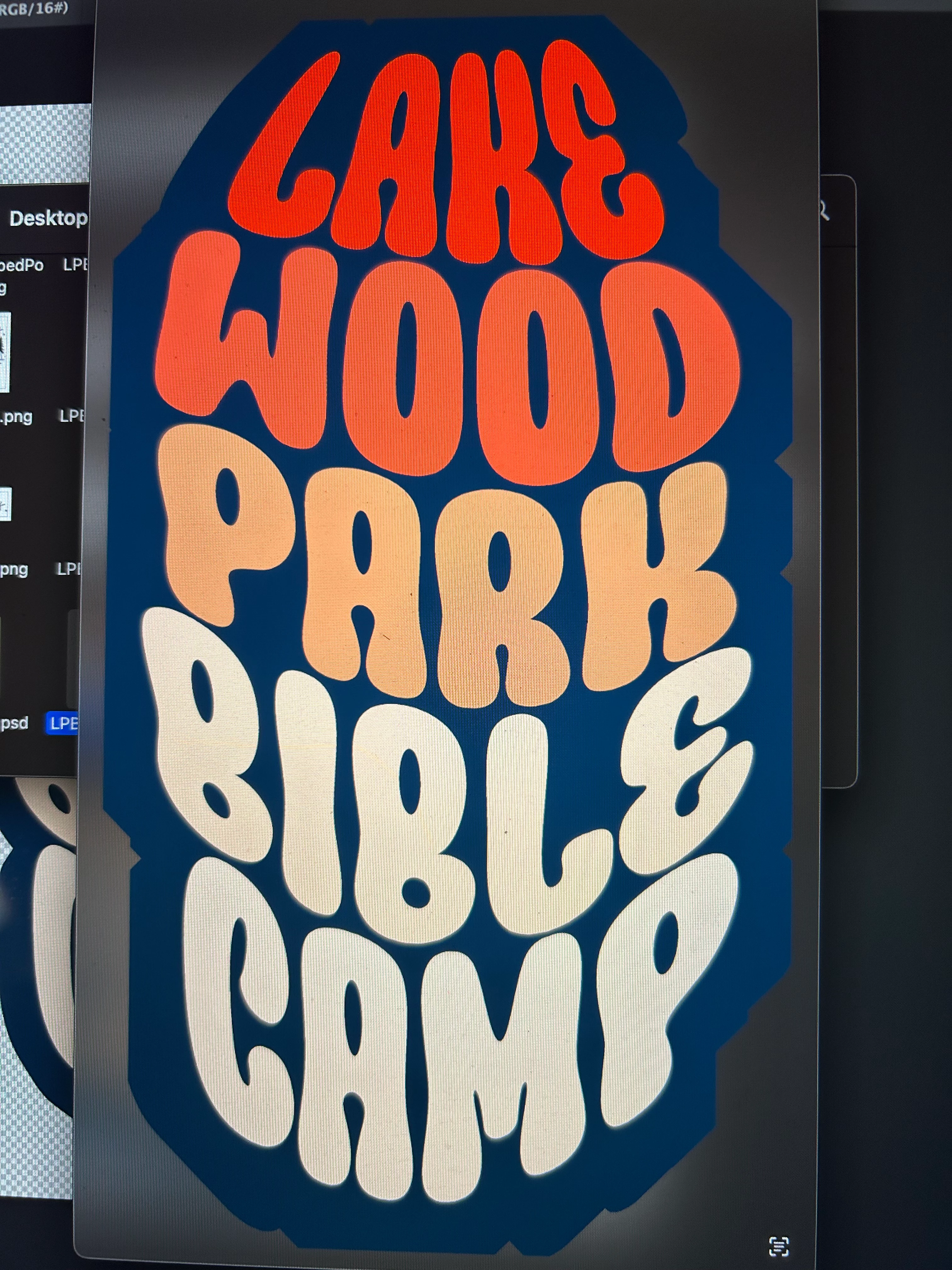
I'm at my wit's end you guys. I need help. Every time I export this file to a PNG, the nice, fun, curved edges become straight edged and I have no idea why. And it's not just when exporting. If I were to rasterize or make into smart object this happens. If I do save as instead of export this happens. I've been to Reddit and several forums online and I can't find an answer that works. Someone just please save me lol
    Correct answer Trevor.Dennis

    It would help if we knew exactly what we are looking at.

    It looks like you have several things going on there with the Free Transform > Warp, and the heavy stroke.

    What order was that done in?
    Did you use Smart Objects and nest them as you added effects?


    Photoshop can certainly get things wrong when it processes a number of effects in the wrong order. You can usually overcome this by rasterizing, adding a copy merged layer, or making the finished object a new Smart Object.


    I tried to get Photoshop to duplicate your issue, but was unable to.

    It might make a difference that you are exporting to PNG, and I assume with transparency.


    All I can tell you is my rough workflow, (if I remember) 

    OK, not as copmplex as I was thinking.  Made the Type layer and crowded the text leading and line spacing.

    Made it a Smart Object because Type layer warp better as SOs

    Added the big Stroke on the outside.

    Is that more or less what you did? 


    2 replies

    Trevor.Dennis
    Community Expert
    Trevor.DennisCommunity ExpertCorrect answer
    Community Expert
    May 5, 2025

    It would help if we knew exactly what we are looking at.

    It looks like you have several things going on there with the Free Transform > Warp, and the heavy stroke.

    What order was that done in?
    Did you use Smart Objects and nest them as you added effects?


    Photoshop can certainly get things wrong when it processes a number of effects in the wrong order. You can usually overcome this by rasterizing, adding a copy merged layer, or making the finished object a new Smart Object.


    I tried to get Photoshop to duplicate your issue, but was unable to.

    It might make a difference that you are exporting to PNG, and I assume with transparency.


    All I can tell you is my rough workflow, (if I remember) 

    OK, not as copmplex as I was thinking.  Made the Type layer and crowded the text leading and line spacing.

    Made it a Smart Object because Type layer warp better as SOs

    Added the big Stroke on the outside.

    Is that more or less what you did? 


    Trevor.Dennis
    Community Expert
    Community Expert
    May 5, 2025

    Above screen shot is from Photoshop.

    Below is the exported PNG opened in Chrome.

    I think they are the same.

    nateaufie
    nateaufieAuthor
    Participant
    May 5, 2025

    Thanks for your reply! I'm at work now so I can't make any changes and try some things until later today. But if I remember correctly this is what I did: First I typed it out all in one type box, then I actually rasterized it, and then I warped it, and then I actually used drop shadow instead of stroke. Thanks!

    kglad
    Community Expert
    Community Expert
    May 5, 2025

    what app?

    nateaufie
    nateaufieAuthor
    Participant
    May 5, 2025

    Oh shoot, I'm so stupid for leaving that out lol.


    photoshop

    kglad
    Community Expert
    Community Expert
    May 5, 2025

    in the future, to find the best place to post your message, use the list here, https://community.adobe.com/

    p.s. i don't think the adobe website, and forums in particular, are easy to navigate, so don't spend a lot of time searching that forum list. do your best and we'll move the post (like this one has already been moved) if it helps you get responses.


    <"moved from using the community">