

Participating Frequently
April 10, 2025
Answered

design help

  • April 10, 2025
  • 4 replies
  • 623 views

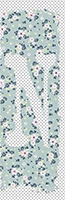
Could someone explain ( or post a link) on how to create a graphic where a letter is cutout of a seamless background. I tried doing it as a clipping mask but it doesn't work. Thank you!

Correct answer Aleke

Ah, I understand now. 😊 In that case, I recommend checking out this quick tutorial!

Let me know if this helps!

Cheers, Alek

4 replies

melissapiccone
Community Expert
Community Expert
April 10, 2025

1. Type the Letter above your image.

2. Hold cmd/ctrl down and click on the T / layer thumbnail for the text - it will create a selection of the letter

3. Select the image layer and click the new mask icon at the bottom of the layers panel (assuming it doesn't already have a mask on it).

4. Invert the mask = cmd / ctr + i to invert

5. Turn off eyeball or delete text layer

Melissa Piccone | Adobe Trainer | Online Courses Author | Fine Artist
Community Manager
April 10, 2025

Hi @Mary30029786njm7! Welcome to the community! Here's how I would do that:

1. Have your graphic and letter in your document


2. Move the text layer so the letter is beneath the graphic.


3. Right-click the layer with the graphic and select "Create Clipping Mask"


4. This should make the letter shape be filled with your graphic.


Hope this helps!

Alek

*(If you mention me with an @, like @Aleke, I’ll get a notification and can respond faster.)*
Participating Frequently
April 10, 2025

Thank you for taking the time to reply, what I want to do is the opposite of this, cut the letter shape out into the graphic. I tried the clipping mask method but it does nothing.

Legend
April 10, 2025

Please post a screenshot of your file with the layers panel showing, and an example of what result you want.

Participating Frequently
April 10, 2025

Thank you for your reply- this got posted without my question.

Participating Frequently
April 10, 2025