

Shyob inurarea
Known Participant
May 18, 2026
Question

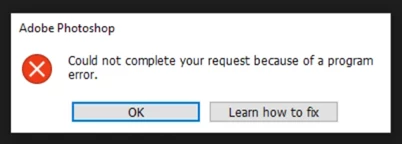
Detect which files have the "could not complete your request because of a program error"?

  • May 18, 2026
  • 1 reply
  • 22 views

Hi everyone~

I've recently given up on fixing this problem after trying countless solutions I've gathered from around the world. So the question is: Is there a way to detect a corrupted PSD/PSB file using libraries like PSD-Tools (checking without opening the file in Photoshop)? Reading the file header doesn't seem to identify the problem...

My day pretty much revolves around:

1/ Opening the file (perfectly normal) and editing it
2/ Saving the file
3/ Fack at the end of the day because the PSD file won't open because photoshop displaying a 'could not complete your request because of a program error' popup immediately upon opening.

Rasterizing the entire text layer partially solves the problem, so I suspect the issue lies with the text layers. But my work requires me to keep the entire text layer; I can't rasterize them...

Does anyone have a solution?

(Please refrain from suggesting obvious solutions that already exist, as I have already tried almost all of them)


    1 reply

    Srishti Bali
    Community Manager
    Community Manager
    May 18, 2026

    Hi ​@Shyob inurarea 


    I understand why you’d want a quick way to flag problematic files, especially when you’re working with a large set.

    At the moment, Photoshop doesn’t have a way to identify or list potentially corrupt files without opening them. The Could not complete your request because of a program error message is triggered only when Photoshop attempts to read or process a file, so there isn’t a way to detect this in advance through a scan or folder check.

    It’s also worth noting that a program error doesn’t necessarily mean the file itself is corrupt. This message can be caused by several factors, such as file format limitations, permissions, disk issues, or system-related problems.

    For a detailed breakdown of common causes and recommended checks, this page walks through the possibilities:

    I know that’s not the most convenient answer, but I hope this helps clarify why Photoshop behaves this way and where the issue might be coming from.

    Thanks, Srishti Bali | Community & Engagement Strategist, Digital Imaging | Adobe