
MahaB82A
Legend
January 27, 2026
Answered

Dimension of Marquee Tool

  • January 27, 2026
  • 1 reply
  • 84 views

In this video [time 4.14-6.08] 4 times Marquee Tool is used to get gaps but whether gap dimension is same is questionable. Is there any way to get similar gaps with Marquee Tool? 

Create a Viral Typography Logo in Photoshop in JUST 10 Minutes!
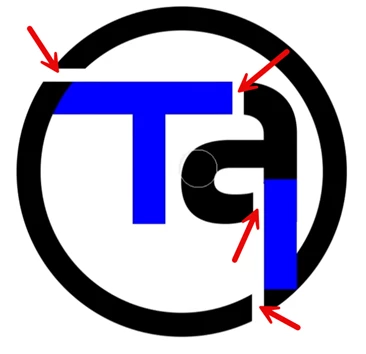
 

But in Illustrator there is a way to make gap similar. Is it advisable to create this logo in Ai and import the file to Ps?  


    Correct answer Semaphoric

    You can use Select > Transform Selection, but if just want to rotate 90 degrees, there is a handy button on the Option bar that swaps the length and height.

    1 reply

    Community Manager
    January 27, 2026

    Hi @MahaB82A! Thanks so much for reaching out.
    When you drag the marquee tool, you’ll see a little info window that shows the exact dimensions of your selection, which makes it easier to get things just right. You can also use the options bar at the top: with the marquee tool selected, change the style to “Fixed Size” and type in the exact width and height you need.
    If you have any other questions, I’m here to help!
    Alek

    *(If you mention me with an @, like @Aleke, I’ll get a notification and can respond faster.)*
    MahaB82A
    MahaB82AAuthor
    Legend
    January 27, 2026

    @Aleke

    Thanks. Is it possible to rotate Fixed Size?

    Community Manager
    January 27, 2026

    Hey ​@MahaB82A Once a selection is already made, I don’t think you can rotate it directly. But you can tap the little back‑and‑forth arrows between the width and height fields to quickly swap those values.
    Hope this helps!
    Alek


    *(If you mention me with an @, like @Aleke, I’ll get a notification and can respond faster.)*