Participant
November 26, 2024
Answered

Disparition de certains de mes motifs et de groupe de nuanciers

  • November 26, 2024
  • 3 replies
  • 281 views

Bonjour,


cela fait plusieurs fois que mes motifs disparaissent alors même que je les avais bien enregistré et utilisés en tant que motifs via la fonction remplir ou fx

Idem pour des groupes de nuanciers pourtant bien enregistrés 

merci pour votre aide !

Helene 

This topic has been closed for replies.
Correct answer Nick Gioia

Are these patterns you created and saved or just patterns in general?

If it is just patterns in general her is how you can handle that.

You can retrieve the default patterns by clicking on the four bars at the top right of the pattern menu.
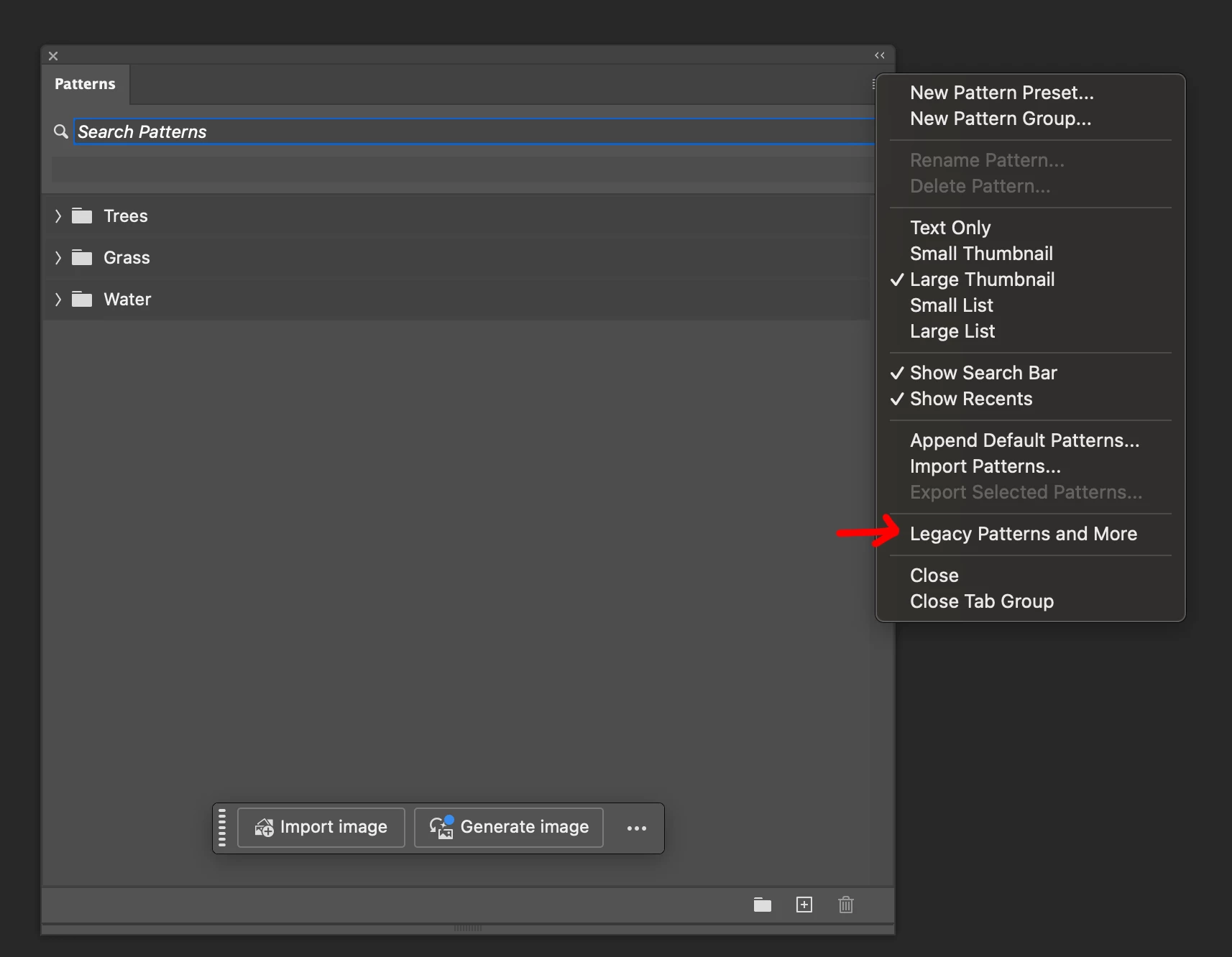
If you create custom patterns, it’s essential to save them to prevent losing your work during major version updates.

  1. Select Your Pattern(s):
    Locate and highlight the pattern or group of patterns you'd like to save. These might be in a new group or listed at the bottom of the panel.

  2. Export the Patterns:
    Use the export option and assign a clear, descriptive name to your file for easy identification later.

By saving your patterns, you ensure they remain accessible after updates or changes.

3 replies

Trevor.Dennis
Community Expert
Community Expert
November 27, 2024

Hi Helen


It is true with most of Photoshop's presets, that if you use Edit > Define Brush, or Edit > Define Pattern, that those new presets are not safe unless you save/export them to a suitable file format that you can find on one of your drives.   

I have a number of patterns that I have created, but if I look in the Patterns preset folder, I can only see Flowers and Bees.pat  If I uninstalled Photoshop, or installed the next major version with Remove Previous Version ticked, I could lose the other presets.


C:\Users\[Your User Name]\AppData\Roaming\Adobe\Adobe Photoshop (Beta)\Presets\Patterns


So I need to create a new group (click on the new group icon at the bottom of the panel) and drag those presets into that group.

I would then click on the fly-out menu (three barss top right corner of the panel) and chose Export Selected Patterns

If we now go back to the preset folder, we see a new .pat file has been created.

You now have control of those presets.  You can copy them to a new folder to keep them safe, or what I do is place my presets in a folder in My Documents, and put a shortcut to that folder in the Presets file location, like below.


This works with brushes, patterns workspaces, actions, styles (layer, character and paragraph) etc.  You can also use this trick to share presets between the Release and Beta versions.


This link gives you all of Photoshop's file locations

https://helpx.adobe.com/nz/photoshop/kb/preference-file-names-locations-photoshop.html


Nick GioiaCommunity ExpertCorrect answer
Community Expert
November 26, 2024

Are these patterns you created and saved or just patterns in general?

If it is just patterns in general her is how you can handle that.

You can retrieve the default patterns by clicking on the four bars at the top right of the pattern menu.

If you create custom patterns, it’s essential to save them to prevent losing your work during major version updates.

  1. Select Your Pattern(s):
    Locate and highlight the pattern or group of patterns you'd like to save. These might be in a new group or listed at the bottom of the panel.

  2. Export the Patterns:
    Use the export option and assign a clear, descriptive name to your file for easy identification later.

By saving your patterns, you ensure they remain accessible after updates or changes.

Sameer K
Community Manager
Community Manager
November 26, 2024

Hey, @helene27853889ntpz. Welcome to the Photoshop Community. I'll help you figure this out. Please share the system info from Photoshop Help > System info > Copy & paste into a text document > upload & attach here.


Are the patterns & color swatches saved in Libraries? If yes, are these Libraries shared, or personal? 

Has this started to happen since a recent update of Photoshop or Creative Cloud desktop app?


You can log in to the assets page (https://adobe.ly/497nGKY) & check if the patterns & swatches appear as expected.


Let us know how it goes.

Thanks!

Sameer K

(Use '@mention' to tag me when you reply)