



Harald De Luca
Known Participant
August 29, 2026
Answered

Display bug in Photoshop 27.10. The confirmation buttons after adding one image on top of another are no longer visible. The same applies to the delete tool after a brush stroke.

  • August 29, 2026
  • 14 replies
  • 204 views

The title says it all. The latest Photoshop update, 27.10, has a visual bug when adding a second image to the layers.
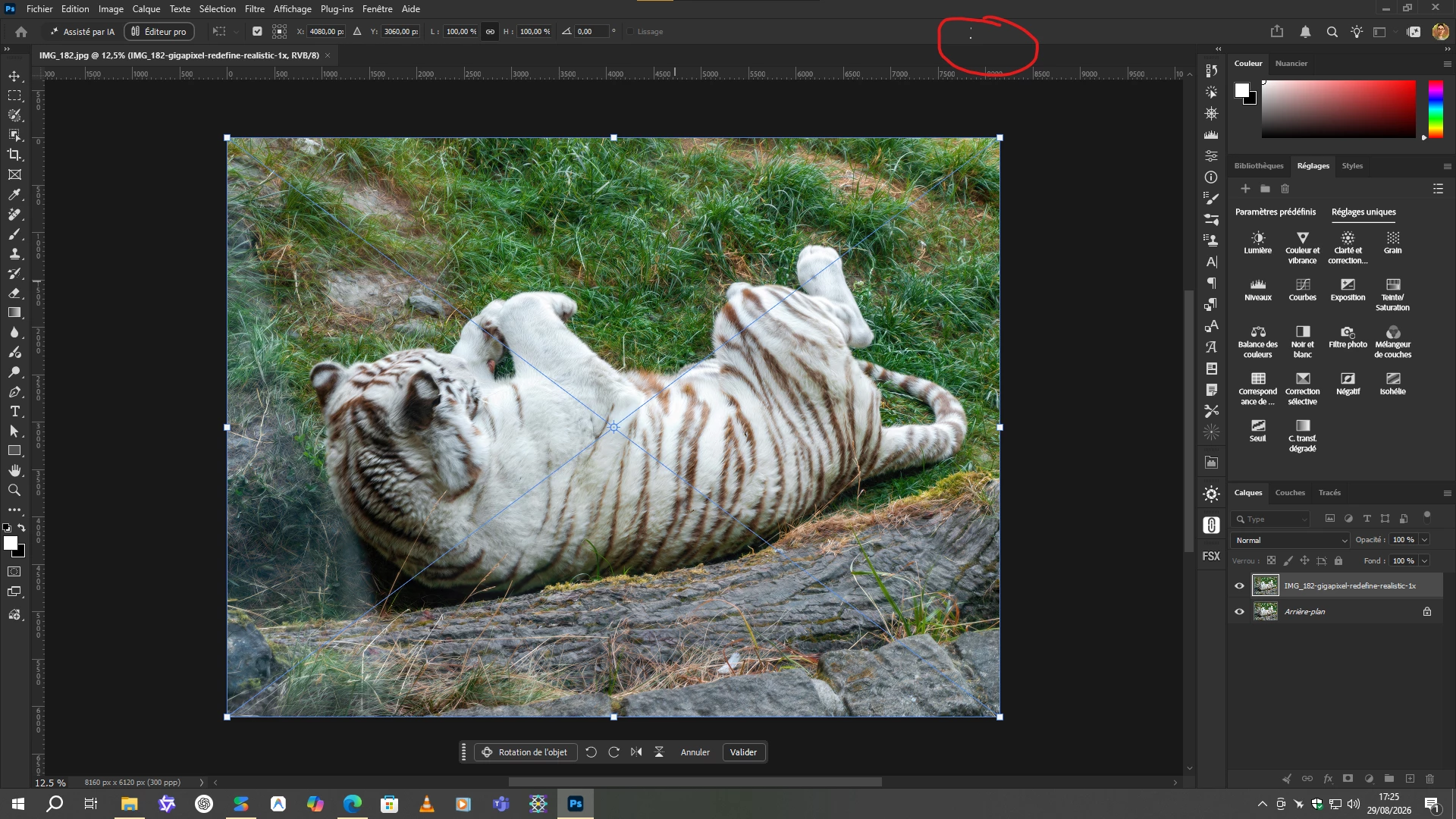
Now I only have the "Enter" key or the "OK" button at the bottom of the screen to do the same thing. It's a bit inconvenient because I like using the button at the top. Incidentally, the distortion modification button is no longer visible either.


And when I use the eraser tool, the confirmation buttons disappear as well. It's impossible to confirm in that area.

I think this is a code issue related to the responsive effect after adding the two new buttons "AI Assisted" and "Pro Editor", which shifts everything to the right and thus hides the validation or cancel buttons in image editing mode via certain tools.

    Correct answer LEMONardo

    @Harald De Luca 

    In the menu, uncheck:

    Window > AI Assisted Editor

    14 replies

    Participating Frequently
    August 31, 2026

    Seeing the same issue in 27.10.0 20260824.r.26 9d9635d  x64 (final, Release)

    Found it on the Crop and the Healing Brush options bar so far, but not had time to check every tool. Appears to be, at least for me, that the options bar has a fixed max width after which any UI is being truncated. This fixed width is apparently ignoring or incorporating the new ‘Ai Assisted/Pro Editor’ buttons. Disabling those new buttons resolve the issue, but its not a great fix.

    In the supplied screenshot, you can see the red arrows pointing to the cut off point and they are exactly the same position for the crop tool and healing brush.

    Crop Tool & Healing Brush truncated UI

    The above screenshots are taken from my ultrawide 3440x1440 but with Photoshop set to take up half the display so 1720 width.  However as can be seen below, even when going full screen the UI truncation bug is still present.

    Crop Tool Truncation bug at 3440 px width.

    Here are Photoshop preferences.
     

    Additional Details

    Adobe Photoshop Version: 27.10.0 20260824.r.26 9d9635d  x64 (final, Release)
    Operating System: Windows 10 64-bit  Version: 10 10.0.19045.7663

    Display set to 3440x1440 (native) using a custom scale factor of 225%

    UI Truncation bug happens regardless of being full screen or windowed and regardless of window width.

    Bug happened immediately after updating earlier today and is still present after quitting and relaunching Photoshop multiple times.

    Harald De Luca
    Known Participant
    September 1, 2026

    Yeah, so it has nothing to do with screen resolution. It's a masking issue in the options bar code.

    Participating Frequently
    August 31, 2026

    Seeing the same issue in 27.10.0 20260824.r.26 9d9635d  x64 (final, Release)

    Found it on the Crop and the Healing Brush options bar so far, but not had time to check every tool. Appears to be, at least for me, that the options bar has a fixed max width after which any UI is being truncated. This fixed width is apparently ignoring or incorporating the new ‘Ai Assisted/Pro Editor’ buttons. Disabling those new buttons resolve the issue, but its not a great fix.

    In the supplied screenshot, you can see the red arrows pointing to the cut off point and they are exactly the same position for the crop tool and healing brush.

    Crop Tool & Healing Brush truncated UI

    The above screenshots are taken from my ultrawide 3440x1440 but with Photoshop set to take up half the display so 1720 width.  However as can be seen below, even when going full screen the UI truncation bug is still present.

    Crop Tool Truncation bug at 3440 px width.

    Here are Photoshop preferences.
     

    Additional Details

    Adobe Photoshop Version: 27.10.0 20260824.r.26 9d9635d  x64 (final, Release)
    Operating System: Windows 10 64-bit  Version: 10 10.0.19045.7663

    Display set to 3440x1440 (native) using a custom scale factor of 225%

    UI Truncation bug happens regardless of being full screen or windowed and regardless of window width.

    Bug happened immediately after updating earlier today and is still present after quitting and relaunching Photoshop multiple times.


    LEMONardoCorrect answer
    Inspiring
    August 30, 2026

    @Harald De Luca 

    In the menu, uncheck:

    Window > AI Assisted Editor

    Harald De Luca
    Known Participant
    August 30, 2026

    Yes, exactly, you beat me to it! Hahaha. Just as I was reading your message, I had checked to see if we knew how to disable that menu. And once it was disabled, the bug disappeared. So yes, it is indeed a CSS problem in the code which was not properly updated after the addition of the new "AI-assisted editor" buttons which take up space and shift everything to the right.

    silk-m
    Community Expert
    Community Expert
    August 30, 2026

    Although it is currently in beta and under development, the issue appears to be—unfortunately—that it has not been optimized for individual languages.

    It seems fine in English and Japanese, but there are unnecessary spaces in Deutsch, Português, Français, and so on.


    UI Overflow: "AI Assistant" button pushes Confirm/Cancel buttons off the Options Bar on 1080p displays

    --Susumu Iwasaki
    silk-m
    Community Expert
    Community Expert
    August 29, 2026

    Hi,

    You can hide it by unchecking "AI Assistant Editor" in the Window menu.
    Alternatively, you can achieve the same result by unchecking "Show AI Assistant Editor" under Preferences > Interface.


    I have a request for the development team: I would like the interface to display only icons when the "Enable Narrow Options Bar" option is checked under the Workspace's "More Options."

    --Susumu Iwasaki
    Anshul_Saini
    Community Manager
    Community Manager
    August 28, 2026

    Hi ​@adrian_1865,

    Thanks for reporting this and for the clear reproduction steps. Since the issue appears to depend on the available horizontal space in the Options Bar, we’d like to capture your exact display and Photoshop UI configuration before escalating this to the product team.
     

    Could you please share the following screenshots/information:

    • Windows Settings > System > Display showing your Display resolution and Scale settings.

    • Photoshop Preferences > Interface, showing the current UI/interface scaling settings.

    • Help > System Info > Copy & please paste the complete contents into your reply.


    Also, please let us know whether Photoshop is running maximized/full-screen when this occurs and whether you’re using only the 1920 × 1080 display or have additional monitors connected.
     

    Once we have these details, we can compare the behavior with the same resolution/scaling configuration and escalate it to the Photoshop product team.
     

    Thanks for helping us investigate this.
     

    Best,
    Anshul Saini

    adrian_1865
    Participant
    August 30, 2026

    So, somehow the bug fixed itself and the UI is back to normal now. Sorry for the inconvenience.

    silk-m
    Community Expert
    Community Expert
    August 30, 2026

    Although it is currently in beta and under development, the issue appears to be—unfortunately—that it has not been optimized for individual languages.

    It seems fine in English and Japanese, but there are unnecessary spaces in Deutsch, Português, Français, and so on.


    --Susumu Iwasaki
    adrian_1865
    Participant
    August 28, 2026

    After the latest update, the new "AI Assistant" / "Pro Editor" elements added to the Options Bar take up too much horizontal space. On standard Full HD (1920x1080) resolution, this pushes essential tool controls completely off-screen (notably the Commit/Confirm and Cancel buttons during Free Transform, Crop, and Warp modes).

    Steps to reproduce:

    1. Use Photoshop on a standard 1080p display.

    2. Select any layer and enter Free Transform (Ctrl + T) or select the Crop Tool (C).

    3. Look at the right side of the Options Bar.

    Expected result: The Commit and Cancel buttons should fit cleanly on the Options Bar.

    Actual result: The bar overflows and the buttons are cut off / hidden.