



Display Issue With Xencelabs Pen Display
This is a narly one, and I think more related to Windows and the Xencelabs driver, but just in case...
I have just recently got an Xencelabs 16" Pen Display. I was already using three monitors, all connected to an RTX4080 in an Asus ROG Z79 Hero Maximus, Windows 11 Pro I could not get the PD16 to work nicely in the last GPU HDMI socket, but the mainboard has an HDMI socket, and it works OK connected to that without buggering up the other displays.
(6960 x 4320)
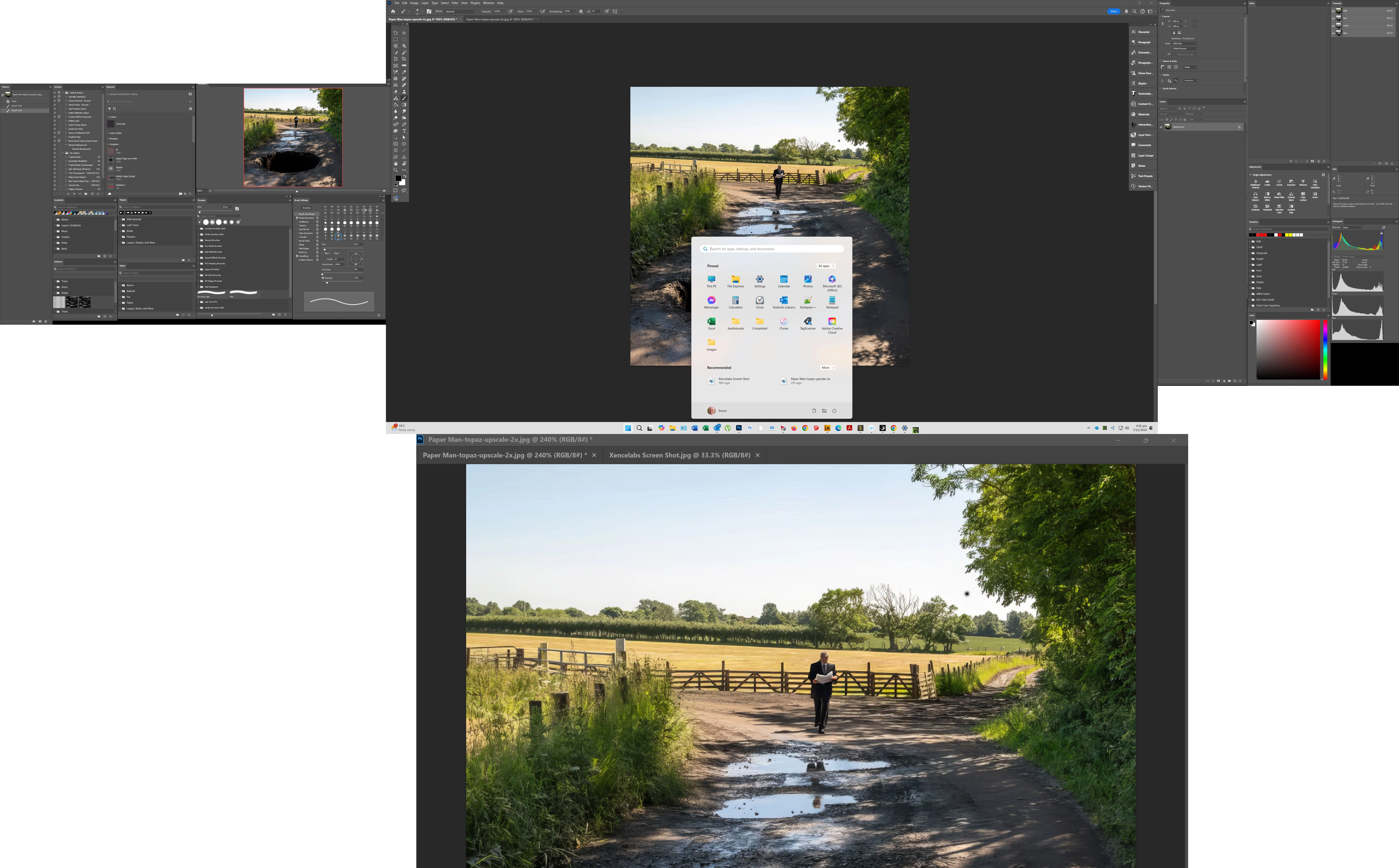
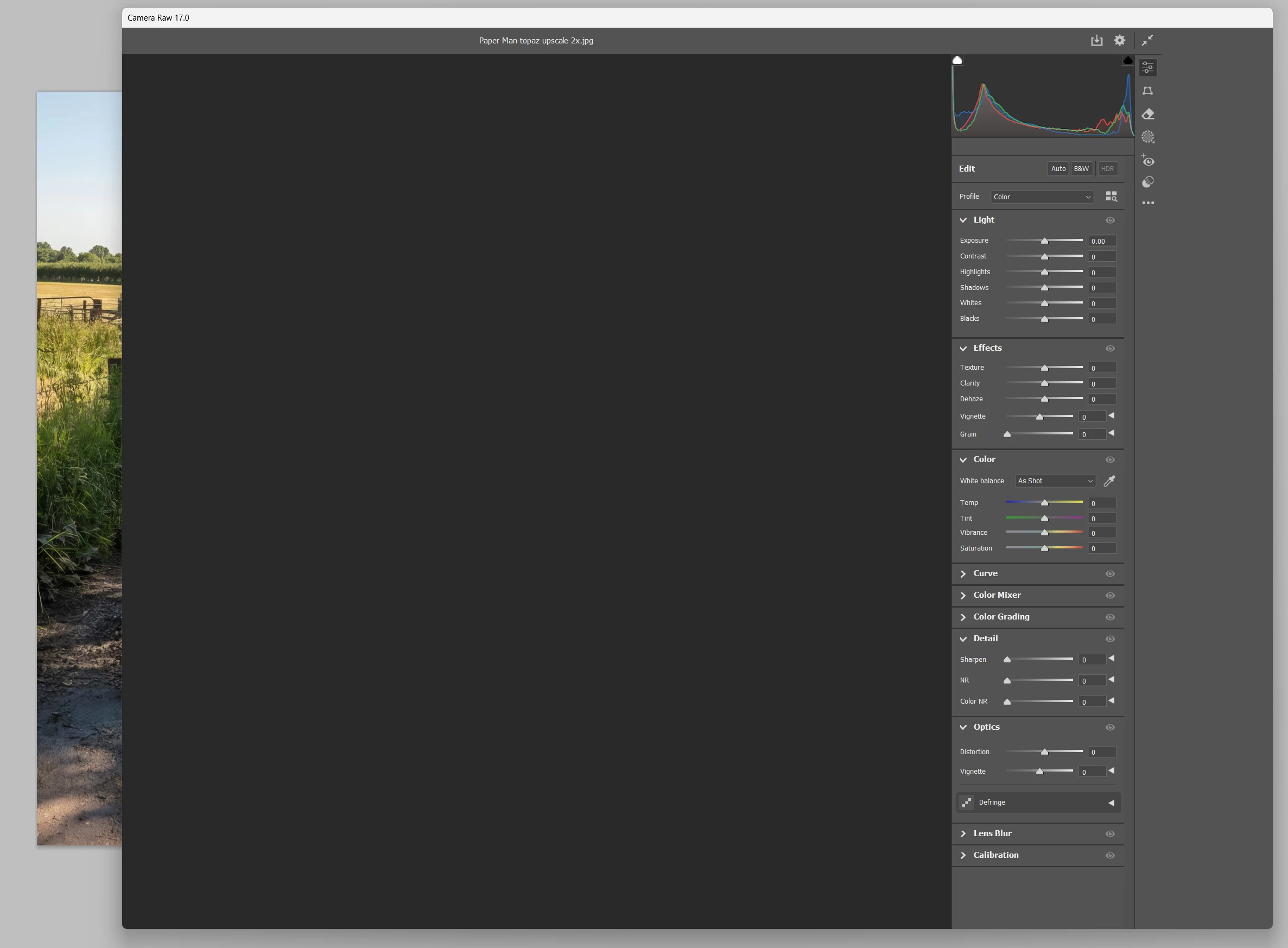
The problem I can't get past at the moment is that Adobe Camera RAW opens showing the adjustments, but the image window is dark grey, and I can't see the OK button, and nor can I edit the window to reveal it. If I shut down the Pen Display it works OK
This is what I am seeing. I set the Photoshop background to light grey to see if that was what I was seeing, but you can see that is not the case. I can resize the ACR window, but never see a scroll bar, and never see an OK or cancel button. I can close the window wit the Escape key.
I have reset Preferences.
Tried the beta version which has the identical issue.
Tried different workspaces including the default Essentials using
Tried different Windows display settings for the monitors and the PD (scale and text size)
I have raised a support ticket with Xencelabs.
FWIIW, the Pen Display is amazing. It has a beautifully smooth drawing experience with no delays or lag. I was peeved to discover that the 16" PD does not have the three buttons on the front, and they decided not to include the clip to mount the Quick Keys to the PD. That couldn't cost them more than a few dollars, so goodness knows what that's about. I've made a wooden backet to hold the Quick Keys for now.
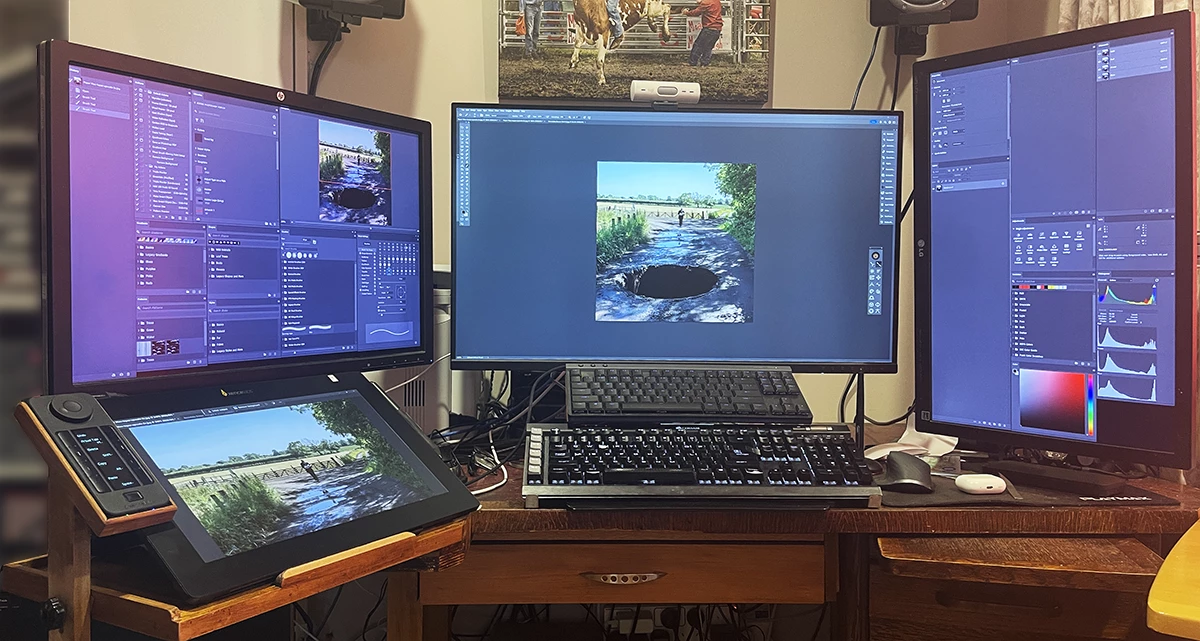
Any thoughts anyone? I feel like it is linked to Windows display settings, as if the image window in ACR is hiding off screen.


 AdChoices