bellevue scott
Inspiring
September 26, 2025
Answered

Droplet cannot communicate with Photoshop - PS 26.11, Windows 10

  • September 26, 2025
  • 2 replies
  • 294 views

Windows platform, Win 10 Pro ,Adobe PS 26.11


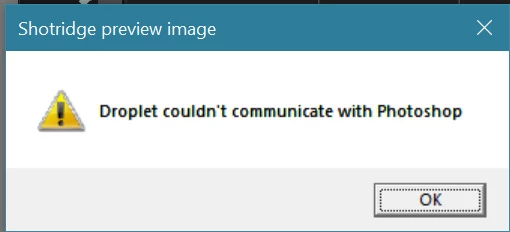
I created a new droplet that reduces the size of a file and saves as jpg in a directory. Pretty simple. But I keep getting this error "cannot communicate with Photoshop". I tried running as administrator but that didn't work either. This also happened on PS 26.7, so I upgraded to PS 26.11 hoping it would fix the issue. Remade the droplet with 26.11, and it still persists. 
 

Correct answer bellevue scott
Thanks Claire
 
I think I found a solution to this issue. It is a permissions issue. It's not just a permissions issue for the droplet, but the directory it resides in. 
 
I created a folder in documents/adobe called droplets. I gave that folder execute permission for everyone and gave the directory admin ownership. I then saved the droplet there ( documents/adobe/droplets). The droplet's icon should have a little admin shield on it. 
 
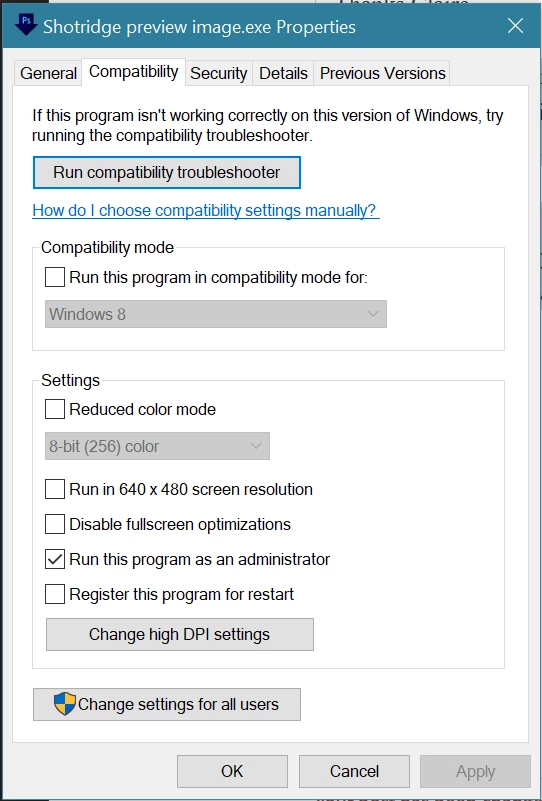
Then right click on the file and make sure it has admin rights. "Run this program as administrator"


Now create as shortcut and copy that shortcut to the directory where you want the droplet to live. The droplet will run from another directory since you're using a shortcut to the folder that has execute permissions. 


This has the added benefit of being able to create new icons for your droplet, since you can't change the icon for an exe in windows but you can for the shortcut of an exe. 


thanks

2 replies

bellevue scott
bellevue scottAuthorCorrect answer
Inspiring
September 26, 2025
Thanks Claire
 
I think I found a solution to this issue. It is a permissions issue. It's not just a permissions issue for the droplet, but the directory it resides in. 
 
I created a folder in documents/adobe called droplets. I gave that folder execute permission for everyone and gave the directory admin ownership. I then saved the droplet there ( documents/adobe/droplets). The droplet's icon should have a little admin shield on it. 
 
Then right click on the file and make sure it has admin rights. "Run this program as administrator"


Now create as shortcut and copy that shortcut to the directory where you want the droplet to live. The droplet will run from another directory since you're using a shortcut to the folder that has execute permissions. 


This has the added benefit of being able to create new icons for your droplet, since you can't change the icon for an exe in windows but you can for the shortcut of an exe. 


thanks

Claire H.
Community Manager
Community Manager
September 26, 2025

Hi @bellevue scott, I am so glad you found a solution! And thank you for posting the steps you took to solve the issue. Feel free to let us know if you have any other questions. Happy editing! ^CH

Claire H.
Community Manager
Community Manager
September 26, 2025

Hi @bellevue scott, thanks for sharing the details! The “cannot communicate with Photoshop” error when running a droplet is often related to permission mismatches. Here are a couple of steps to try:

1. Temporarily disable User Account Control (UAC) via Control Panel > User Accounts > Change UAC settings. Restart, test the droplet, then re-enable UAC.

2. Reinstall Photoshop — uninstall via Creative Cloud, restart, then reinstall. This can reset broken registry links that affect droplet communication.


If you are still experiencing this issue, could you try it with the Photoshop Beta version and see if it helps? Let me know if any of this works for you. ^CH