Inspiring
December 25, 2025
Answered

"Edit in Photoshop" grayed out

  • December 25, 2025
  • 2 replies
  • 248 views

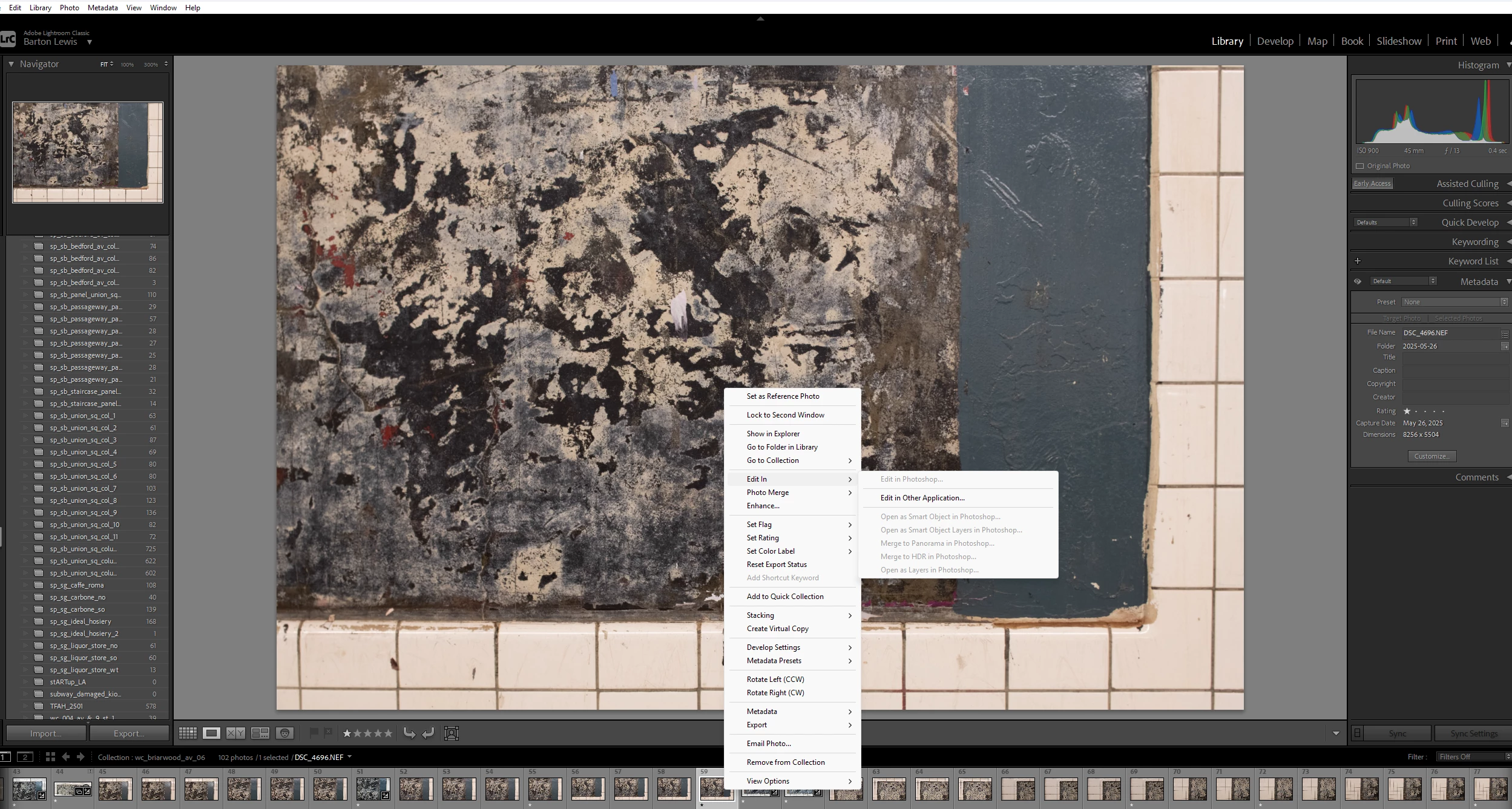
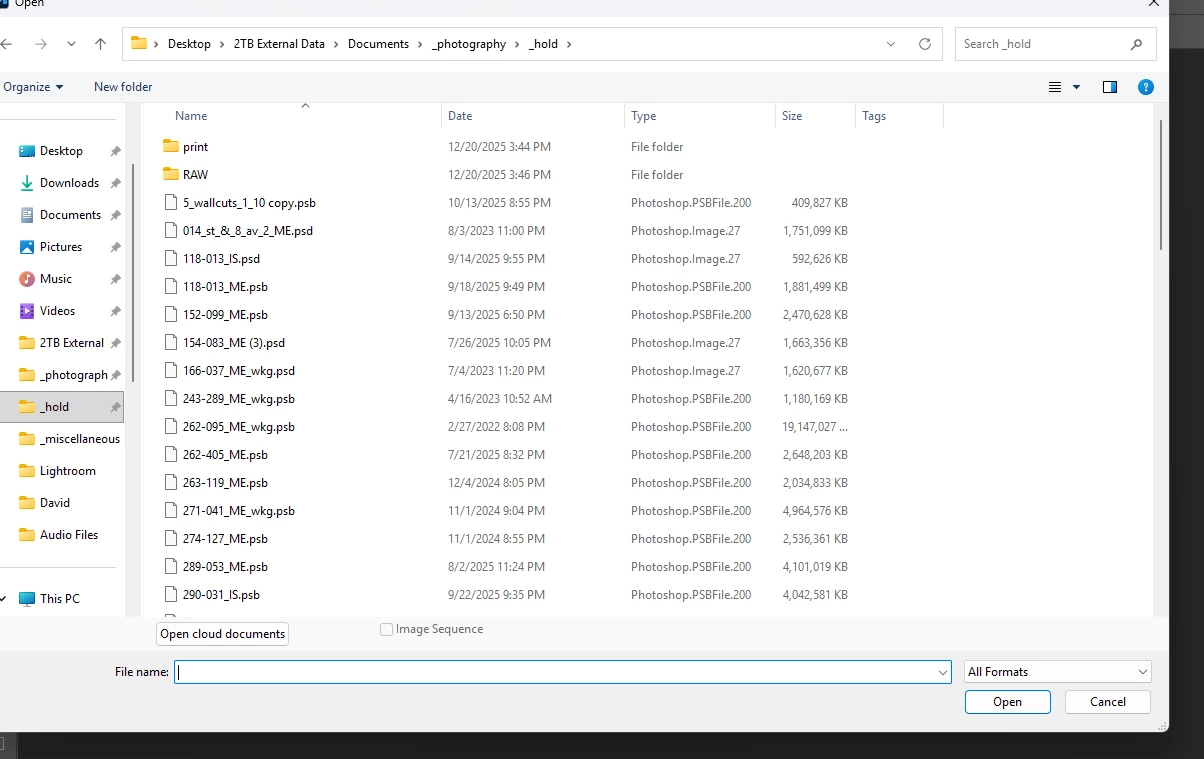
I recently bought a new computer and have installed the Creative Cloud apps on the new device.  When I navigate to a folder containing PSB/PSD files, the document icons are blank white pages, as shown in the screenshot.  Does this mean there is a porblem?  Also, when I right click on a file in Lightroom Classic, "Edit in Photoshop" is grayed out, as shown in the second screenshot.  Files do open in Photoshop however, but I would like to be able to open them from Lightroom.  Does anyone know what the problem might be?  Thanks.  
 

Barton5C39_0-1766621637765.png


Barton5C39_1-1766621859885.png


Correct answer Sameer K

Hey, @Barton5C39. Welcome to the Lightroom Community. I'll help you figure this out. 


Does this happen with every image?

Try these steps to set up or recreate the link between Lightroom Classic & Photoshop 2026.

  • Reset Lightroom Classic following the second (manual) method from this article: https://adobe.ly/4fOPxm4
  • Uninstall Photoshop & Lightroom Classic, and then reinstall them.
  • Try launching Photoshop first, then Lightroom Classic & check if it behaves as expected.

Let me know how it goes.

Thanks!
Sameer K

(Type '@' and type my name to mention me when you reply)

2 replies

Nancy OShea
Community Expert
Community Expert
December 25, 2025

I recently bought a new computer...  When I navigate to a folder containing PSB/PSD files, the document icons are blank

By @Barton5C39

==========

Windows doesn't support thumbnail previews of native Adobe files. You'll need to get a shell extension for Windows File Explorer like this one from SageThumbs.

https://sagethumbs.com/


Or use Adobe Bridge to manage image files.

https://helpx.adobe.com/bridge/user-guide.html


Hope that helps. 


Nancy O'Shea— Product User & Community Expert
Sameer K
Community Manager
Sameer KCommunity ManagerCorrect answer
Community Manager
December 25, 2025

Hey, @Barton5C39. Welcome to the Lightroom Community. I'll help you figure this out. 


Does this happen with every image?

Try these steps to set up or recreate the link between Lightroom Classic & Photoshop 2026.

  • Reset Lightroom Classic following the second (manual) method from this article: https://adobe.ly/4fOPxm4
  • Uninstall Photoshop & Lightroom Classic, and then reinstall them.
  • Try launching Photoshop first, then Lightroom Classic & check if it behaves as expected.

Let me know how it goes.

Thanks!
Sameer K

(Type '@' and type my name to mention me when you reply)

Inspiring
December 26, 2025

Thanks @Sameer K for your reply.  I did steps 1 and 3 you suggested and it did not change anything.  I have updates waiting for all my Creative Cloud apps and it's taking a very long time for them to update.  When they're done I'll check again and if I still can't Edit in Photoshop from LR I'll do step number 2 you suggest.  I'll post the results in the morning.  Thank you.