
mateusc77349177
Participant
January 18, 2025
Question

Edit in photoshp from lightroom is resulting on changes on the lumnosity after saving

  • January 18, 2025
  • 2 replies
  • 205 views

after editing a photo on photoshop, from lightroom, the result have diferent highlights and whites than the original photo, and I just opened on phostoshop, from lightroom, saved and closed.
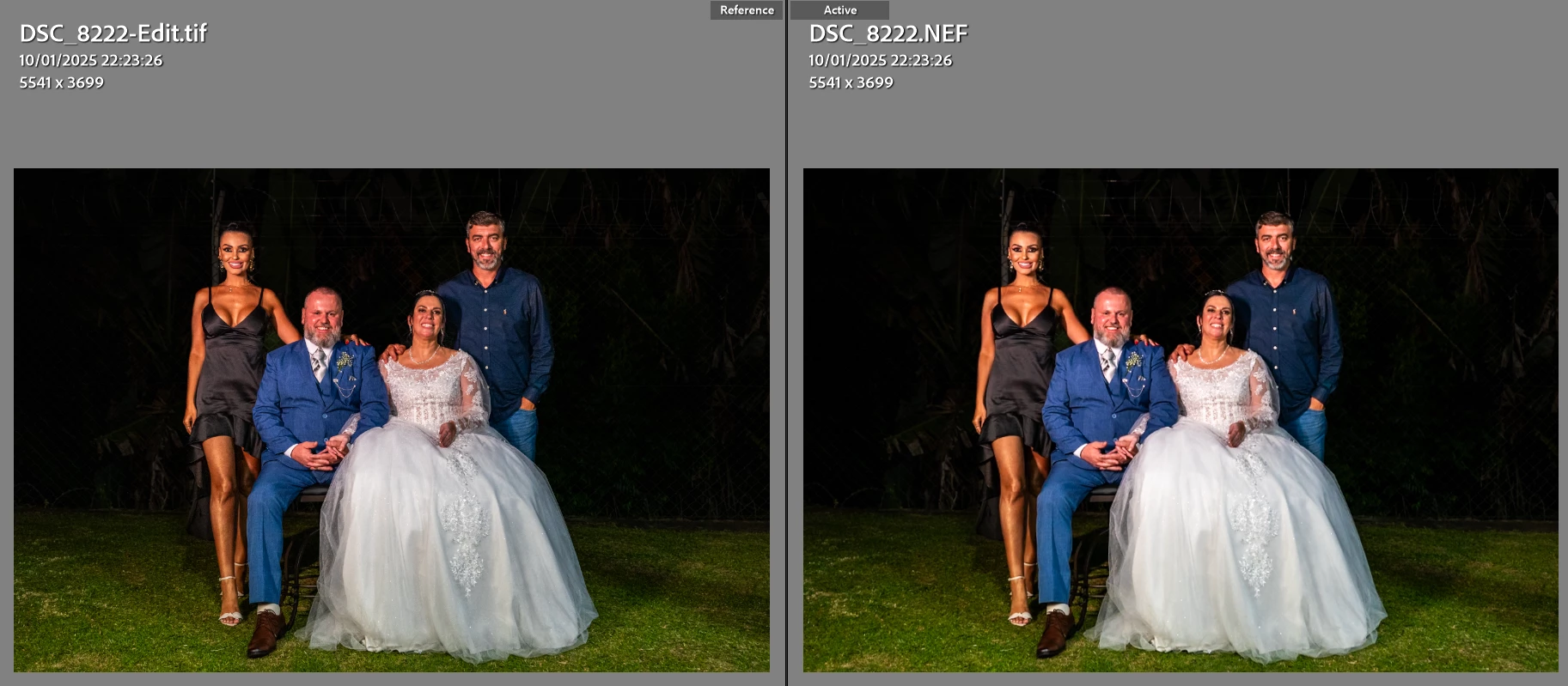
 

Any one can Help me with solution, Allready tried reseted photoshop settings, issue persisted.


Lightroom v8.1

Photoshop v26.2

Windows 11

2 replies

D Fosse
Community Expert
Community Expert
January 20, 2025

@TWKP 

No, there is no need for Lightroom and Photoshop color settings to match, that is a common misunderstanding. Any incoming profile will be treated correctly in Photoshop. That profile will override the PS working space.


@mateusc77349177 

Most likely this is a defective monitor profile. While both these files end up in the same monitor profile, the source profiles are different. That means the conversion, the actual math, is different. If the profile isn't written to correct icc spec, that conversion may just work in one, but fail in the other.


A difference such as this is usually a red flag for a defect monitor profile.


Are you using a calibrator to make your monitor profiles? If so, run it again, and make sure it's set to make version 2, matrix-based profiles. Version 4 and LUT (table)-based profiles are prone to errors in some configurations.


If you're not using a calibrator, you should have one. Until then, use a standard profile that is close to the monitor's native response. Depending on the type of monitor, that would be sRGB IEC61966-2.1, Adobe RGB or Image P3/Display P3.


Without a calibrator, you'll usually get generic manufacturer profiles distributed through Windows Update, and these profiles are surprisingly often defective in various ways.

mateusc77349177
Participant
January 21, 2025

So, I do not have an calibrator yet, I tried looking online how to set a standart profile.

I downloaded Adobe RGB (1998) (only one I managed to find) and set as system defaut on the windows settings (System>Display>Color management)

I don`t know if I did it wrong, but it did not fixed the issue, The highlights after saving the edit from photoshop was still all wrong.

D Fosse
Community Expert
Community Expert
January 21, 2025

There's no need to download these standard profiles like Adobe RGB - they are already on the system, it's the very same profile that Photoshop already uses. You just set it up as default monitor profile in the operating system.


This could also be a buggy GPU driver. The conversion into the monitor profile is executed in the GPU - so if the conversion fails, it can be difficult to tell if it's a bad profile or a bad conversion into that profile. They are two aspects of the same process.


You can test that by disabling "use graphics processor" in both applications' preferences.


If neither of these, you need to take a very close look at any Lightroom develop settings/presets/etc, if something is applied to one and not the other.


BTW I assume Lightroom version 8 means you're using the cloud Lightroom? Not the local machine based Lightroom Classic? I've never used the cloud Lightroom and I'm not familiar with it.

Participant
January 20, 2025

Here are a few things you can check and try to resolve this issue:

  1. Color Settings Consistency: Ensure that your color settings are consistent between Photoshop and Lightroom. In Photoshop, go to Edit > Color Settings and check that the RGB Working Space matches what you're using in Lightroom. Adobe RGB (1998) or sRGB IEC61966-2.1 are commonly used profiles.

  2. Monitor Calibration: Sometimes, the way colors are displayed can be affected by how your monitor is calibrated. Make sure your monitor is calibrated to a standard profile to ensure color accuracy across different applications.

  3. Bit Depth Differences: Check if there's a difference in the bit depth settings between Lightroom and Photoshop. Lightroom works with 16-bit images by default, which allows for more color data. Ensure Photoshop is set to handle 16-bit images as well by going to Image > Mode > 16 Bits/Channel.

  4. Soft Proofing: Use the soft proofing feature in Photoshop to see how your colors will look under different lighting conditions or on different devices. You can activate this by going to View > Proof Setup and selecting your desired profile.

  5. Profile Corruption: Sometimes, resetting Photoshop settings isn't enough if the color profile files themselves are corrupted. You might need to reinstall the color profiles or Photoshop itself.

  6. Direct Transfer Check: If you're using the 'Edit In' option from Lightroom to Photoshop (Photo > Edit In > Edit in Adobe Photoshop), ensure that you are transferring all the adjustments properly. Check the 'Edit with Lightroom Adjustments' option if prompted, to ensure all your edits are carried over.

Try these steps and see if the issue persists. Color management can be quite tricky, but ensuring consistency across your workflow is key to maintaining the integrity of your images.

Travis

mateusc77349177
Participant
January 21, 2025

I made sure issue 1, 3, 4 and 6 is not the problem, but I do not know how to work arround 2 and 5... I do not have a calibrator, so I am trying to find out how to fix the monitor calibration or fix the profile corruption