
Trevor.Dennis
Community Expert
Community Expert
September 29, 2025
Answered

Editing a Path/Shape When Close to a Guide?

  • September 29, 2025
  • 3 replies
  • 550 views

This is one of those things that I have been annoyed by for ever, and I am wondering if it can be bypassed?

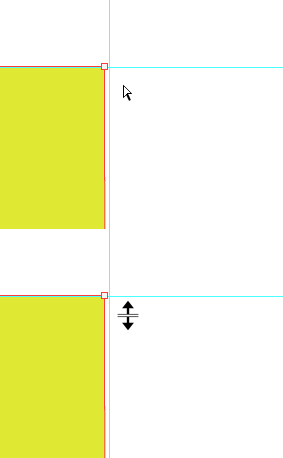
When you are zoom way way in to a path or shape and need to move a point, if you are close to a guide then the icon switches to the Guide Edit tool.   The GIF below is not 100% to scale as I could not get a screen shot of the edit guide icon, so I made it.  You'll get the idea though.  I was zoomed in to close to 3000%.  So is there, say, a spring loaded shortcut that will force Photoshop to ignore the guide?  I can turn off the guide of course, but the whole point is to align to it, and better still, snap to it.  This happens with Pen, path select, and direct select. 
Correct answer mglush

Hi!

You can try locking the guides—that way you can still see them, but the guide won't interfere with your selection. On a Mac it is Command-Option-; and I believe on a Windows Machine it would be Control-Alt-;


Let us know if that is a good workaround?

Michelle

3 replies

mglush
Community Expert
mglushCommunity ExpertCorrect answer
Community Expert
September 30, 2025

Hi!

You can try locking the guides—that way you can still see them, but the guide won't interfere with your selection. On a Mac it is Command-Option-; and I believe on a Windows Machine it would be Control-Alt-;


Let us know if that is a good workaround?

Michelle

Trevor.Dennis
Community Expert
Community Expert
September 30, 2025
quote

Hi!

You can try locking the guides—that way you can still see them, but the guide won't interfere with your selection. On a Mac it is Command-Option-; and I believe on a Windows Machine it would be Control-Alt-;


Let us know if that is a good workaround?

Michelle


By @mglush


That works perfectly MIchelle.  I like that because I can carry on using the Pen tool while editing.  Nice one!

mglush
Community Expert
Community Expert
September 30, 2025

Thanks! I am glad it helped!

Chuck Uebele
Community Expert
Community Expert
September 30, 2025

Okay, it does it if I'm using the pen tool and then used the ctrl to temporarily use the path selection tool. Yea, that's a pain.

Trevor.Dennis
Community Expert
Community Expert
September 30, 2025

That helped Chuck. I tend to work with the Pen tool, so I can add and remove points.

The Path Selection tool (black arrow) does the same thing, but the Direct Selection tool (white arrow) can select and move a point that is positioned directly over a guide.  So I have a workaround. Thanks.   


I'm not sure why Ctrl/Cmd dragging a point, when using the Pen tool, refuses to play nicely.  I wonder if @Michael J. Hoffman has any insight?  His five videos on paths and the Pen Tool are the best guide on that subject I know of. 


PECourtejoie
Community Expert
Community Expert
September 30, 2025

Thanks for the link definitely a must see series!

Chuck Uebele
Community Expert
Community Expert
September 30, 2025

I think I know what you're taking about, but I just tried this, and my cursor stays on the path selection tool.