Participant
June 14, 2018
Question

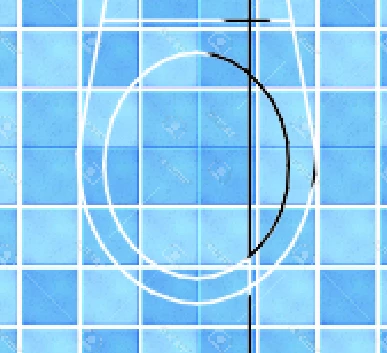
Eraser tool doesn't erase the lines but turns it white

  • June 14, 2018
  • 8 replies
  • 6707 views

I cannot figure out what causes the error. I reset the tool but the problem is still present.

This topic has been closed for replies.

8 replies

Participant
June 15, 2018

Thank you guys for your help and suggestions! It turned out to be something really stupid. I didn't add the blue tiles as one fill under the drawing. I realized that I added the tiles fills with the magic wand inside the black lines and below the black lines there is (naturally) no bathroom fill.

melissapiccone
Community Expert
Community Expert
June 14, 2018

You have your answer - you are either on the background layer as Martin_Bns says, or you have a layer turned on underneath that is white and is blocking you from seeing the transparency. Please choose a correct answer .

Melissa Piccone | Adobe Trainer | Online Courses Author | Fine Artist
Martin_Bns
Inspiring
June 14, 2018

Hi there, i'ts 99% because your background color is white and you are working on the background layer.
When ereasing, Photoshop shows the background color on the locked layer.

Cheers bro,
Martin

cmgap
Community Expert
Community Expert
June 14, 2018

If you are on the base layer... tap the lock to unlock it ... try again as shown in the video.

JohanElzenga
Community Expert
Community Expert
June 14, 2018

I assume that you expect the eraser tool to really erase the lines as if they were removed from their background, so they become the same blue color as the background? That's not what this tool is supposed to do. You need to use the clone and healing tools for that.

-- Johan W. Elzenga
Norman Sanders
Legend
June 14, 2018

Consider avoiding the Eraser tool when an editable and nondestructive mask or Blend If can do the job.

For Blend If: place a blank layer below the image.

Return to the image layer and double click to bring up Layer Style

In the Blend If section, slowly move the top right slider gently to the left

cmgap
Community Expert
Community Expert
June 14, 2018

Turn off the underlying layer - it should be transparent now where you have used the eraser.

davescm
Community Expert
Community Expert
June 14, 2018

The eraser tool deletes pixels on any layer other than a background layer. When used on a background layer it paints with the background colour.

Dave

Chuck Uebele
Community Expert
Community Expert
June 14, 2018

Can you show a screen shot with your layer panel showing? It looks like your black lines are on the same layer as your background, so when using the eraser took, you will get whatever color you background color is, most likely white in your case.