Participant
April 29, 2025
Answered

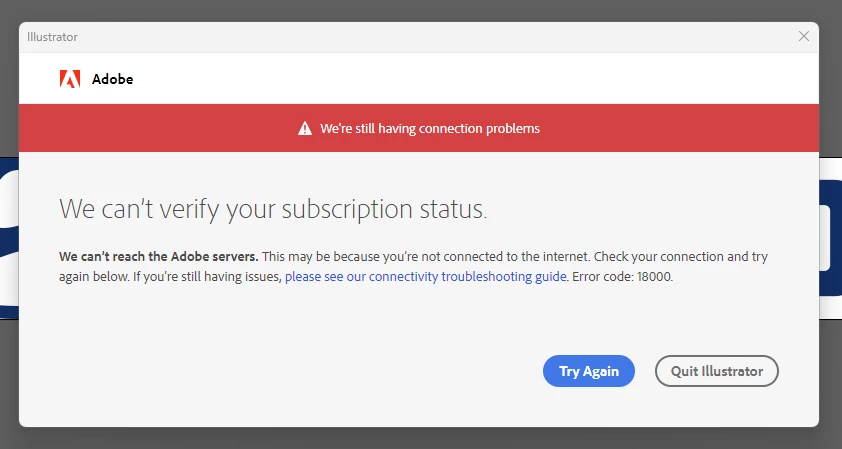
Error 18000

  • April 29, 2025
  • 4 replies
  • 5768 views

Hi

I use Photoshop/Illustrator/InDesign for work, but one day this message came with error code 18000. Its done the same in InDesign and Photoshop. I have a stable internet access, I can go to Creative Cloud and open the apps from there, but the message is still there. When I uninstall the apps and install them again, it works, but the problems shows again the day after. I've tried uninstalling the whole of Adobe with Creative Clouud and install it again, but the problem is the same. Any ideas how to fix this?


Correct answer AxelMatt

First logout from your creative cloud client, reboot your computer (cold boot) and then login with your Adobe ID again. 

If this doesn't help try to reset the CC app by following the steps below:

Bring the CC app in the foreground the press:

  • Win: Ctrl + Alt + R
  • Mac: Cmd + Opt + R


If this doeswn't help try the steps below:

  • Sign out from the Adobe Creative Cloud desktop application (Sign in and sign out to activate Creative Cloud apps)
  • Browse to the location: [System Drive]:\ProgramData\Adobe
  • Rename the 'SLStore' folder to 'SLStore_old'
  • Browse to the location: [System Drive]:\Program Files (x86)\Common Files\Adobe
  • Rename the 'SLCache' folder to 'SLCache_old'
  • Sign in to the Adobe CC desktop app


You may also try below steps:

Close all Adobe apps and make sure no Adobe processes are running in Task Manager.

  1. Make sure that Hosts file does not contains Adobe URL entries with Loop back address 127.0.0.1 .
  2. Press Windows button (located between Ctrl and Alt buttons) along with R button together at a time , you will get a run command window.
  • Type in  "Appdata" hit 'Enter' key.
  • It will open Appdata folder.
  • Then navigate to Local>Adobe>OOBE. Open OOBE folder and delete " Opm.db" file.


Once you had deleted Opm.db file , Sign in to Adobe Creative Cloud app using Valid Email ID and check.


If this fails the next step is to try a repair of the CC client. See here: Adobe app installation stuck

If this also doesn't help the nest step is to uninstall/reinstall per linked document above.


You can also check the following socuments. There are a lot of steps to check. Especially take a look into your HOSTS file.

Purchased Creative Cloud apps appear as trial versions

How to resolve connection errors with Creative Suite applications


4 replies

kglad
Community Expert
Community Expert
August 6, 2025

@david3189609363u3 


in the future, to find the best place to post your message, use the list here, https://community.adobe.com/

p.s. i don't think the adobe website, and forums in particular, are easy to navigate, so don't spend a lot of time searching that forum list. do your best and we'll move the post (like this one has already been moved) if it helps you get responses.


<"moved from using the community bugs">


Participating Frequently
August 6, 2025

I found a fix for this one here Solved: Betreff: Error 18000 - Adobe Product Community - 15295487
but for the nth time i've been getting this. How do you fix this indefinitely?

pc specs:
windows 10.0.26100 Build 26100
ultra 9 285k
rog strix b860
64g ram 6800 (running at 6000mhz)
Nvidia 3070
windows 11

Participant
July 1, 2025

how to recourd my apps


AxelMatt
Community Expert
Community Expert
July 1, 2025

@s_digital_best_videos7841  Sorry, but I understand your problem. Please describe more detailed and so exact as you can.

Which operating system and which Adobe applications do you use?


My System: Intel i7-8700K - 64GB RAM - NVidia Geforce RTX 3060 - Windows 11 Pro 25H2 -- LR-Classic 15 - Photoshop 27 - Nik Collection 8 - PureRAW 5 - Topaz Photo
AxelMatt
Community Expert
AxelMattCommunity ExpertCorrect answer
Community Expert
April 29, 2025

First logout from your creative cloud client, reboot your computer (cold boot) and then login with your Adobe ID again. 

If this doesn't help try to reset the CC app by following the steps below:

Bring the CC app in the foreground the press:

  • Win: Ctrl + Alt + R
  • Mac: Cmd + Opt + R


If this doeswn't help try the steps below:

  • Sign out from the Adobe Creative Cloud desktop application (Sign in and sign out to activate Creative Cloud apps)
  • Browse to the location: [System Drive]:\ProgramData\Adobe
  • Rename the 'SLStore' folder to 'SLStore_old'
  • Browse to the location: [System Drive]:\Program Files (x86)\Common Files\Adobe
  • Rename the 'SLCache' folder to 'SLCache_old'
  • Sign in to the Adobe CC desktop app


You may also try below steps:

Close all Adobe apps and make sure no Adobe processes are running in Task Manager.

  1. Make sure that Hosts file does not contains Adobe URL entries with Loop back address 127.0.0.1 .
  2. Press Windows button (located between Ctrl and Alt buttons) along with R button together at a time , you will get a run command window.
  • Type in  "Appdata" hit 'Enter' key.
  • It will open Appdata folder.
  • Then navigate to Local>Adobe>OOBE. Open OOBE folder and delete " Opm.db" file.


Once you had deleted Opm.db file , Sign in to Adobe Creative Cloud app using Valid Email ID and check.


If this fails the next step is to try a repair of the CC client. See here: Adobe app installation stuck

If this also doesn't help the nest step is to uninstall/reinstall per linked document above.


You can also check the following socuments. There are a lot of steps to check. Especially take a look into your HOSTS file.

Purchased Creative Cloud apps appear as trial versions

How to resolve connection errors with Creative Suite applications


My System: Intel i7-8700K - 64GB RAM - NVidia Geforce RTX 3060 - Windows 11 Pro 25H2 -- LR-Classic 15 - Photoshop 27 - Nik Collection 8 - PureRAW 5 - Topaz Photo
rajatch
Participating Frequently
September 8, 2025

I just bought the subscription last month and every week Lightroom starts giving this error on boot. One remedy that worked last time was re-logging-into Creative Cloud app and  launching Lightroom. But the next book will again get stuck here. I use company managed laptop provided by my employer, just for context. How do I get rid of this error forever?

 
#lightroom #subscription

AxelMatt
Community Expert
Community Expert
September 8, 2025
My System: Intel i7-8700K - 64GB RAM - NVidia Geforce RTX 3060 - Windows 11 Pro 25H2 -- LR-Classic 15 - Photoshop 27 - Nik Collection 8 - PureRAW 5 - Topaz Photo