© Si
Inspiring
June 20, 2026
Answered

Error message "Could not complete the command because of a program error (2a135c.901)."

  • June 20, 2026
  • 2 replies
  • 42 views

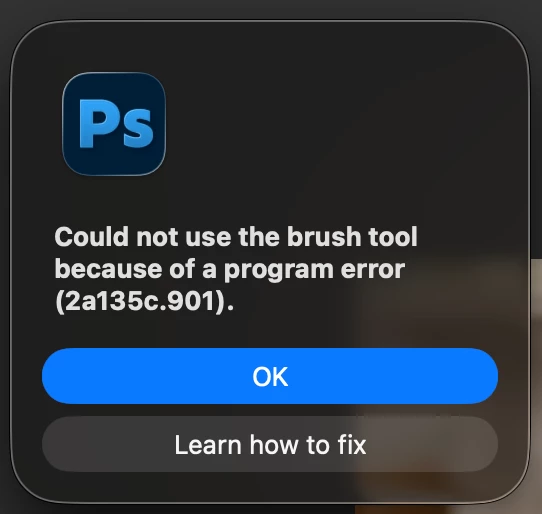
I am constantly plagued with this error message during normal working practices within Photoshop.

“Could not complete the command because of a program error (2a135c.901).”

During normal operation I’ll select any tool and it will randomly stop working - prompting the message above.  Or I’ll run an action and it will fail and prompt the same message..
On a Save, Restart - Photoshop is back to normal operation - tools, brushes work correctly, actions play, until the message randomly appears again and the loop continues. save , restart …

The pop-up “Learn how to fix” is irrelevant. It’s not a fix!

I’ve tried all the other recommended fixes below to no avail. Please advise?
 

Resetting Photoshop preferences

Disable GPU Acceleration
Go to Preferences → Performance.
Uncheck Use Graphics Processor.
Restart Photoshop


Clear Adobe Cache
Navigate to ~/Library/Caches/Adobe and delete cache files.
Restart Photoshop


Mac Studio M2 Ultra, 64 GB - macOS Terrible-Tahoe 26.5.1 - Photoshop 27.8.0
Wacom Tablet Intuos Pro (Driver 6.4.13-4).


    Correct answer © Si

    Thank you ​@AxelMatt for your response.

    I continued to problem solve myself prior to reading your post and I seem to have finally found a fix!  (I’ll be sure to try your suggestions above if the issue comes back).

    I’ve had no error message for the last three hours - For others here who may be experiencing a similar issue - this is the last thing I did that I believe may have resolved the issue..

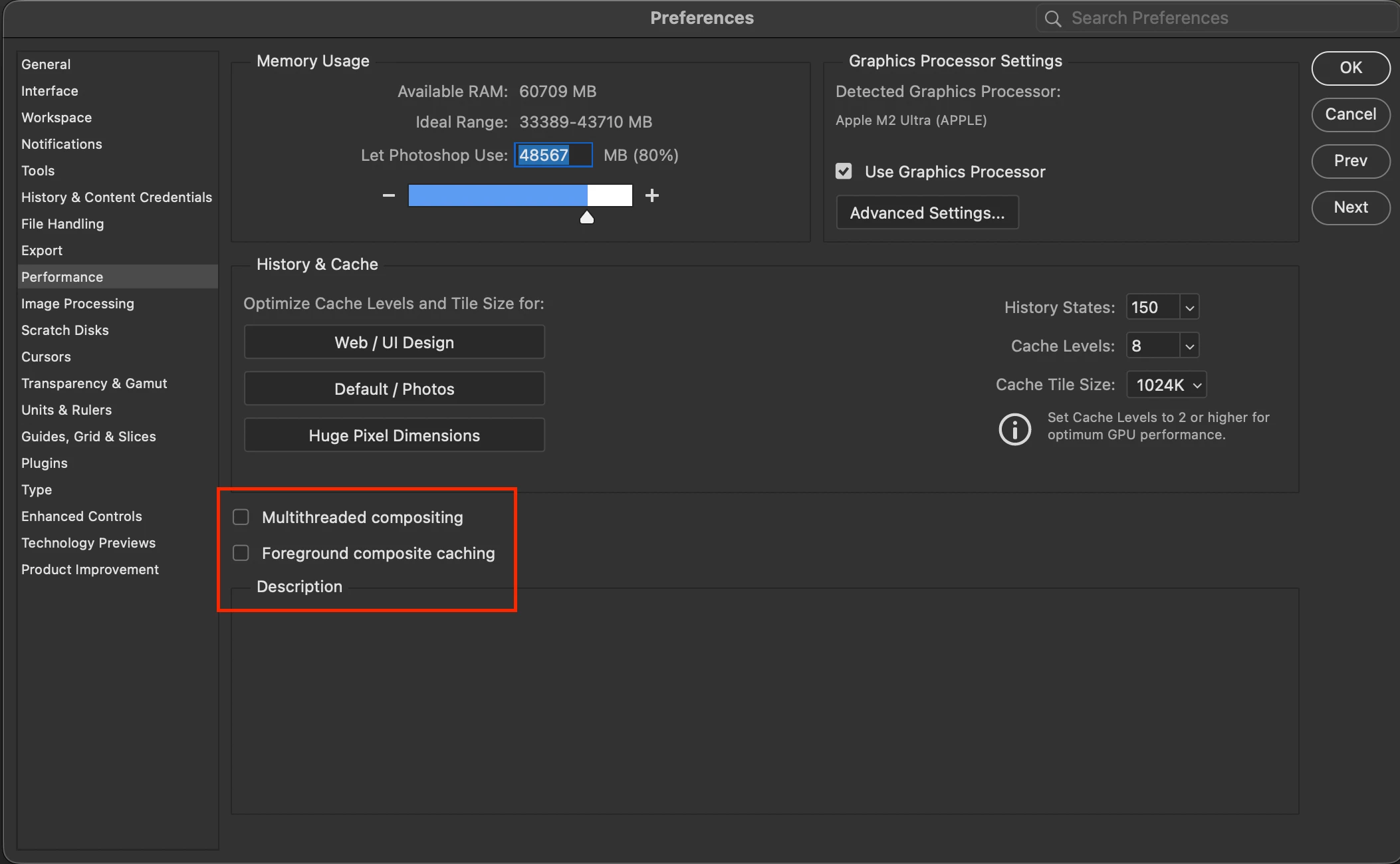
    Uncheck both - Multithreaded Compositing and Foreground Composite Caching in Settings/Preferences - Performance


    2 replies

    Community Expert
    June 20, 2026

    This specific program error (often linked to GPU or compositing memory) typically occurs when Photoshop conflicts with your graphics card, or when a specific brush setting corrupts. Resolve it by temporarily disabling graphics hardware acceleration, resetting your brush tool, or clearing your preferences.


    1. Disable Graphics Processor Graphics card conflicts cause the vast majority of these errors.]

    • Go to Edit > Preferences > Performance (Windows) or Photoshop > Settings > Performance (Mac).
    • Uncheck Use Graphics Processor.
    • Click OK and restart Photoshop.
    • If this fixes it, try turning the GPU back on and go to Advanced Settings within the Performance tab to set the Drawing Mode to Basic instead of Advanced, or uncheck GPU Compositing.

    2. Deactivate Native Canvas

    • Go to Edit > Preferences > Technology Previews (Windows) or Photoshop > Settings > Technology Previews (Mac).
    • Check Deactivate Native Canvas.
    • Click OK and restart the application.

    3. Reset the Brush Tool If the brush preset is corrupted, clearing its settings will often solve the issue.

    • Select the Brush Tool from your toolbar (or press B).
    • Click the brush icon at the far left of the options bar at the top of the screen.
    • Right-click (or click the small gear icon) and select Reset Tool.

    4. Reset Photoshop Preferences. If neither option works, a corrupted preferences file might be the culprit.

    • Windows: Close Photoshop, then launch it again while immediately holding down Alt + Ctrl + Shift.
    • Mac: Close Photoshop, then launch it while holding down Option + Command + Shift.
    • A prompt will appear asking if you want to delete the current settings file. Confirm by clicking Yes/Delete.


    My System: Intel i7-8700K - 64GB RAM - NVidia Geforce RTX 3060 - Windows 11 Pro 25H2 -- LR-Classic 15 - Photoshop 27 - Nik Collection 9 - PureRAW 6 - Topaz Photo AI
    © Si
    © SiAuthorCorrect answer
    Inspiring
    June 20, 2026

    Thank you ​@AxelMatt for your response.

    I continued to problem solve myself prior to reading your post and I seem to have finally found a fix!  (I’ll be sure to try your suggestions above if the issue comes back).

    I’ve had no error message for the last three hours - For others here who may be experiencing a similar issue - this is the last thing I did that I believe may have resolved the issue..

    Uncheck both - Multithreaded Compositing and Foreground Composite Caching in Settings/Preferences - Performance


    Mac Studio M2 Ultra, 64 GB - macOS Terrible-Tahoe 26.5.1 - Photoshop 27.8.0 - Wacom Intuos Pro
    Community Expert
    June 21, 2026

    Thanks for sharing your solution and I hope it helps.

    My System: Intel i7-8700K - 64GB RAM - NVidia Geforce RTX 3060 - Windows 11 Pro 25H2 -- LR-Classic 15 - Photoshop 27 - Nik Collection 9 - PureRAW 6 - Topaz Photo AI
    © Si
    © SiAuthor
    Inspiring
    June 20, 2026
    Mac Studio M2 Ultra, 64 GB - macOS Terrible-Tahoe 26.5.1 - Photoshop 27.8.0 - Wacom Intuos Pro