
Participant
January 20, 2016
Answered

Error - The command Select is not currently available in Photoshop

  • January 20, 2016
  • 36 replies
  • 311278 views

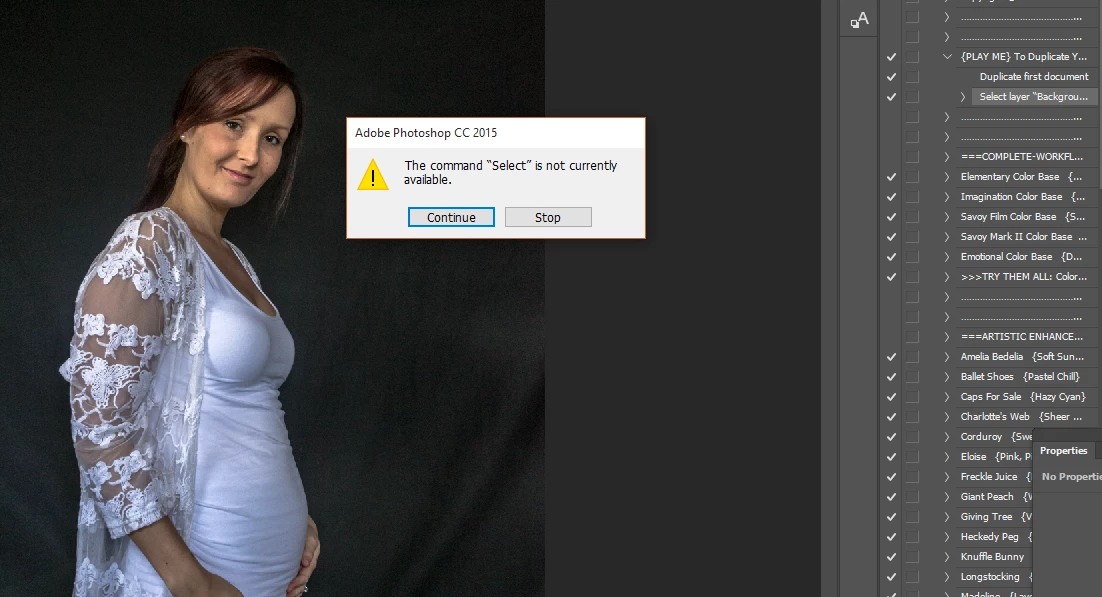
I've installed a Greater Than Gatsby Action but cant run it because I get 'The command SELECT is not currently available. I tried running a default Action and get 'The command FEATHER is not currently available.'

I went back to PREFERENCES to check everything is in order. I cant find anything amiss. Can someone help please?
Correct answer aeolate

I had this exact same issue with an action I was using.  Look down the action list at the first "Select" command.  Make sure that your layer is named the same as what is in that command.  After that it should work.

36 replies

richh27044178
Participant
April 6, 2018

For anyone else... I had the layer named correctly "Brush"   and got the "command select is not available" i noticed by looking at the action wording it was looking for "brush"... so it is case sensitive...  then it took off.

JJMack
Community Expert
Community Expert
April 6, 2018

It is better to select layers relatively in an action rather than by name.  Layer names need not be unique a Photoshop document can have many layers named Brush or brush which layer would  your action select if there were more then one layer with a matching name. Layer name can also be changed a document may have had a layer named brush which was later renamed to something else like soft brush.

JJMack
FranciscoM81
Participant
January 10, 2018

For some strange reason, it didn't like using an image that I had previously ran the action on. Luckily I had the original image. Or maybe saving it as a different file? I opened the original the saved a copy, ran the script, and it ran just fine. I don't know how or why but it worked.

MCBFineArt&Photograph
Participant
January 7, 2018

Thanks. That fixed my issue

Participant
December 17, 2017

I was hoping to find the answer to my issue here as well. But it seems my issue is a little different.  The action runs fine until it gets to a select command, but for my issue, layer 10 is not available.  All the other layers are created as the should, but except this one.  Not sure if it is because layer 10 is a double-digit some I need to change something else, but since I never created anything with the word "layer" in it, I don't know what I would need to change.  I start off with the locked background layer and the brush layer and that's it, made sure that it's in RGB mode and 8 bits, then run the action.  After a few seconds it stops. 

Eastgate Film Studios
Participant
December 15, 2017

Hello I have a small issue, i am trying to run my action to select and move parts of the image, i open this png file in PS, then run the action and save. (want to batch eventually)

what is wrong here?


Image i want to edit - KOnnGc

Action - Set 2.zip


thanks in advance,
Arne

JJMack
Community Expert
Community Expert
December 15, 2017

A small issue??? I would think you would have major issues reading your action.

You recorded that asction on some document that had some size and resolution.  I assume a png you opened. You had your Photoshop ruler units set to inches which is relative to DPI resolution..

You selected an rectangle area 4.563 inched down from the top and 14.219 inches in fron the left to 14.25 inches down from the top and 17.031 inches in from the left,  An area around 10" high and 3" wide the cut/move that area from the target layer. Then you set set a different rectangle area and cut/move that from the layer.   You then set an other selection and transform the curren layer selection. Your open png image layer that  you cut pixels from.  The layer selection is resize using bicubic interpolation.

If the action work close to way you want it to..  It can only be batched if all your png files have the same size and resolution and you want to cut the sane areas in all the pngs.  Otherwise the selections may not be  where you want and the size you want and the dicument canvas size may act as a clipping mask for the resize layer.  Imag size is hard to deal with in Actions.

Single steping through your action on your png works like this. All the set selection steps  seem to be off for this png file content.

Select move select move select transform

Crafting Actions Package UPDATED Aug 10, 2014 Added Conditional Action steps to Action Palette Tips.

Contains

Example

Download

JJMack
Eastgate Film Studios
Participant
December 19, 2017

Hello JJMack,

thanks for your reply.

That is exactly what i am trying to do, the actions you had above, all my pngs are the same size and resolution, and i want to move that exact areas on all of the pngs, the image that i sent you was just a sample to help me get the movements correct, so it may look like i got the selections in the wrong place.


the issue is when i try to do a batch or even run the action on one png it will come up on the first image saying "select command not available" or something similar.


I have attached 2 of the pngs i want to apply the action to:


jj6h6A


wQbA5R


thanks very much in advance.


Arne Currie

Participant
September 19, 2017

hola alguien me puede ayudar con la accion de sandstorm para photoshop cc 2017 me da este error:

error of no more virtual tiles can bea allocated

JJMack
Community Expert
Community Expert
September 19, 2017

Save the action  et up  load the *.atn file to a file sharing service and post a link to it here so we can look at your action.

JJMack
Participant
September 2, 2017
chetankumarb61516410
Participant
August 30, 2017

I had the exact same problem.

I solved issue. Answer was not here in any post.

I made a copy of my images folder. Now

1) Create a new set by your name.

2) Create new action (Give a name what you want to do)

3) Open your picture and start your procedures.

4) at last (Instead of save as, you should use save command).

You still have the original folder. don't worry about your images.

5) Stop the action.

Go to file, Automate, batch now uncheck the box (Override action "Save As" Command)

Click ok

You are done here.

joshuamarionk14075739
Participant
August 11, 2017

hola vivo en Mexico, y estube leyendo a todos y practicando cada tip.. y me seguia fallando la accion..pero buscandole por todos lados de mi parte lo solucione instalando el (ABR) que venia con el (ATN)  y despues abri la ventana de las Brushes y active todas las casillas y me funciono sin errores.. bueno espero a alguien le sirva.. y ceuquen que el archivo accion traiga los 2 files el ABR & ATN e instalarlos ambos...saludos my friends

HannahBarlow
Participant
April 30, 2017

I figured it out!! At least, I figured it out on my end.  I wasn't just getting the select command not being available...but make and all kinds of other commands.  My issue was that I was opening my files from ACR as a smart Object.  There was no background layer.  Since the actions start by "selecting the background" layer..it was getting confused.  As soon as I renamed my first layer "Background"...I've had no issues!

JJMack
Community Expert
Community Expert
April 30, 2017

Yes action can have dependencies you required a Background layer.  You could change the action to select the bottom layer instead. The action may then run or may fail some other ways.  For a smart object layer's pixels can not be changes by Photoshop tools only smart filters and adjustments layer can change the layer composite view.   Actions can have many dependencies.

JJMack
Participant
February 6, 2021

3 years later but thank you I was also having this issue - and flattening my image before applying actions helped so much