Participant
March 7, 2024
Answered

Every time I open Photoshop the Layers Panel is hidden

  • March 7, 2024
  • 3 replies
  • 1578 views

Using latest version of Photoshop through Creative Cloud Desktop on windows PC.


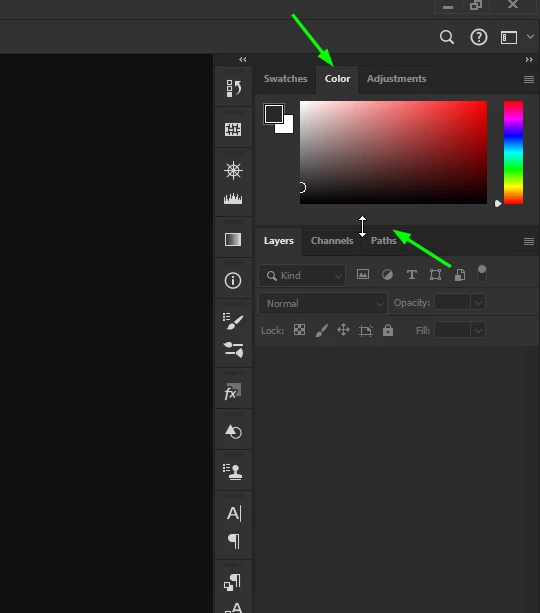
Every time I open a file or open Photoshop, the layers panel is automatically hidden and I have to go to Windows> Layers to make it apear which is increasingly annoying because it used to open with the Layers right there about a month ago.


I have tried resetting workspace. I have tried creating a custom workspace. But still, every single time I open Photoshop either via an existing file or image or via a new document, it opens without the layers. 

The attached image is how it looks after a reset (I'm not sure why the Color panel is so enormous either).

So, every day I do anything I have to resize the color panel, and then Windows> Layers to see my layers panel. 


Any one else with a similar issue manage to fix it?

Thank you


This topic has been closed for replies.
Correct answer Ged_Traynor

@AMoonriseArts you can re-size the colour panel by either dragging up or down, and if you want to close the panel, just double click on the name.

For the layer panel not showing, try manually resetting your Photoshop preferences
https://helpx.adobe.com/ie/photoshop/using/preferences.html#Manually
Remember to backup your settings before doing the preference reset
https://helpx.adobe.com/ie/photoshop/using/preset-migration.html

3 replies

Participant
November 23, 2024

I have the same problem.  No one answers the question and when there is an answer it is totally some kind of rediculous workaround.  I think its a bug.  Before Photoshop become a constant pay when it was software on a DVD, it never had this problem.  Aren't you glad you get to spend more money and get so many more bugs from CI/CD.


D Fosse
Community Expert
Community Expert
November 23, 2024

@Vivacious_future6711 


If you have the same problem, then the answer is to resize the color panel. Have you tried that?


Generally, any problem with panel arrangement is usually solved by dragging the panel out so it's free-floating, make sure it's a sensible size, and re-dock it where you want it to be.

Participant
March 7, 2024

Thank you very much, I knew it would be something kind of obvious that me being somewhat newb just didn't see!


Truly grateful for your prompt reply! 

Ged_Traynor
Community Expert
Ged_TraynorCommunity ExpertCorrect answer
Community Expert
March 7, 2024

@AMoonriseArts you can re-size the colour panel by either dragging up or down, and if you want to close the panel, just double click on the name.

For the layer panel not showing, try manually resetting your Photoshop preferences
https://helpx.adobe.com/ie/photoshop/using/preferences.html#Manually
Remember to backup your settings before doing the preference reset
https://helpx.adobe.com/ie/photoshop/using/preset-migration.html