


Participant
June 26, 2016
Answered

Export as .... PNG (no transparent background)

  • June 26, 2016
  • 4 replies
  • 36553 views

Hello

After the introduction of the artboards, I started use photoshop to create sets of icons (one icon per artboard) and then export it as PNG with transparent background. Few days ago I did the update of the Photoshop CC to the last version, and now with the same selection done, none of the icons are exported with transparent background, in all icons now I have a white background.

This is a bug? Or now it is needed change something more in a hidden place?

Thank you,

Ricardo
This topic has been closed for replies.
Correct answer SteveWeinrebe

Hi - this is indeed the result of a change in Artboard behavior. The ability to change artboard background color resulted in some changes to the way documents created in earlier versions now behave in Photoshop CC 2015.5. When you open a document created in the earlier version, the artboard contents are - at first going to open with a default White background.

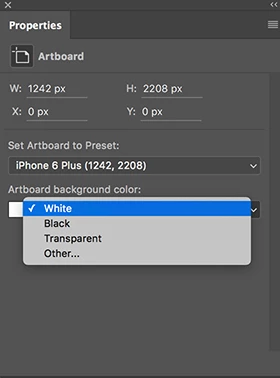
To change that, simply go to the Artboard properties, by clicking on the Artboard in the Layers panel and then looking at the Properties panel. In Properties, change the background to Transparent. See attached screenshot.

Steve

4 replies

Douglas Stefani
Participating Frequently
July 16, 2023

It worked for me! I put all the layers inside a group and export this group to PNG (right click on the group > Quick export as PNG)

SteveWeinrebeCorrect answer
Inspiring
June 26, 2016

Hi - this is indeed the result of a change in Artboard behavior. The ability to change artboard background color resulted in some changes to the way documents created in earlier versions now behave in Photoshop CC 2015.5. When you open a document created in the earlier version, the artboard contents are - at first going to open with a default White background.

To change that, simply go to the Artboard properties, by clicking on the Artboard in the Layers panel and then looking at the Properties panel. In Properties, change the background to Transparent. See attached screenshot.

Steve

KadongaAuthor
Participant
June 26, 2016

Hi guys, thank you for all replies.
After post my question, I made some investigation and the "problem" is the change to the Artboard background property like SteveWeinrebe​ made reference.

On earlier versions, it was enough to set the PNG to transparency, now it seems I have to change the "Artboard background color".

Will be a pain, because I have some sets of icons with hundred of icons/artboards.

But now I know the solution.

Thank you all

Terri Stevens
Legend
June 26, 2016

Thank you very much I love it when I tell someone what their problem is and they don't mark my answer as even helpful . If you want help in the future look elsewhere.

Terri Stevens
Legend
June 26, 2016

Hello,

I have not been able to reproduce your problem on a Windows machine, but just a few ideas

1) Are you setting up the artboard correctly? You can now set the background of artboards. Below is the old dialog

and below here is the new dialog from a preset. Notice you can now make the artboard transparent

When you use Export as does the preview show transparency like this?

To prove it works this is the exported PNG as seen in Photoshop

Terri Stevens
Legend
June 26, 2016

Additionally if you cannot see the checkerboard pattern in Export As check the transparency checkbox is active.

Socrates_in_NJ
Known Participant
June 26, 2016

I just did a test and it works fine for me.  The background on the PNG appears a very light grey (almost a dirty white) but when I paste it onto another image, it is transparent.  I tested both with Export and Save As.  I have the latest PS-CC on a Mac.

Test your image with a C&P and post back with results.