

Heatinwaves
Participant
March 24, 2026
Answered

Export image in Lab Color using only the A and B channels

  • March 24, 2026
  • 3 replies
  • 59 views

I’m working in Lab Color mode and I’m trying to isolate the A and B channels while completely removing the L channel. I also don’t want to keep the combined Lab channel.

What I want to achieve is to keep only the A + B data (color without luminance), turn that into a visible image, and be able to export/save it to JPEG/PNG/TIFF.

So far, copy, paste methods don’t give me the result I’m looking for, as the image becomes black and white, and I understand that A and B aren’t standalone image channels in the usual sense.

Is there a way to do this properly or a workaround that would allow me to visualize and export only the A and B information?
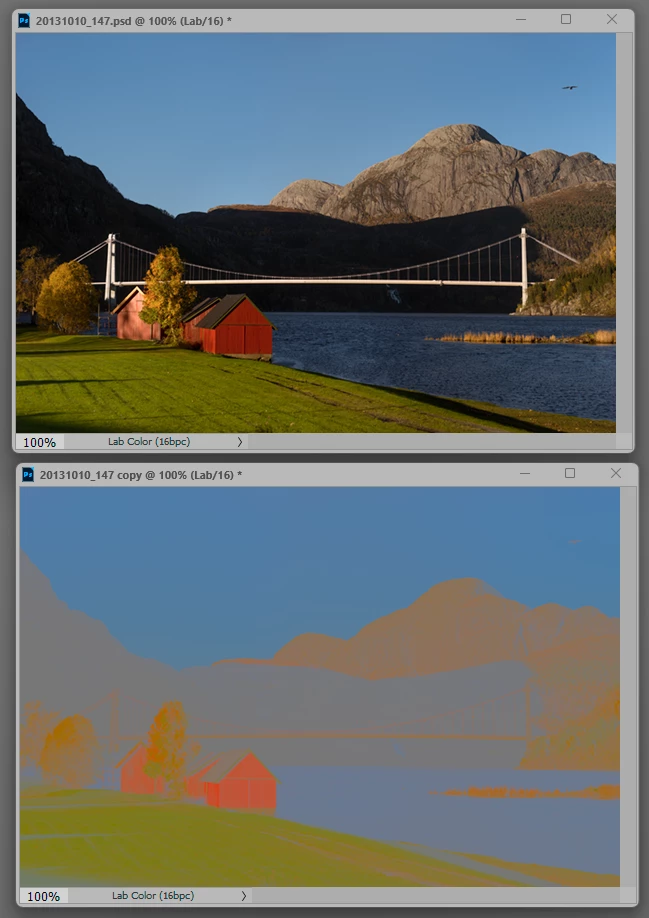
    Correct answer D Fosse

    I’d simply fill the L channel with 50 (middle gray). That gives you a normal Lab image, but containing only the color information, that you can export or save to any other format you wish.


    3 replies

    Stephen Marsh
    Community Expert
    Community Expert
    March 25, 2026

    Both the method that I mentioned, and the one from ​@D Fosse provide the same result:


    D Fosse
    Community Expert
    D FosseCommunity ExpertCorrect answer
    Community Expert
    March 25, 2026

    I’d simply fill the L channel with 50 (middle gray). That gives you a normal Lab image, but containing only the color information, that you can export or save to any other format you wish.


    Heatinwaves
    Participant
    March 25, 2026

    Thank you! It worked perfectly!

    Stephen Marsh
    Community Expert
    Community Expert
    March 25, 2026

    Working on a duplicate file… Yes, this is possible by unchecking the L channel in the advanced blending options, possibly merging that with a blank layer or flattening to lock down the changes. Apart from TIFF, the other file formats will require a conversion to RGB mode.